Are you ready to take full control of your home’s security with your Schlage Encode Smart Wifi Deadbolt? Programming your smart lock might seem tricky, but it’s easier than you think.
In this guide, you’ll discover simple, step-by-step instructions that anyone can follow. By the end, you’ll know exactly how to set up your lock, customize your codes, and connect it to your WiFi for seamless access. Keep reading—you’re just a few easy steps away from smarter, safer living.
Getting Started With Schlage Encode
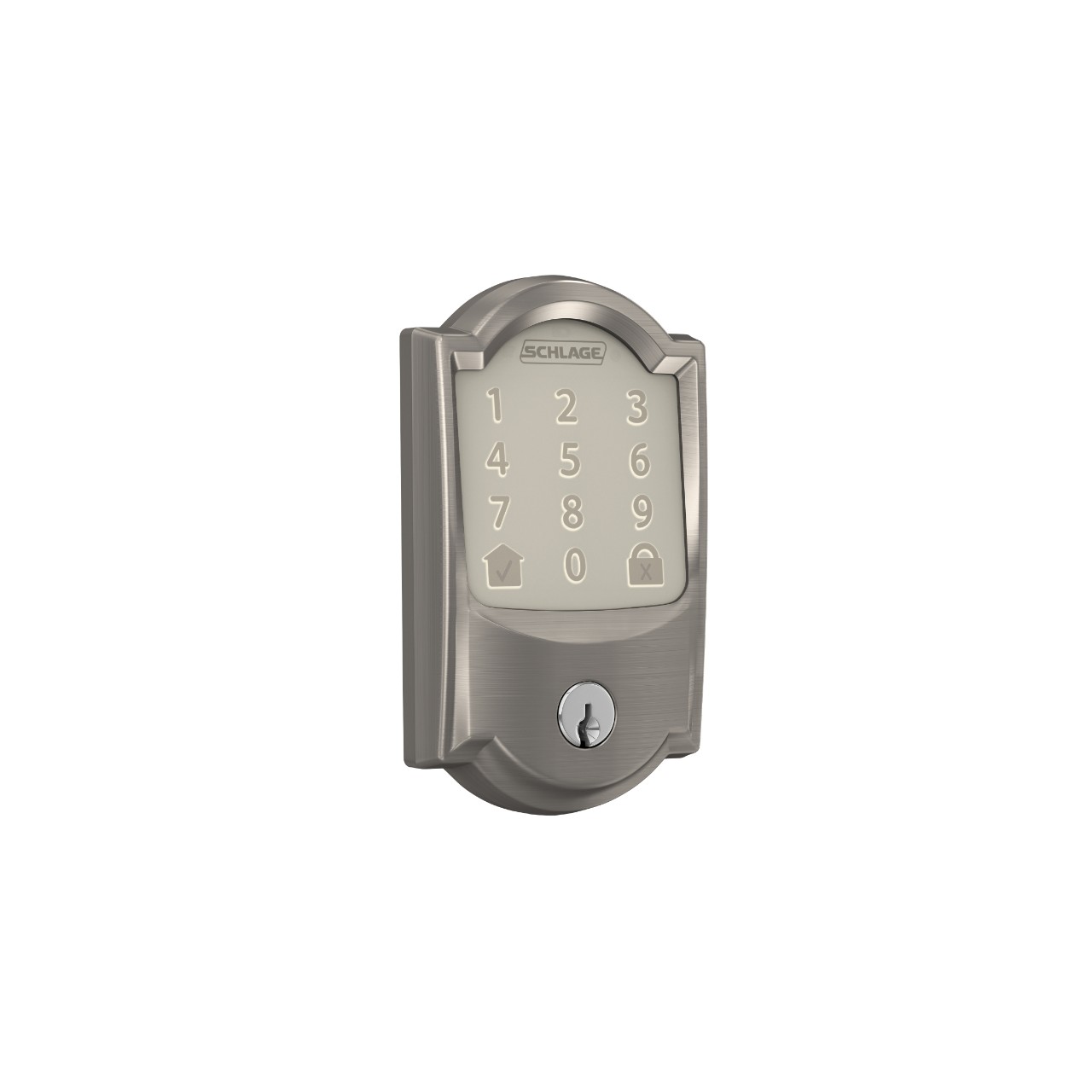
Getting started with your Schlage Encode smart WiFi deadbolt is simple and straightforward. This guide walks you through the first steps to set up your new smart lock. Follow these easy instructions to get your door secure and connected in no time.
Unboxing And Initial Setup
Open the package carefully. Inside, you will find the deadbolt parts, mounting hardware, batteries, and instructions. Check that all pieces are included. Take a moment to read the quick start guide. It helps you understand the parts and tools needed for installation.
Installing The Batteries
Locate the battery compartment on the inside of the lock. Slide the cover off gently. Insert the four AA batteries following the correct polarity. Close the battery cover securely. The lock will power on, and the keypad will light up. This signals the battery installation is complete.
Connecting The Deadbolt To Your Door
Remove your existing deadbolt from the door. Align the Schlage Encode deadbolt with the door holes. Insert the latch and secure it with screws. Attach the exterior keypad and interior thumb turn. Tighten all screws to hold the lock firmly. Test the deadbolt to ensure smooth locking and unlocking.

Credit: www.amazon.com
Installing The Schlage Home App
Installing the Schlage Home app is the first step to control your Schlage Encode Smart WiFi Deadbolt. The app lets you manage your lock remotely and set user codes easily. It connects your phone to the lock through WiFi. Follow these simple steps to get started with the app and link your deadbolt to your home network.
Downloading The App
Open the App Store on iPhone or Google Play on Android. Search for “Schlage Home.” Look for the official app by Schlage. Tap the download or install button. Wait for the app to finish downloading and install on your phone. Make sure your phone has a good internet connection.
Creating An Account
Open the Schlage Home app after installation. Tap on “Create Account” to register. Enter your email address and choose a strong password. Follow the instructions to verify your email. This account will keep your lock settings safe. It also lets you control the lock from any location.
Pairing The Deadbolt With Wifi
Turn on your Schlage Encode deadbolt. Open the app and log in to your account. Select “Add Device” in the app. Follow the steps to put the lock in pairing mode. Choose your home WiFi network and enter the password. Wait for the app to connect the lock to WiFi. Confirm the connection is successful before closing the app.
Programming Your Deadbolt
Programming your Schlage Encode Smart WiFi Deadbolt is simple and gives you control over your home’s security. You can set user codes, change lock settings, and set auto-lock times. This lets you manage access easily and keep your home safe.
Setting Up User Codes
Start by opening the Schlage app on your phone. Select your lock and go to the user codes section. Tap “Add User” to create a new code. Enter a simple code that is easy to remember but hard to guess. Assign the code to a person or purpose. Save the code and test it on the lock. You can add multiple codes for family or guests. Delete codes anytime for security.
Customizing Lock Settings
Access the settings menu in the app for your lock. Change the lock sound, auto-lock timing, and notifications. Adjust settings for your daily routine. Turn on or off the keypad light. Set up alerts to notify you of lock activity. Customize to fit your security needs and comfort.
Enabling Auto-lock Features
Auto-lock keeps your door locked without manual effort. In the app, find the auto-lock option. Choose the time delay before the door locks itself. Set a short delay for quick security or longer if needed. Save your choice. Test the feature by locking the door and waiting. Auto-lock helps prevent leaving the door open by mistake.

Credit: www.youtube.com
Managing Access And Notifications
Managing access and notifications on your Schlage Encode Smart WiFi Deadbolt keeps your home secure and organized. You control who enters your home and when. The system also alerts you about lock activity. This helps you stay informed and in control of your door security.
Adding And Deleting Users
To add a user, open the Schlage app and go to the user management section. Enter the new user’s name and create a unique access code. Save the details to activate the code immediately. Deleting a user is just as simple. Select the user from the list and remove their access. This instantly disables their code. Managing users ensures only trusted people can enter your home.
Setting Temporary Codes
Temporary codes allow access for a limited time. Set these for guests, workers, or deliveries. Choose the start and end times for the code. The system automatically disables the code after the time expires. Temporary codes protect your home without giving permanent access. You can create multiple temporary codes for different users.
Configuring Alerts And Notifications
Configure alerts to monitor your door’s activity. Receive notifications when someone locks or unlocks the door. Get alerts for failed access attempts. You can choose to get notifications on your phone or email. This keeps you aware of all lock activity. Alerts help you respond quickly to any suspicious actions.
Troubleshooting Tips
Problems can happen while programming your Schlage Encode Smart WiFi Deadbolt. These issues may slow you down or stop you from using the lock properly. This section offers easy troubleshooting tips to help you fix common problems quickly. Follow these steps to keep your smart lock working well.
Resetting The Deadbolt
Resetting the deadbolt can solve many issues. First, remove the battery cover on the inside of the door. Press and hold the reset button for about 10 seconds until the lock beeps. This action restores the lock to factory settings. After that, you must set up the lock again using the app or keypad. Resetting clears previous errors and prepares your lock for fresh programming.
Resolving Wifi Connection Issues
WiFi problems can stop your lock from working remotely. Check if your home WiFi is stable and close to the lock. Restart your router to refresh the connection. Make sure the lock is connected to a 2.4 GHz network, not 5 GHz. Use the Schlage app to reconnect the lock to WiFi. Follow the app instructions step-by-step to avoid mistakes. Good signal strength ensures smooth lock control from anywhere.
Battery Maintenance
Low battery power causes many lock failures. Replace batteries with fresh alkaline ones for best results. Avoid using rechargeable or cheap batteries as they drain fast. Check battery levels regularly in the Schlage app. Change batteries if the lock beeps or responds slowly. Proper battery care keeps your smart lock active and reliable every day.
Credit: www.schlage.com
Frequently Asked Questions
How Do I Connect Schlage Encode To Wifi?
To connect, install the Schlage Home app and create an account. Follow in-app instructions to link your lock to your WiFi network. Ensure your router supports 2. 4 GHz bands for compatibility and a stable connection.
How Can I Add User Codes To Schlage Encode?
Open the Schlage Home app, select your lock, and go to the “Users” section. Tap “Add User” and enter a new access code. Assign permissions, then save to activate the code immediately.
What Is The Reset Process For Schlage Encode?
To reset, press and hold the Schlage button for 10 seconds until it flashes red. This erases all settings, returning the lock to factory defaults. Reprogram the lock afterward for continued use.
Can I Control Schlage Encode Remotely?
Yes, with the Schlage Home app and WiFi connection, you can lock or unlock remotely. Receive notifications and manage access from anywhere with internet access, enhancing convenience and security.
Conclusion
Programming your Schlage Encode Smart WiFi Deadbolt is simple and quick. Follow each step carefully to avoid errors. Keep your WiFi details handy for smooth setup. Test the lock after programming to ensure it works well. Enjoy the convenience and security it brings to your home.
This smart lock makes key management easier every day. Stay safe and in control with your new device.