Are you struggling to connect your Wemo light switch to WiFi? You’re not alone.
Getting your smart switch online might seem tricky at first, but with the right steps, you can have it working smoothly in no time. Imagine controlling your lights from anywhere with just a tap on your phone—sounds great, right? Keep reading, and you’ll discover simple, clear instructions that make the setup quick and hassle-free.
By the end, you’ll have your Wemo switch fully connected and ready to brighten your home smarter than ever.
Credit: www.youtube.com
Prepare Your Wemo Light Switch
Preparing your Wemo Light Switch is the first step to connect it to WiFi. This stage ensures the switch works well with your home setup. Proper preparation makes installation easier and safer. Follow the steps carefully to avoid problems later.
Check Compatibility
Make sure your Wemo Light Switch matches your home’s wiring. Check if you have a neutral wire in the switch box. The Wemo switch needs a neutral wire to function. Also, verify your home’s WiFi network supports the switch.
Turn Off Power
Safety first. Turn off the power at the circuit breaker. Confirm no electricity flows to the switch before handling wires. Use a voltage tester to be sure. This step protects you from electric shock.
Install The Switch
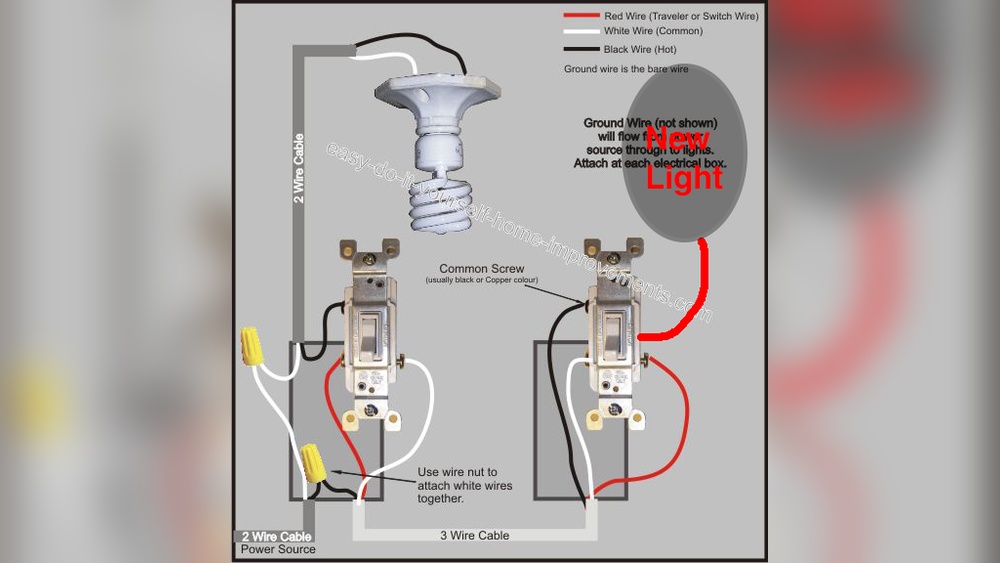
Remove the old switch carefully. Connect the Wemo switch wires to the correct wires in the wall. Match colors: black to black, white to white, and green or copper to ground. Secure the wires with wire nuts. Attach the switch to the wall box and screw it in place.
Download The Wemo App
To connect your Wemo Light Switch to WiFi, start by downloading the Wemo app. This app controls your smart switch from your phone. It helps you set up, manage, and customize your device easily.
The app is free and works on both iOS and Android devices. Having the app ready speeds up the connection process. Follow the simple steps below to get the app on your phone.
Find The App
Open the App Store on your iPhone or Google Play Store on your Android device. Type “Wemo” in the search bar. Look for the official Wemo app by Belkin International. The app icon is green with a white power symbol. Tap “Download” or “Install” to get the app on your phone.
Create Or Log In To Account
After installing, open the Wemo app. You need an account to use the app features. Tap “Sign Up” to create a new account. Enter your email and choose a password. If you already have an account, tap “Log In” instead. Use your email and password to access the app. This step keeps your devices secure and synced.
Connect To Wifi Network
Connecting your Wemo Light Switch to your WiFi network is key to controlling it remotely. This step allows the switch to communicate with your smartphone and the Wemo app. The process is simple and quick when you follow the right steps.
Enable Bluetooth And Location
Start by turning on Bluetooth on your phone. This helps the app find your Wemo Light Switch. Next, enable location services. The app uses this to detect nearby devices. Both settings are essential for a smooth connection.
Add New Device In App
Open the Wemo app on your phone. Tap the option to add a new device. The app will start searching for your Wemo Light Switch. Once it appears, select it to begin setup. Follow the on-screen instructions carefully.
Select Your Wifi Network
Choose your home WiFi network from the list shown. Enter your WiFi password exactly. Make sure your phone stays close to the Wemo switch. This ensures a strong connection during setup. Wait for confirmation that the switch is connected.

Credit: www.belkin.com
Configure Your Wemo Switch
Configuring your Wemo light switch is an important step to control it easily. This process sets up your device to work smoothly with your home WiFi. Follow the steps below to make your Wemo switch ready for use.
Name Your Device
Give your Wemo switch a clear name. This helps you identify it in the app. For example, use names like “Living Room Light” or “Kitchen Switch.” A simple name makes managing devices easier.
Set Preferences
Adjust the settings to fit your needs. Choose options like notifications or schedules. You can also set the switch to turn on or off at specific times. These preferences make your smart switch more useful.
Test The Connection
Check if the Wemo switch connects to WiFi correctly. Use the app to turn the light on and off. If the light responds fast, your connection works well. If not, try reconnecting or checking your WiFi signal.
Troubleshooting Tips
Connecting your Wemo Light Switch to WiFi can sometimes be tricky. Problems with connection happen often. These troubleshooting tips help fix common issues fast. Follow these steps to get your switch online and working smoothly.
Reset The Switch
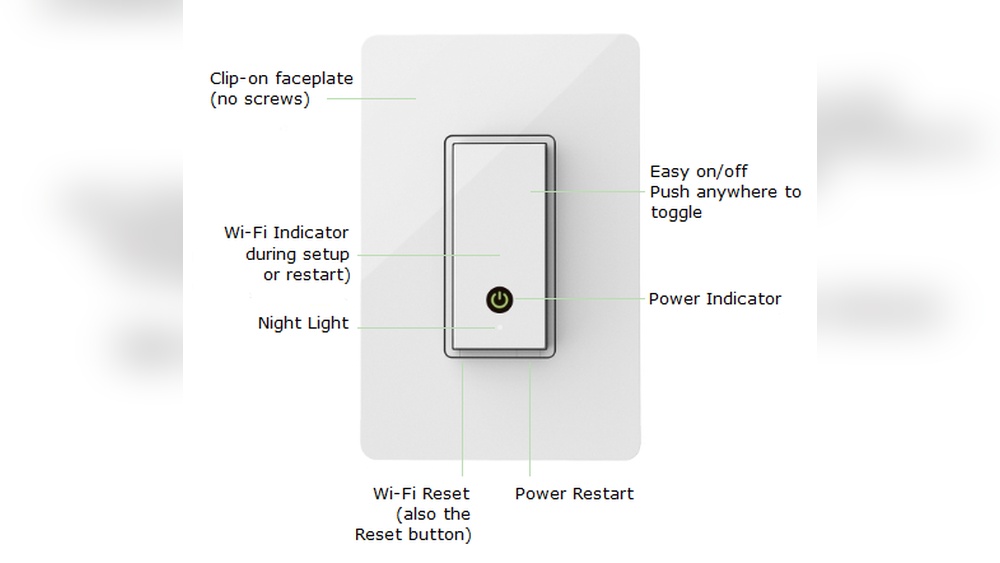
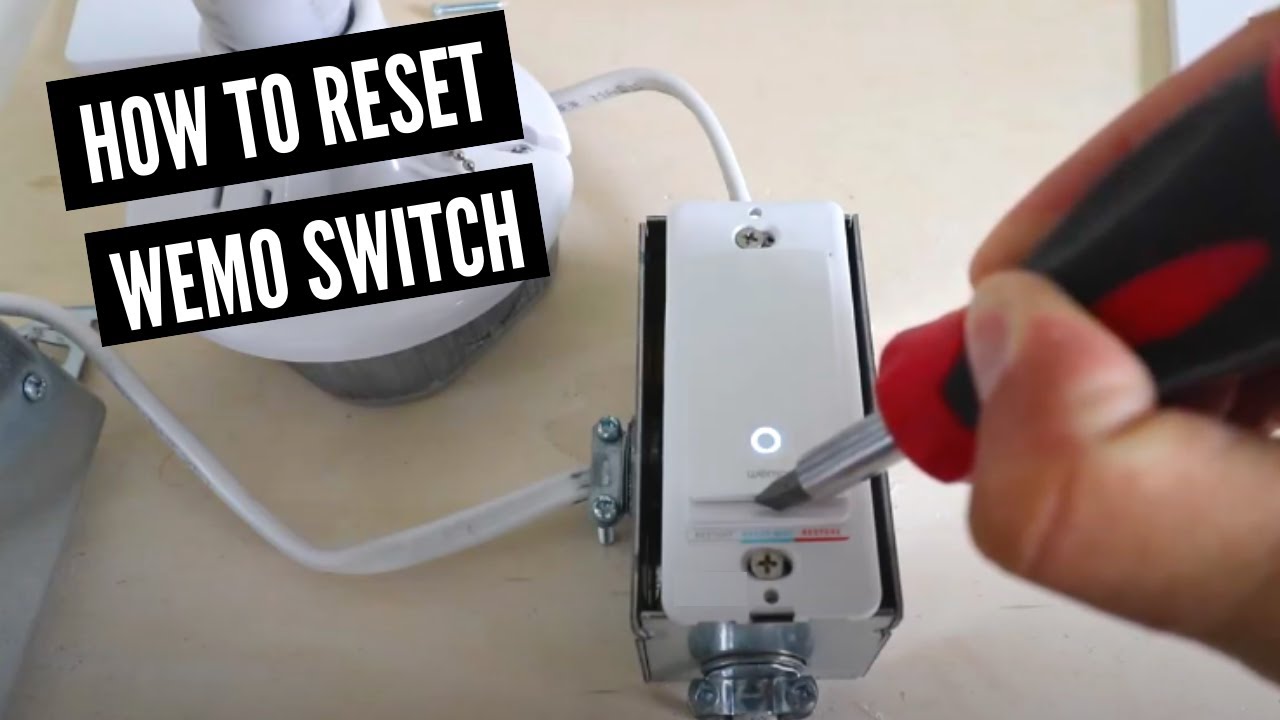
Start by resetting your Wemo Light Switch. This clears old settings and errors. Find the small reset button on the switch. Hold it for 10 seconds until the light blinks. Release the button and wait for the switch to restart. Try connecting to WiFi again after the reset.
Check Wifi Signal
Weak WiFi signals cause connection problems. Place the Wemo switch near your router if possible. Avoid thick walls or metal objects between the switch and router. Use a phone or laptop to check signal strength in the switch area. Stronger signal means better connection chances.
Update Firmware
Outdated firmware can stop the switch from connecting. Use the Wemo app to check for updates. Follow prompts to download and install the latest firmware. Updated firmware improves performance and fixes bugs. Keep your switch’s software current for best results.

Credit: www.belkin.com
Using Voice Assistants
Using voice assistants makes controlling your Wemo Light Switch simple. You can turn lights on or off just by speaking. Voice commands add comfort to your daily routine. They also allow hands-free control, perfect when busy or away from the switch.
Connect With Alexa
First, open the Alexa app on your phone. Tap “Devices” at the bottom of the screen. Next, select the “+” icon to add a new device. Choose “Light” and then “Wemo” from the list.
Sign in with your Wemo account to link it. Alexa will search for your Wemo Light Switch. Once found, assign it to a room for easy control. Now, say “Alexa, turn on the light” to test.
Connect With Google Assistant
Open the Google Home app on your smartphone. Tap the “+” icon to add a device. Choose “Set up device” and then “Works with Google.”
Search for “Wemo” in the list of services. Log in to your Wemo account to link it. Your Wemo Light Switch will appear in the app. Assign it to a room to organize your devices.
Try saying, “Hey Google, switch on the light” to check if it works.
Frequently Asked Questions
How Do I Connect Wemo Light Switch To Wifi?
To connect, first install the Wemo app on your smartphone. Then, power on the switch and follow in-app instructions to link it to your WiFi network. Ensure your router uses 2. 4 GHz for compatibility.
Why Won’t My Wemo Switch Connect To Wifi?
Check if your WiFi is 2. 4 GHz, as Wemo doesn’t support 5 GHz. Also, verify your password is correct and the switch is in pairing mode. Restart your router and switch if needed.
Can I Use Wemo Switch With Wifi Extenders?
Yes, but ensure the extender supports 2. 4 GHz and has good signal strength. Place the Wemo switch within strong WiFi range for stable connectivity and better performance.
How Do I Reset My Wemo Light Switch Wifi?
Press and hold the reset button on the switch for 10 seconds until the LED blinks. This resets WiFi settings, allowing you to reconnect the device through the Wemo app.
Conclusion
Connecting your Wemo Light Switch to WiFi is simple and quick. Follow the steps carefully for a smooth setup. Once connected, enjoy easy control from your phone. No need to worry about complicated instructions. You can control your lights anytime, anywhere.
Make sure your WiFi signal is strong for the best experience. Stay connected and save energy with smart lighting. This small change makes your home smarter and more convenient. Give it a try today and see the difference yourself.