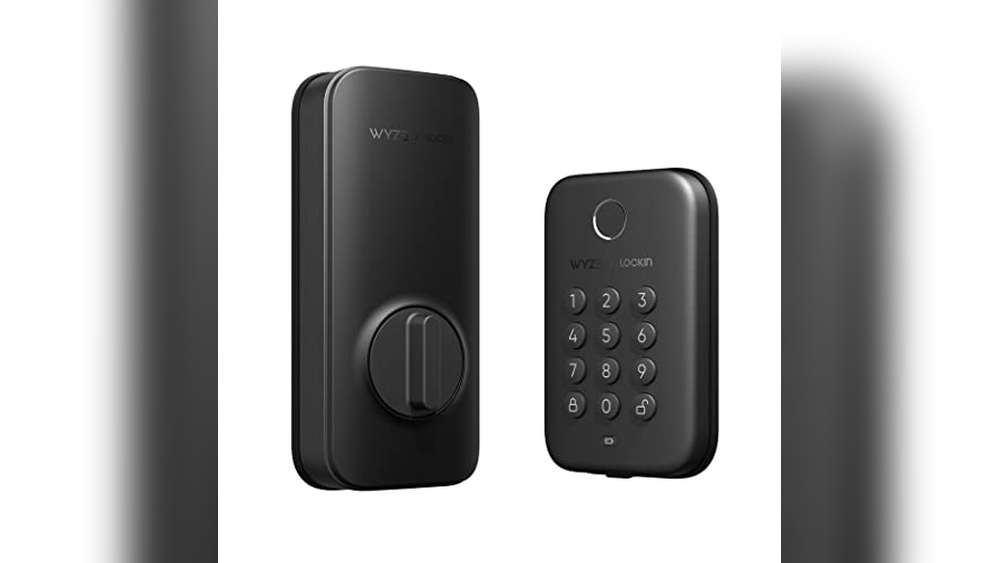
Looking to take control of your home’s security with ease? Programming your Hyper Tough Digital Deadbolt might seem tricky, but with the right steps, you can set it up quickly and confidently.
Imagine never fumbling for keys again and knowing you can change your code anytime you want. This guide will walk you through every step clearly, so you can protect your home and feel secure without any hassle. Ready to make your door smarter and your life simpler?
Let’s get started.
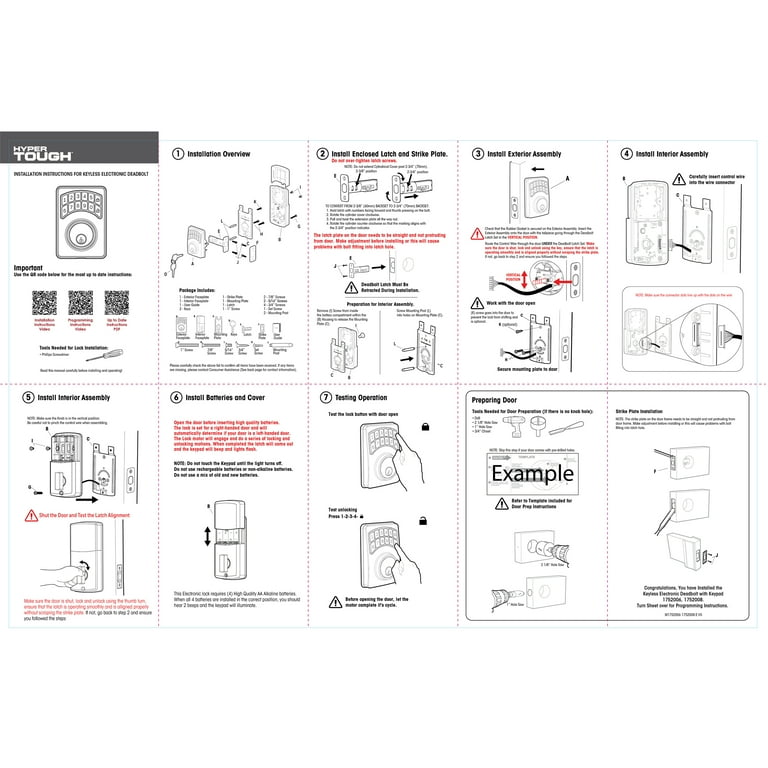
Credit: www.walmart.com
Preparing Your Deadbolt
Preparing your Hyper Tough digital deadbolt is the first step to successful programming. This stage ensures your lock is ready and working correctly. It helps avoid common issues during setup.
Follow these simple steps to get your deadbolt ready. Clear instructions make programming easier and faster.
Gather Necessary Tools
Collect all tools before starting. You will need a small screwdriver and fresh batteries. Keep your owner’s manual nearby for reference. Having everything ready saves time and effort.
Check Battery Installation
Open the battery compartment carefully. Verify the batteries are in the correct position. Use new batteries for the best performance. Poor battery placement can cause the lock to fail.
Locate Programming Buttons
Find the programming buttons inside the lock’s cover. These buttons control the setup process. Pressing the right button starts programming mode. Check the manual if you have trouble finding them.
Setting Up Master Code
Setting up the master code on your Hyper Tough digital deadbolt is the first step to secure your door. This code controls who can program and change other codes. It is important to set it carefully and remember it well. Follow the steps below to create your master code quickly and easily.
Enter Programming Mode
Start by pressing the programming button inside the lock. Hold it until you hear a beep. This means the lock is ready for programming. The keypad will light up, showing you can enter new codes. Be sure to perform this step within 10 seconds after pressing the button.
Create Master Code
Enter a new 4 to 8 digit code. Choose numbers that are easy for you to remember. Avoid simple sequences like “1234” or repeated digits. After typing your code, press the lock button to save it. The lock will beep twice, confirming your new code.
Confirm Master Code
Re-enter the same code to confirm it. Press the lock button again. The lock will beep three times to show the code is accepted. If the code does not match, the lock will beep once. Repeat the process until the confirmation is successful.
Adding User Codes
Adding user codes to your Hyper Tough digital deadbolt is simple. This feature lets you give access to family members or trusted friends. Each user code is unique and easy to set up. Follow these steps carefully to add new codes quickly.
Access User Code Menu
Start by entering the programming mode on your deadbolt. Press the “Program” button located inside the lock. Use the master code to unlock the settings. Look for the option labeled “User Codes” or “Add User.” Select this to open the user code menu.
Input New User Codes
Choose a new user slot number. Enter the new user code using the keypad. Make sure the code has 4 to 8 digits. Avoid simple sequences like “1234” for better security. Confirm the code by entering it again when prompted.
Save And Test Codes
Press the “Save” or “Enter” button to store the code. Exit the programming mode by pressing the “Program” button again. Test the new code by locking and unlocking the door. Ensure the deadbolt responds correctly to the new user code.

Credit: www.youtube.com
Deleting User Codes
Deleting user codes on your Hyper Tough digital deadbolt keeps your lock secure. Removing old or unused codes stops others from entering your home. This process is simple and quick to do. Follow these steps to delete codes safely.
Navigate To Delete Function
Start by entering your master code on the keypad. Press the gear or menu button to open settings. Scroll through options until you find the “Delete Code” function. Select this option to begin removing user codes.
Select Codes To Remove
The lock will show all saved user codes. Use the keypad to enter the code number you want to delete. You can remove one or more codes this way. Make sure you pick only the codes no longer needed.
Confirm Deletion
After selecting codes, the lock asks for confirmation. Press the confirm or enter button to delete the chosen codes. The lock will beep or flash to show the deletion is complete. Test the lock to ensure the codes are gone.
Configuring Additional Features
Configuring additional features on your Hyper Tough digital deadbolt helps tailor the lock to your needs. These settings improve convenience and security. Let’s explore how to enable auto-lock, set lock sound preferences, and adjust door sensor settings. Each feature enhances your lock’s functionality without complexity.
Enable Auto-lock
The auto-lock feature secures your door automatically after a set time. This prevents accidental unlocking and keeps your home safe. To enable auto-lock, access the lock’s settings menu using the keypad or app. Choose the auto-lock option and set the delay time in seconds. The lock will now secure itself after the delay.
Set Lock Sound Preferences
Sound preferences let you customize alerts and notifications from the lock. Adjust volume or turn off sounds to suit your environment. Use the settings menu to find sound options. Select your preferred volume level or mute the lock. This helps avoid noise while keeping you informed of lock status.
Adjust Door Sensor Settings
The door sensor monitors if your door is open or closed. Adjusting its settings improves accuracy and alerts. Enter the sensor settings through the lock’s control panel. Calibrate the sensor by following the on-screen prompts. Set notifications to alert you if the door stays open too long. This feature adds peace of mind to your security system.

Credit: www.youtube.com
Troubleshooting Common Issues
Programming your Hyper Tough digital deadbolt usually goes smoothly. Sometimes, small issues can stop it from working right. Knowing how to fix these problems saves time and stress. This section covers easy ways to troubleshoot common problems.
Resetting The Deadbolt
Resetting the deadbolt can fix many errors. Locate the reset button inside the battery compartment. Press and hold it for 10 seconds. The lock will beep and lights flash. This clears old settings and restores factory defaults. After reset, reprogram your lock codes.
Battery Replacement Tips
Low battery power causes most deadbolt problems. Open the battery cover carefully. Use 4 fresh AA alkaline batteries for best results. Replace batteries one at a time to keep settings. Check battery terminals for corrosion. Clean terminals with a dry cloth if needed.
Error Code Meanings
The deadbolt shows error codes to explain issues. A flashing red light often means low battery. Beeping sounds can signal wrong code entries. A long beep may mean a jammed bolt or motor issue. Check the user manual for specific error codes. Follow instructions to fix the problem quickly.
Frequently Asked Questions
How Do I Program The Hyper Tough Digital Deadbolt?
To program, enter the default code and press the program button. Follow prompts to set a new user code. Confirm the code by re-entering it. This process secures your lock with personalized access.
Can I Add Multiple User Codes To The Lock?
Yes, the Hyper Tough digital deadbolt allows multiple user codes. You can add up to 19 unique codes. This feature is useful for family members or trusted guests.
What If I Forget My Programming Code?
If you forget the programming code, reset the lock to factory settings. Use the reset button inside the lock. After resetting, you can reprogram it with a new code.
How Do I Change The Master Code On The Lock?
Enter the current master code and press the program button. Follow the instructions to input a new master code. Confirm the change to ensure the lock updates successfully.
Conclusion
Programming your Hyper Tough digital deadbolt is simple with these steps. Follow each part carefully for best results. Remember to keep your new code private and easy to remember. Test the lock several times to ensure it works correctly. Regularly update your code for better security.
Enjoy the convenience and safety your digital deadbolt provides. Stay safe and secure with your newly programmed lock.