Are you wondering how to make the most of your Kwikset electronic deadbolt? You’re not alone.
This smart lock offers convenience and security, but only if you know how to use it properly. Imagine never fumbling for keys again or worrying about whether you locked the door. In this guide, you’ll discover simple steps to set up, operate, and get the best from your Kwikset electronic deadbolt.
By the end, you’ll feel confident and in control of your home’s security with just a few taps or codes. Ready to unlock the full potential of your lock? Let’s dive in.
Kwikset Electronic Deadbolt Features
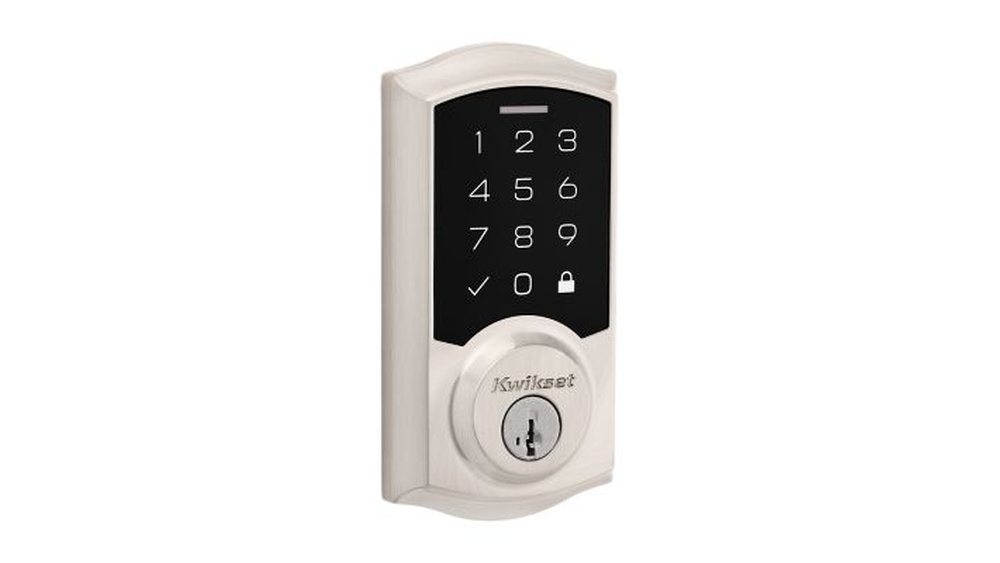
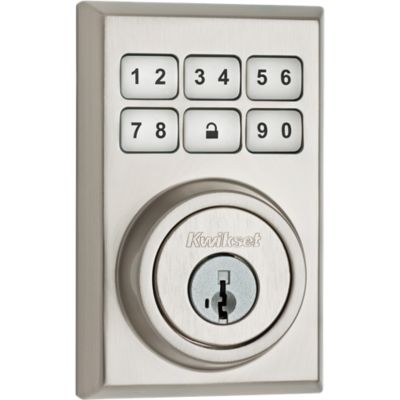
The Kwikset Electronic Deadbolt offers many useful features for home security. It provides a modern way to secure your door without using a traditional key. This smart lock combines convenience with safety, making daily access easier.
Each feature is designed to improve your experience and protect your home. Understanding these features helps you use the deadbolt effectively and enjoy its full benefits.
Keyless Entry Benefits
Keyless entry lets you unlock your door using a code or app. No need to carry keys or worry about losing them. You can create unique codes for family members or guests. This feature saves time and adds flexibility to home access.
Battery Requirements
The deadbolt runs on batteries, usually AA alkaline types. Battery life lasts several months, depending on use. The lock alerts you when battery power is low. Easy to replace batteries keep your lock working smoothly.
Security Options
Multiple security options protect your home with Kwikset. The deadbolt offers anti-tamper technology to prevent forced entry. You can set up automatic locking after a set time. Some models include alarm features to detect break-in attempts.
Credit: www.kwikset.com
Preparing For Installation
Preparing for the installation of your Kwikset electronic deadbolt is the first step. This helps make the process smooth and easy. A little preparation saves time and avoids mistakes. You need to gather tools, check your door, and remove the old lock carefully. This guide will help you get ready quickly.
Tools Needed
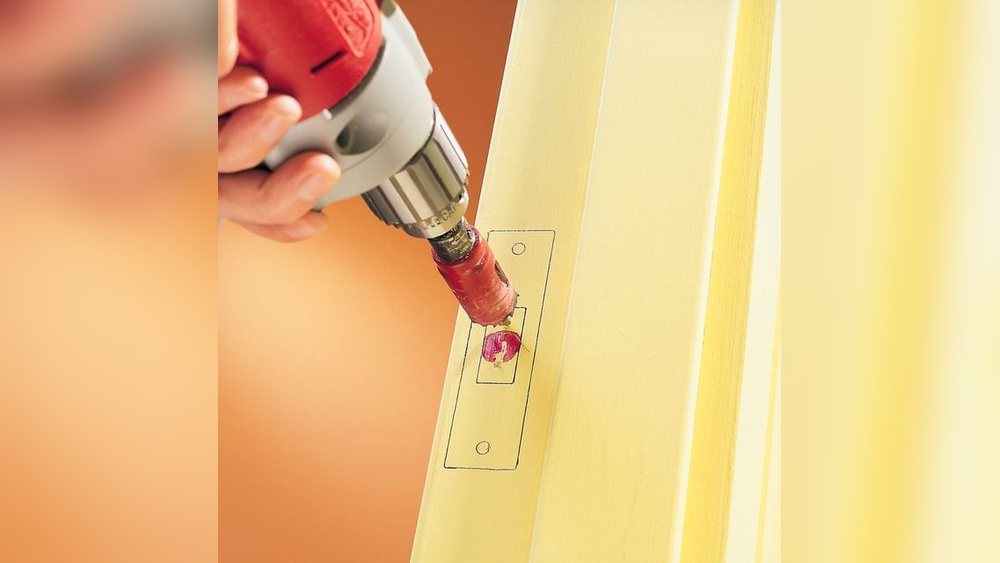
Before starting, collect the right tools. You will need a screwdriver, usually Phillips head. A tape measure helps check sizes. A pencil marks spots on the door. A drill may be needed for new holes. Keep all tools nearby to avoid stopping in the middle.
Checking Door Compatibility
Not all doors fit every lock. Your door should be 1 3/8 to 2 inches thick. The backset, distance from the edge to the hole center, must be 2 3/8 or 2 3/4 inches. Check if the door edge is flat for the latch. Measure carefully before buying or installing the deadbolt.
Removing Old Deadbolt
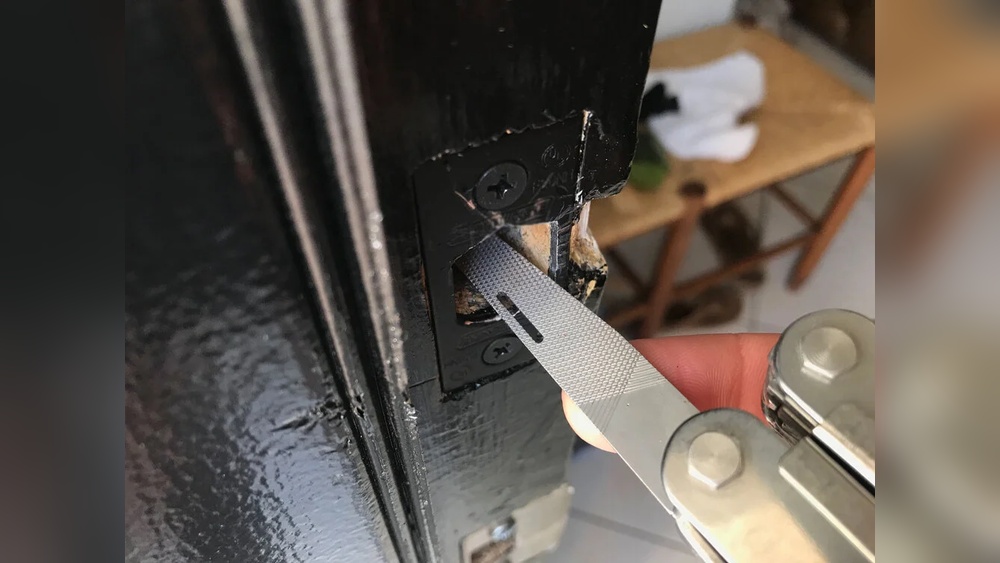
Start by unscrewing the old lock on the inside. Keep screws in a safe place. Pull out the interior and exterior parts gently. Remove the latch from the door edge. Clean the area to remove dust or dirt. This clears the way for the new electronic deadbolt.
Installing The Deadbolt
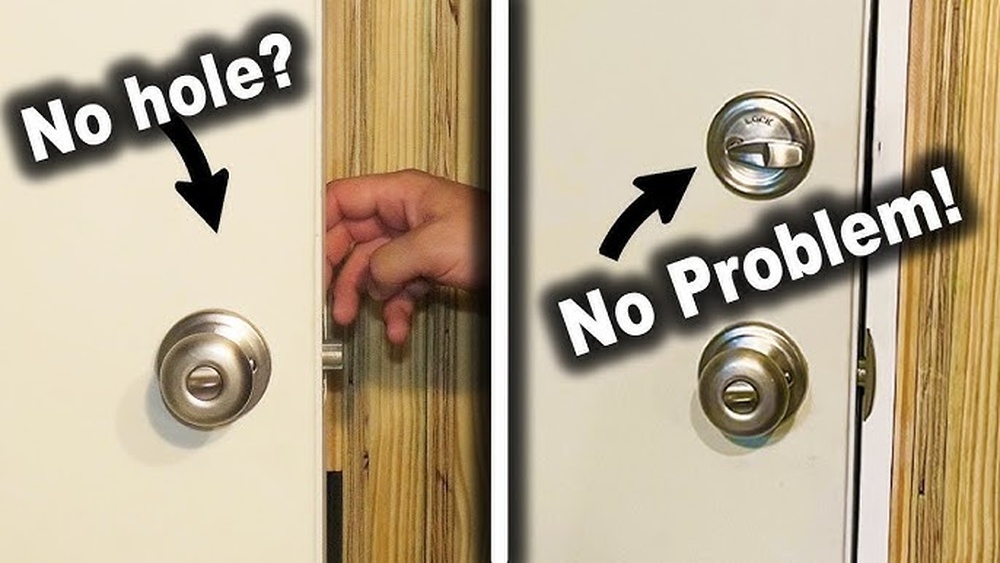
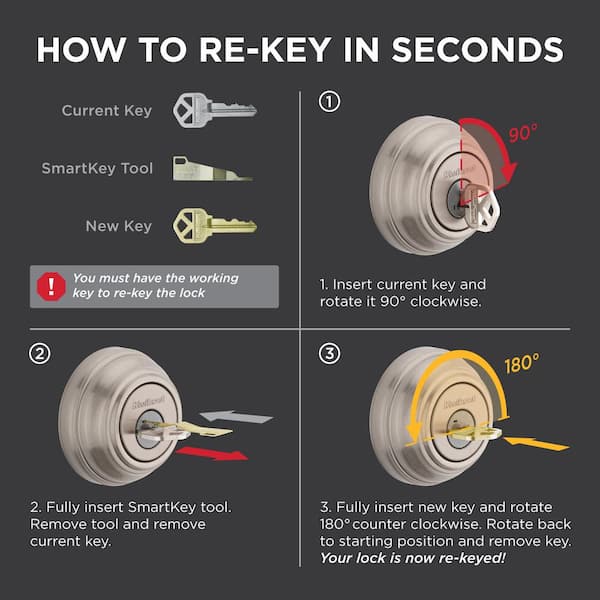
Installing your Kwikset electronic deadbolt is simple and quick. Follow the steps carefully to ensure your lock works properly and keeps your home safe. This guide helps you install the deadbolt with ease.
Mounting The Exterior Assembly
Start by placing the exterior part of the deadbolt on the door. Align the keypad so it sits flat and faces outward. Make sure the tailpiece fits through the door hole. Hold it steady for the next step.
Installing The Interior Assembly
Next, attach the interior assembly on the inside of the door. Connect the tailpiece from the exterior part to the interior side. Use the screws provided to secure both parts tightly. Check that the lock fits snugly and does not move.
Securing The Deadbolt
Finally, test the deadbolt by turning the thumb turn inside. The bolt should slide smoothly in and out. Tighten any loose screws to keep the lock stable. Your Kwikset deadbolt is now ready to protect your home.
Credit: www.homedepot.com
Programming Your Deadbolt
Programming your Kwikset electronic deadbolt lets you control who enters your home. It keeps your space safe and easy to manage. The process involves setting up a main code and adding or removing user codes. These steps help you customize access quickly and safely.
Setting Up The Master Code
Start by setting your master code. This code controls all other functions of the lock. Enter programming mode by pressing the lock’s button. Then input the default master code found in the manual. Follow prompts to create your new master code. Choose a number sequence that is easy to remember but hard to guess. This code is key to managing your lock.
Adding User Codes
Add user codes for family, friends, or helpers. Each user code gives access without sharing the master code. Enter programming mode using the master code. Select the option to add new codes. Type in the new user code and save it. Each code can be unique to one person. This helps track who uses the door and when.
Deleting User Codes
Remove user codes when access is no longer needed. This keeps your home secure. Use the master code to enter programming mode. Choose the delete code option from the menu. Select the user code to remove and confirm. The code will no longer open the lock. Keep your access list updated for safety.
Using The Electronic Deadbolt
Using the Kwikset electronic deadbolt is simple and convenient. It offers different ways to secure your home. You can lock and unlock the door with ease. The keypad lets you enter codes quickly. Some models even support remote access. This gives you control from anywhere.
Understanding how to use each feature helps you get the most out of your lock. Let’s explore the main functions step by step.
Locking And Unlocking
To lock the door, press the lock button on the keypad or turn the thumb turn inside. The deadbolt will slide into place. To unlock, enter your access code or use the thumb turn. The lock confirms your action with a beep. This process is fast and secure.
Using The Keypad
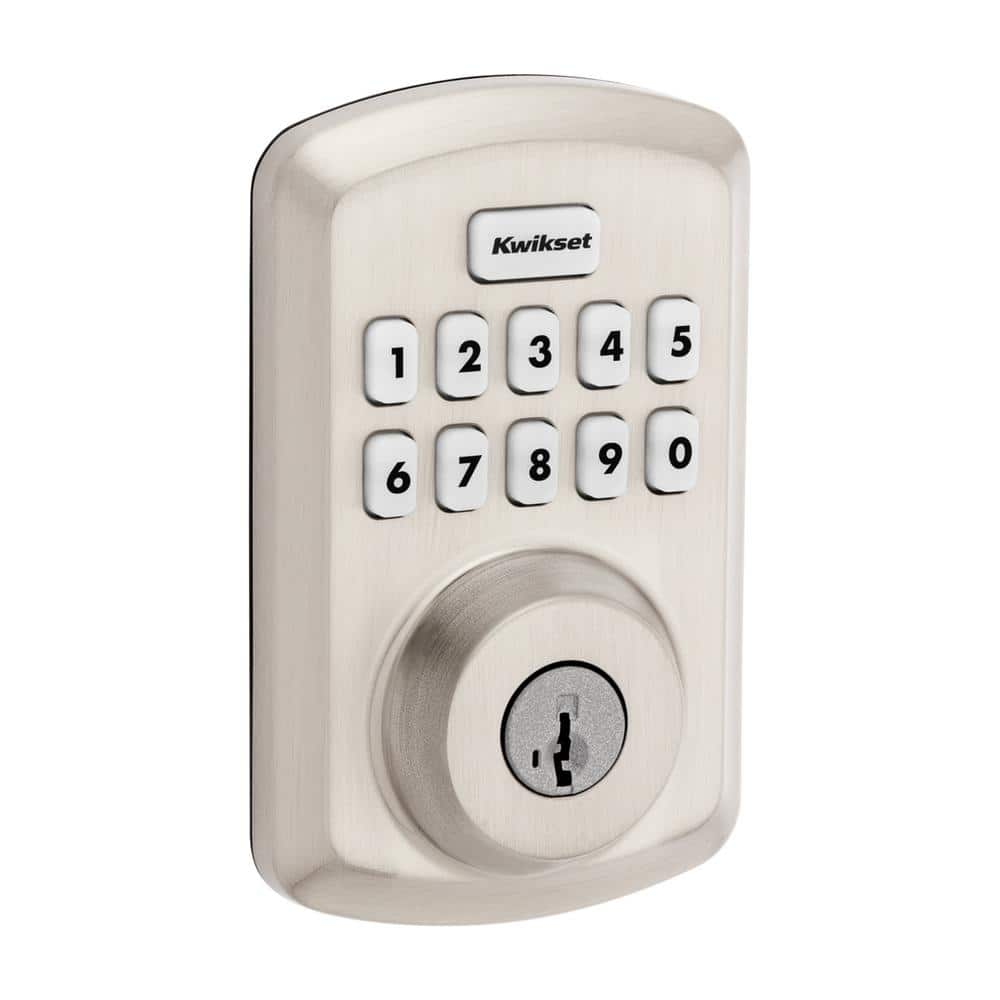
The keypad lets you enter a code to open the door. Simply press your unique code digits and then the unlock button. Make sure to keep your code private. You can change the code anytime through the lock’s settings. The keypad is backlit for easy use at night.
Remote Access Options
Some Kwikset electronic deadbolts connect to smart home systems. You can control them using a smartphone app. Lock or unlock your door from any location. Receive alerts when someone uses the lock. This option adds convenience and extra security to your home.
Troubleshooting Common Issues
Kwikset electronic deadbolts are reliable but may face issues over time. Troubleshooting helps keep your lock working smoothly. Knowing simple fixes saves time and stress. Below are common problems and easy solutions.
Battery Replacement Tips
Low battery causes most issues with electronic deadbolts. Replace batteries as soon as the lock warns you. Use fresh, high-quality alkaline batteries. Remove the battery cover gently to avoid damage. Insert batteries with correct polarity. Close the cover firmly to protect from dust and moisture.
Resetting The Deadbolt
Resetting your Kwikset deadbolt can fix many glitches. Find the reset button inside the battery compartment. Press and hold it for about 10 seconds until the light flashes. This clears all codes and settings. Set up your lock again by following the manual’s instructions.
Addressing Lock Malfunctions
Sometimes the lock won’t turn or respond. Check for dirt or debris in the bolt area. Clean the lock with a soft cloth and mild cleaner. Lubricate moving parts with graphite or silicone spray only. Tighten loose screws on the lock and door frame. Ensure the door is aligned properly for smooth locking.
Maintenance And Care
Maintaining your Kwikset electronic deadbolt ensures it works smoothly for years. Simple care steps keep it reliable and secure. Regular attention prevents problems before they start. Follow these easy tips to protect your investment and keep your home safe.
Cleaning The Keypad
Keep the keypad clean to avoid sticky buttons. Use a soft cloth slightly dampened with water. Avoid harsh chemicals that can damage the surface. Gently wipe the keys and the surrounding area. Clean it often to remove dirt and oils from fingers.
Lubrication Guidelines
Lubricate the lock to keep the mechanism smooth. Use a dry graphite lubricant, not oil-based sprays. Spray the lubricant inside the keyhole and bolt area. Wipe away any extra to prevent dust buildup. Perform lubrication once a year for best results.
Regular Testing
Test your electronic deadbolt regularly to confirm it works well. Check the keypad response and locking function. Use your key or backup method to unlock. Testing helps spot issues early, avoiding lockouts. Make it a habit every few months for peace of mind.
Credit: www.homedepot.com
Frequently Asked Questions
How Do I Install My Kwikset Electronic Deadbolt?
To install, align the deadbolt with your door’s pre-drilled holes. Secure screws tightly, connect the battery, then test the lock’s function. Follow your Kwikset manual for detailed steps and programming instructions. Proper installation ensures smooth operation and security.
How Do I Program User Codes On Kwikset Deadbolt?
Enter programming mode using the master code. Add or delete user codes by following the keypad prompts. Always confirm new codes work before exiting programming. This process allows multiple users secure access without keys.
What Battery Does My Kwikset Electronic Deadbolt Use?
Most Kwikset electronic deadbolts use four AA alkaline batteries. Replace batteries when the lock signals low power to avoid lockouts. Always use fresh batteries for optimal performance and longer battery life.
How Do I Reset My Kwikset Electronic Deadbolt?
Locate the reset button inside the lock assembly. Press and hold it for about 10 seconds until the lock beeps. This resets the system to factory settings, erasing all user codes. Use reset only when necessary.
Conclusion
Using your Kwikset electronic deadbolt is simple and secure. Follow the steps carefully to set codes and lock or unlock. Regularly check the battery to keep it working well. This device adds convenience and safety to your home. Practice using it a few times to feel confident.
You can protect your space without keys or fuss. Stay safe with this easy-to-use electronic lock.