Are you ready to control your lights with just your voice? Connecting your Wemo Light Switch to Alexa can make your home smarter and your life easier.
Imagine turning your lights on or off without lifting a finger, simply by speaking to Alexa. If you’ve been wondering how to set it up, this guide is for you. Keep reading, and you’ll discover simple, step-by-step instructions that anyone can follow—no tech skills needed.
By the end, you’ll enjoy seamless hands-free control of your lighting, making your daily routine smoother and more convenient. Let’s get started!
Credit: www.tomsguide.com
Wemo Light Switch Basics
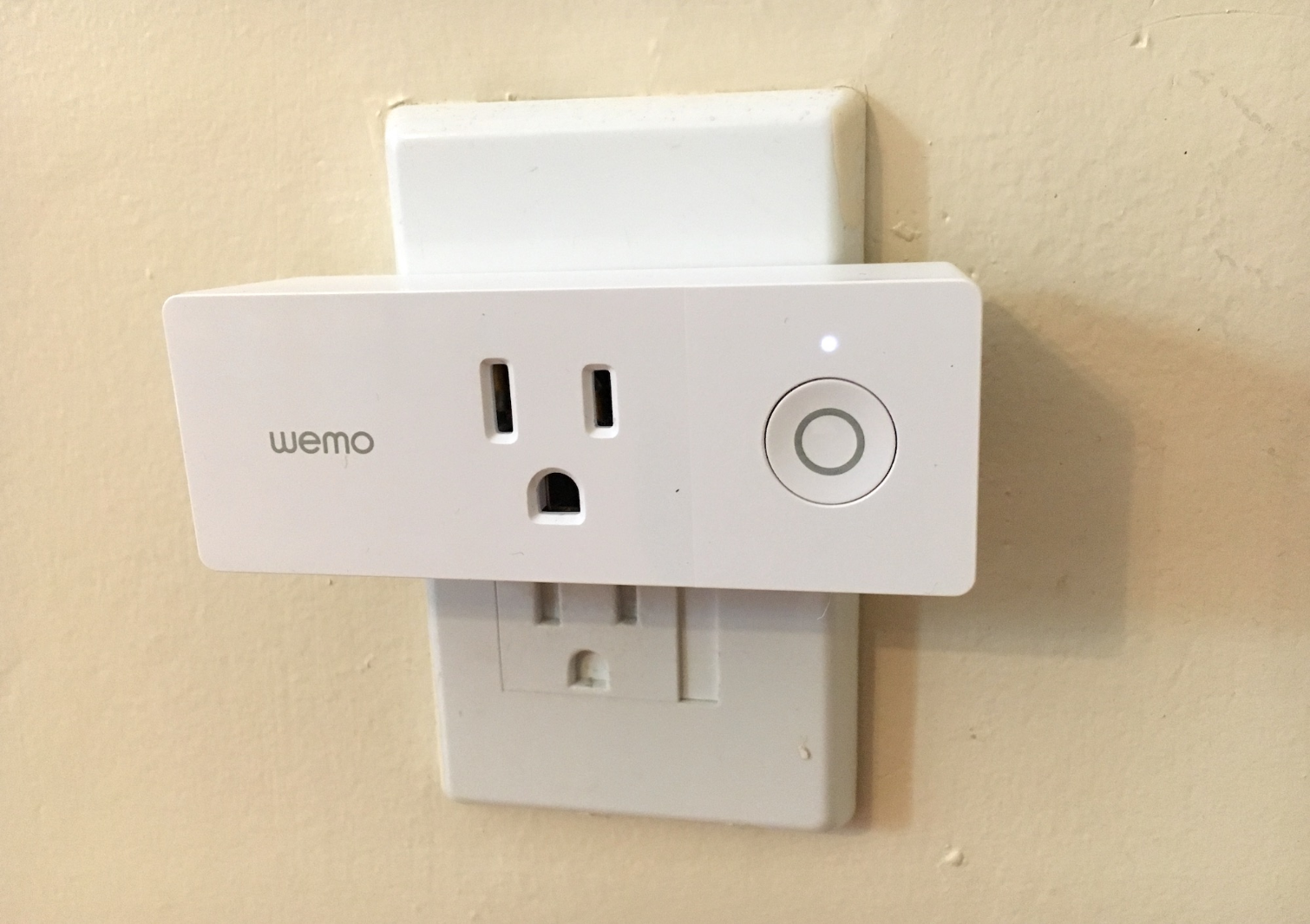
The Wemo Light Switch is a smart device that lets you control your lights remotely. It replaces your regular wall switch and connects to your Wi-Fi network. This way, you can turn lights on or off using your smartphone or voice commands.
It works with many smart home systems, making it a flexible choice. Setting it up is simple, even for beginners. Understanding its features helps you get the most from this device.
Features And Benefits
The Wemo Light Switch supports remote control through an app. You can schedule lights to turn on or off at specific times. This saves energy and adds convenience.
It also supports manual control from the wall switch itself. The device fits into standard electrical boxes. No extra hub is needed, which reduces setup hassle.
Energy monitoring is a helpful feature. It tracks how much electricity your lights use. This information helps reduce power bills.
Compatibility With Alexa
The Wemo Light Switch works well with Alexa devices. You can control your lights using voice commands. Just say, “Alexa, turn on the lights,” and it responds.
Alexa integration allows you to group devices for easier control. It supports routines, so lights can react to other smart devices. This makes your home smarter and more responsive.
Connecting Wemo to Alexa is straightforward. The Wemo app guides you through linking the devices. No technical skill is required to complete the setup.
Preparing Your Devices
Preparing your devices is the first step to connect your Wemo Light Switch to Alexa. This ensures smooth setup and quick response from both devices. Proper preparation saves time and avoids common errors.
Follow clear steps to get both your Wemo Light Switch and Alexa ready. Each device needs its own setup to work well together. Focus on one device at a time for best results.
Setting Up The Wemo Light Switch
Turn off power at the circuit breaker before installation. This keeps you safe during setup. Remove the old switch carefully and connect the Wemo switch wires as shown in the manual. Secure the switch in the wall box and restore power. Wait for the LED light on the switch to blink. This means the switch is ready for setup.
Installing The Alexa App
Download the Alexa app from the App Store or Google Play. Open the app and sign in with your Amazon account. Allow necessary permissions for the app to work correctly. Check that your smartphone is connected to the same Wi-Fi network as your Wemo switch. This helps Alexa find your devices easily during setup.
Connecting Wemo To Alexa
Connecting your Wemo light switch to Alexa lets you control lights with your voice. This adds convenience to your daily routine. Alexa can turn lights on or off, dim them, or set schedules.
Follow these simple steps to link Wemo with Alexa. It takes just a few minutes to set up. You will need the Alexa app and your Wemo account ready.
Enabling The Wemo Skill In Alexa
Open the Alexa app on your phone. Tap the menu icon and select “Skills & Games.” Use the search bar to find the “Wemo” skill. Tap “Enable to Use” to activate the skill. This allows Alexa to communicate with your Wemo devices.
Linking Your Wemo Account
After enabling the skill, you will be asked to sign in to your Wemo account. Enter your Wemo username and password. This links your Wemo devices with Alexa. Make sure your Wemo account is active and connected to your home Wi-Fi.
Discovering Devices With Alexa
Once your account is linked, ask Alexa to find devices. Say, “Alexa, discover my devices,” or tap “Discover Devices” in the app. Alexa will scan for your Wemo light switch and add it. Your Wemo switch is now ready for voice commands.

Credit: www.amazon.com
Controlling Wemo With Alexa
Controlling Wemo with Alexa brings ease and comfort to your home. Alexa lets you manage your Wemo light switch using simple voice commands. This hands-free control saves time and effort. You can turn lights on or off without touching a switch.
Alexa also helps you customize how your lights behave. Set schedules, create groups, and control multiple devices at once. This flexibility makes your home smarter and more efficient.
Voice Commands Examples
Use clear and simple phrases to control your Wemo switch. Say, “Alexa, turn on the living room light.” Or, “Alexa, turn off the bedroom light.” You can also adjust brightness if your switch supports it. For example, say, “Alexa, dim the kitchen light to 50 percent.”
Alexa understands commands quickly. Speak naturally and clearly for the best results. Try commands like, “Alexa, is the porch light on?” to check your lights’ status.
Creating Routines And Groups
Routines automate your Wemo switches with Alexa. Create routines that fit your daily life. For example, set a routine to turn off all lights at bedtime. Or, turn on the porch light when you say, “Alexa, I’m home.”
Grouping devices lets you control many lights at once. Group your Wemo switches by room or purpose. Say, “Alexa, turn off all downstairs lights.” This saves time and makes control simple.
Troubleshooting Tips
Troubleshooting your Wemo Light Switch with Alexa can save time and frustration. Problems often happen during setup or use. Knowing simple fixes helps keep your smart home running smoothly.
Common Connection Issues
The Wemo switch may not connect to Alexa for several reasons. Sometimes the Wi-Fi signal is weak or unstable. Check that your phone and switch use the same Wi-Fi network. The Alexa app needs permission to find new devices. Make sure the app is updated and connected to the internet. Also, ensure your Wemo switch has power and the LED light is on.
Resetting And Re-pairing Devices
If your Wemo switch still does not respond, try resetting it. Hold the reset button for 10 seconds until the LED blinks. This clears old settings. Open the Alexa app and remove the Wemo device from your list. Then, add it again by scanning for new devices. This process refreshes the connection between the switch and Alexa. It often solves many common issues quickly.

Credit: www.youtube.com
Frequently Asked Questions
How Do I Connect Wemo Light Switch To Alexa?
To connect Wemo Light Switch to Alexa, enable the Wemo skill in the Alexa app. Then, discover devices to sync the switch with Alexa for voice control.
What Are The Wi-fi Requirements For Wemo And Alexa?
Wemo Light Switch and Alexa require a stable 2. 4 GHz Wi-Fi network. Ensure both devices are connected to the same network for proper communication.
Can I Control Multiple Wemo Switches With Alexa?
Yes, Alexa can control multiple Wemo Light Switches. Group them in the Alexa app for simultaneous voice commands and easier management.
How Do I Troubleshoot Alexa Not Finding Wemo Switch?
Restart both devices and check Wi-Fi connectivity. Re-enable the Wemo skill in Alexa and run device discovery again to resolve connection issues.
Conclusion
Connecting your Wemo light switch to Alexa is simple and quick. Just follow the steps carefully to avoid any issues. Once set up, you can control your lights with voice commands. This adds comfort and ease to your daily routine.
Enjoy hands-free lighting control anytime you want. Keep your devices updated for the best performance. Now, your smart home feels more connected and user-friendly. Give it a try and see the difference yourself.