Are you ready to take control of your home’s security with ease? Programming your Schlage Encode Smart Wifi Deadbolt doesn’t have to be confusing or time-consuming.
Whether you’re setting it up for the first time or need to change your access codes, this guide will walk you through every step clearly and quickly. By the end, you’ll feel confident managing your smart lock like a pro, keeping your home safer and more convenient than ever.
Let’s get started and make your front door smarter today!
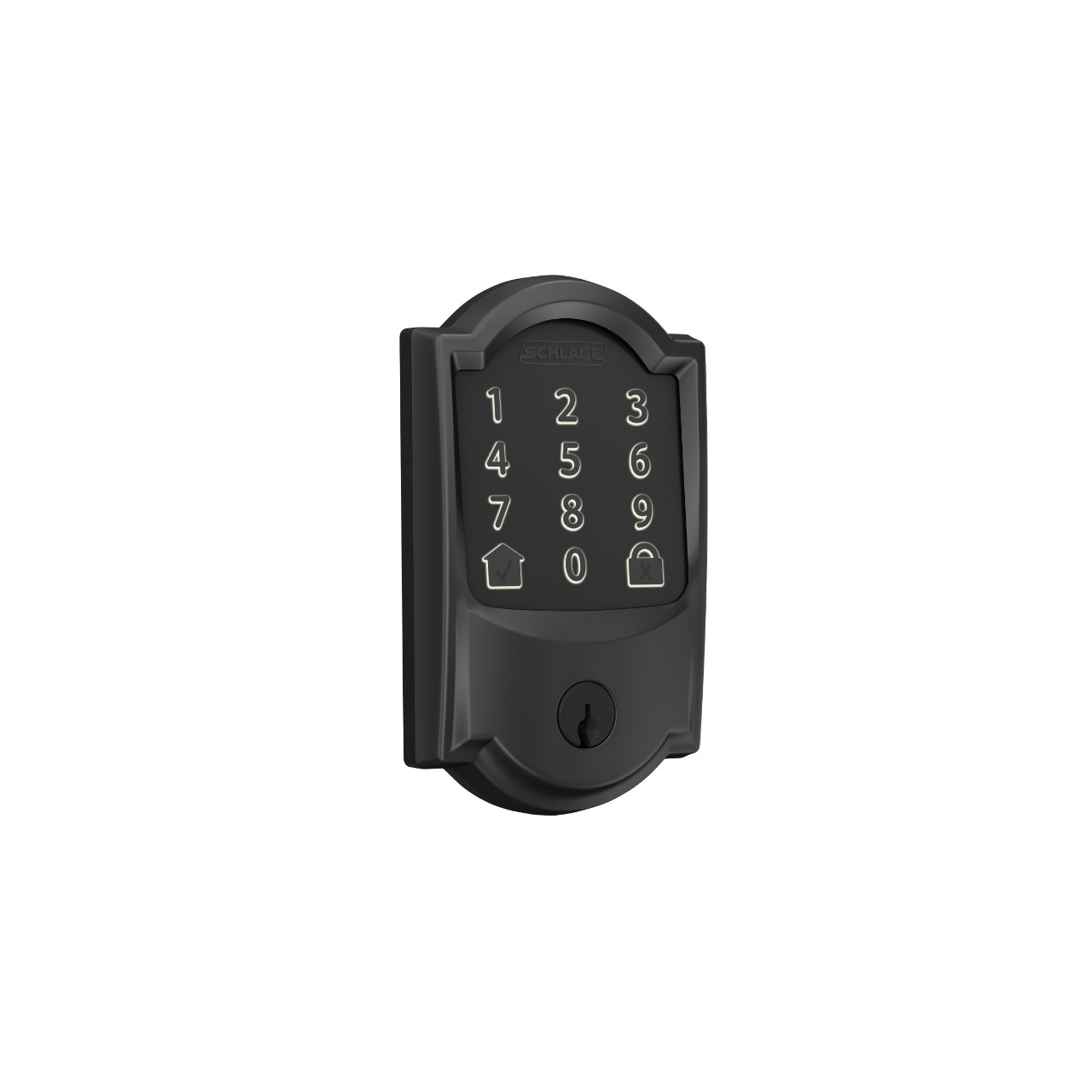
Credit: www.schlage.com
Getting Started
Setting up your Schlage Encode Smart WiFi Deadbolt is easy. Follow simple steps to program it correctly. This guide helps you prepare everything before installation. Proper preparation saves time and ensures smooth setup.
Before starting, gather all needed tools and check your battery and WiFi status. These steps help avoid interruptions during programming. Let’s begin with what you need to have ready.
Tools And Materials Needed
Get a screwdriver, usually a Phillips head. Have the Schlage Encode lock kit ready. Keep a smartphone or tablet close for app setup. A stable WiFi connection is also important. Make sure you have fresh batteries, typically 4 AA alkaline. Having these items at hand speeds up the process.
Checking Battery And Wifi Requirements
Start by installing fresh batteries in the lock. Weak batteries can cause errors during setup. The lock uses WiFi to connect to your network. Ensure your WiFi signal is strong near your door. The lock supports 2.4 GHz WiFi bands only. Test your WiFi with your smartphone before programming. A strong and stable connection is essential for smooth operation.
Installing The Deadbolt
Installing the Schlage Encode Smart Wifi Deadbolt is a straightforward task. It requires careful steps to ensure proper function and security. This guide covers the key steps to help you install the deadbolt smoothly.
Removing Old Lock
Start by taking out the old lock from your door. Use a screwdriver to remove the screws on the interior side. Pull off both the interior and exterior parts of the old lock. Remove the latch from the door edge. Clean the area before installing the new deadbolt.
Mounting The Schlage Encode
Insert the new latch into the door edge. Make sure the latch bolt faces the correct direction. Attach the exterior keypad to the door first. Guide the cable through the door hole carefully. Align the interior assembly with the exterior keypad. Connect the cable securely before fastening screws.
Securing The Deadbolt
Tighten all screws to hold the lock firmly. Check that the deadbolt moves smoothly in and out. Attach the battery cover to the interior unit. Test the keypad and manual lock functions. Adjust the strike plate on the door frame if needed for a perfect fit.
Connecting To Wifi
Connecting your Schlage Encode Smart WiFi Deadbolt to your home network is a key step. It allows remote access and control from your phone. The process is simple if you follow clear steps. This section guides you through connecting to WiFi easily.
Downloading The Schlage App
Start by downloading the Schlage app on your smartphone. The app is available on both iOS and Android devices. Search for “Schlage Home” in the app store. Download and install the app to begin setup.
Create an account or log in if you already have one. This app controls your lock and manages settings. Keep your phone close during the setup process.
Setting Up The Wifi Connection
Open the Schlage app and select “Add Device.” Follow the on-screen instructions to find your lock. Ensure your phone is near the lock for a strong signal.
Choose your home WiFi network from the list. Enter your WiFi password carefully. The lock connects to your network through the app.
The app will confirm when the connection is successful. Your lock is now ready to use remotely.
Troubleshooting Connection Issues
If the lock does not connect, check your WiFi signal strength. Move closer to the router to improve the signal. Restart your router and try again.
Make sure your WiFi network uses 2.4 GHz, not 5 GHz. The Schlage Encode only works on 2.4 GHz networks. Verify your password is correct and re-enter it.
Close and reopen the app if it freezes. If problems persist, reset the lock and try the setup again.

Credit: www.youtube.com
Programming User Codes
Programming user codes is key to using the Schlage Encode Smart WiFi Deadbolt. It lets you control who enters your home. You can add, change, or remove codes anytime. This keeps your home secure and gives you peace of mind. The process is simple and can be done through the Schlage app or directly on the lock.
Creating New Access Codes
To add a new access code, open the Schlage app. Select the lock and go to the user codes section. Tap “Add New Code” and enter a unique code name. Then, create a numeric code between 4 to 8 digits. Save it and the code will activate immediately. You can give this code to family or friends for easy access.
Editing And Deleting Codes
Editing or deleting codes keeps your lock secure. In the app, find the list of user codes. Tap the code you want to change or remove. To edit, enter a new code or name and save it. To delete, confirm the removal and the code will no longer work. This helps control who can enter your home at any time.
Assigning Temporary Codes
Temporary codes are perfect for guests or workers. Create a new code in the app and set an expiration time or date. After this period, the code stops working automatically. This keeps your home safe without needing to change permanent codes. You can also extend or cancel temporary codes anytime through the app.
Using Advanced Features
The Schlage Encode Smart WiFi Deadbolt offers more than basic locking and unlocking. It includes advanced features that make your home safer and more convenient. These features help automate your door security and keep you informed.
Using these options improves your daily routine. It also helps you manage your home’s security from anywhere. Let’s explore some of the key advanced features you can set up easily.
Enabling Auto Lock
Auto Lock secures your door automatically after a set time. This feature prevents the door from being left unlocked by mistake. You can choose how many seconds after closing the door it locks. Setting Auto Lock is simple in the Schlage app. Just find the Auto Lock option and turn it on. This adds peace of mind to your daily security.
Integrating With Smart Home Systems
The deadbolt works with popular smart home systems like Amazon Alexa and Google Assistant. This lets you control the lock with voice commands. Integration also allows you to connect the lock with other devices. For example, you can set routines that lock the door at night. Use the Schlage app to link your lock with your smart home system easily.
Setting Up Notifications
Notifications keep you updated about your door’s status. You get alerts when someone locks or unlocks the door. You can also receive warnings if the battery is low. Notifications can be sent to your phone or email. This helps you stay informed, even when you are far from home. Turn on notifications in the app to stay aware of your door’s activity.

Credit: www.amazon.com
Maintaining The Lock
Maintaining your Schlage Encode Smart WiFi Deadbolt keeps it working well. A well-kept lock lasts longer and stays secure. Simple care helps avoid problems and keeps the lock responsive.
Battery Replacement Tips
Check battery life often to avoid lockouts. Use four high-quality AA alkaline batteries. Replace all batteries at the same time for best results. When batteries run low, the lock will warn you. Change batteries quickly to keep the lock active. Keep spare batteries nearby for emergencies.
Regular Firmware Updates
Firmware updates improve lock security and add features. Connect the lock to your WiFi to get updates automatically. Check the Schlage app for update notifications. Update the lock as soon as a new version is available. Staying updated keeps your lock safe from bugs and hacks.
Cleaning And Care
Clean the lock gently with a soft cloth. Avoid harsh chemicals or abrasive materials. Use mild soap and water for stubborn dirt. Do not spray liquids directly on the lock. Keep the keypad and fingerprint sensor dry. Regular cleaning keeps the lock smooth and responsive.
Frequently Asked Questions
How Do I Reset My Schlage Encode Deadbolt?
To reset, press and hold the Schlage button for 10 seconds. The lock will beep and flash. This clears all codes and restores factory settings.
How Can I Connect Schlage Encode To Wifi?
Open the Schlage Home app and follow the setup prompts. Ensure your WiFi is 2. 4 GHz. Enter your network details to connect the lock.
How Do I Add New User Codes On Schlage Encode?
In the app, go to “User Codes” and select “Add User. ” Enter a name and create a unique code. Save to sync the lock immediately.
What Should I Do If Schlage Encode Won’t Program?
Check the batteries and WiFi signal strength first. Restart the app and lock. Ensure you follow the programming steps carefully. Contact support if issues persist.
Conclusion
Programming your Schlage Encode smart WiFi deadbolt is simple and quick. Follow each step carefully for best results. The lock gives you control and security at your fingertips. Enjoy easy access without losing safety. Keep your codes private and update them often.
This smart lock fits well in any home. Stay safe and comfortable with reliable technology.


