Are you having trouble with your Lutron light switch? Maybe it’s not responding the way you want, or you need to set it back to its original settings.
Knowing how to reset your Lutron light switch can save you time, frustration, and even a service call. In this guide, you’ll discover simple, step-by-step instructions to reset your switch quickly and safely. Keep reading, and by the end, you’ll have full control over your lighting again—no technical headaches needed.
Why Reset Your Lutron Switch
Resetting your Lutron light switch can solve many common problems. It helps refresh the switch’s settings and clears minor glitches. Sometimes, the switch may stop responding or act strangely. A reset often fixes these issues fast. It also prepares the switch for new settings or updates.
Common Issues Requiring Reset
Sometimes the switch does not turn on or off correctly. The light may flicker or stay dim even after adjustment. The switch might lose connection with the hub or app. Buttons can become unresponsive or slow. These problems often need a reset to restore normal function.
Benefits Of Resetting
Resetting restores the switch to its original state. It clears errors and resets communication with other devices. The switch can then work smoothly and respond quickly. Resetting also helps before installing new software updates. It keeps your lighting system reliable and easy to use.

Credit: www.youtube.com
Types Of Lutron Light Switches
Lutron offers several types of light switches. Each type has unique features and uses. Knowing your switch type helps in resetting it correctly. Here are the main types of Lutron light switches you might find in your home.
Caséta Wireless Switches
Caséta Wireless switches work with smart home systems. They connect through a wireless bridge. These switches control lights from your phone or voice assistant. Resetting involves pressing specific buttons to restore factory settings. Caséta switches are popular for easy installation and reliable performance.
Diva And Skylark Models
Diva and Skylark are classic Lutron switches. They use a slider or paddle to adjust light levels. These models often replace old dimmers or switches. Resetting these switches can fix issues like flickering lights. The reset process usually includes holding down buttons for several seconds.
Other Popular Models
Lutron also makes Maestro and Pico models. Maestro switches have advanced dimming and scene control. Pico remotes control lights without wiring. Each model requires a different reset method. Knowing your model helps avoid damage during reset.
Tools Needed For Reset
Resetting a Lutron light switch requires a few basic tools. Having the right tools ready makes the process smooth and safe. This section lists the tools needed and safety tips to follow.
Basic Tools
You need a small flathead screwdriver or a Phillips screwdriver. A flashlight helps if the area is dark. A voltage tester can check if power is off. Keep a pair of needle-nose pliers handy for wire handling. A voltage tester is important for safety.
Safety Precautions
Turn off the power at the circuit breaker before starting. Use the voltage tester to confirm no electricity flows. Wear insulated gloves to protect your hands. Avoid working on wet surfaces or with wet hands. Keep children and pets away from the work area. Safety is the top priority during the reset process.

Credit: www.youtube.com
Resetting Caséta Wireless Switch
Resetting your Caséta Wireless switch can solve many common issues. It clears errors and restores normal function. This process is simple and takes just a few minutes. Follow the right steps to reset the switch properly.
Soft Reset Steps
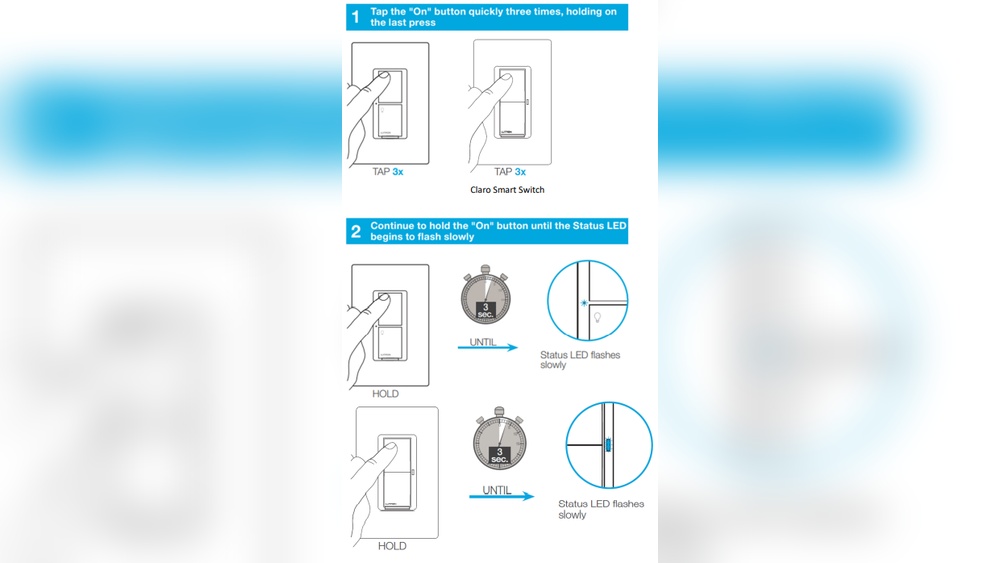
Begin by turning off the power to the switch at the circuit breaker. Wait for about 30 seconds. Turn the power back on. Press and hold the top button on the switch for 6 seconds. Release the button when the LED starts blinking. The soft reset will clear temporary faults. This does not erase your settings or schedules.
Hard Reset Process
Use a hard reset only if the soft reset does not fix the problem. Turn off the power at the breaker. Press and hold both the top and bottom buttons on the switch. Keep holding them while turning the power back on. Continue holding until the LED flashes rapidly. Release the buttons. The switch will reset to factory settings. You will need to set it up again in the app. This step removes all stored data and settings.
Resetting Diva And Skylark Switches
Resetting Diva and Skylark switches helps fix common issues. It clears errors and restores normal function. These switches have simple reset methods. Follow these steps carefully to reset your switch.
Manual Reset Instructions
Start by turning off power to the switch at the circuit breaker. Wait for about 10 seconds. Press and hold the top and bottom paddle of the switch together. Hold for 10 seconds until the LED flashes. Release the paddles and wait for the switch to reset. Turn the power back on at the breaker. Test the switch to check if it works properly.
Using The Reset Button
Some Diva and Skylark models have a small reset button. Find this button on the switch face or side. Use a paperclip or small tool to press the button. Hold it down for 5 seconds. Release and wait for the LED to blink. The switch resets and clears any errors. Restore power if you turned it off before. Confirm the switch functions normally after reset.
Troubleshooting After Reset
After resetting your Lutron light switch, some issues might appear. Troubleshooting helps fix these problems fast. It ensures your switch works well again. Follow these steps to solve common issues.
Reconnecting To Hub Or Network
First, check if the switch connects to the hub or network. Resetting can disconnect it. Use the Lutron app to find the switch. Follow the app’s instructions to link it back. Make sure your Wi-Fi or hub is on. If the switch does not appear, try restarting the hub. Reconnect the switch carefully to avoid errors.
Testing Switch Functionality
Next, test if the switch controls the lights properly. Press the switch to turn lights on and off. Observe if the light responds without delay or flicker. Use the app to check dimming or scheduling features. If the switch does not respond, repeat the reset process. Testing confirms your switch is ready for daily use.
Preventing Future Issues
Resetting your Lutron light switch can solve many common problems. Still, preventing issues helps keep your switch working smoothly for a long time. Small, regular actions protect your switch from glitches and failures. This saves time and avoids frustration later.
Regular Maintenance Tips
Check your switch often for dust and dirt. Use a soft cloth to clean the surface gently. Avoid water or harsh cleaners that can damage electronics. Make sure the switch fits tight in the wall plate. Loose parts can cause poor connections and flickering lights. Test the switch regularly to confirm it works properly. Replace batteries if your model uses them. Regular care prevents many common switch problems.
Firmware Updates And Compatibility
Keep your switch’s firmware up to date. Manufacturers release updates to fix bugs and improve performance. Use the official Lutron app or website to check for updates. Ensure your switch is compatible with your home network and other devices. Incompatible products may cause errors or stop working. Updating firmware and checking compatibility help your switch run smoothly and last longer.

Credit: support.lutron.com
Frequently Asked Questions
How Do I Reset A Lutron Light Switch?
To reset a Lutron light switch, press and hold the top and bottom buttons simultaneously. Hold for about 10 seconds until the LED blinks. This restores the switch to factory settings and clears all programming.
Why Would I Need To Reset My Lutron Switch?
Resetting fixes connectivity issues, programming errors, or response delays. It helps restore normal function and allows you to reprogram the switch from scratch.
Can I Reset A Lutron Switch Without Losing Settings?
No, resetting a Lutron switch erases all custom settings. Save your configurations before resetting if you want to restore them later.
How Long Does A Lutron Switch Reset Take?
Resetting takes about 10 seconds of holding the buttons. The LED blink confirms the reset is complete, making the process quick and easy.
Conclusion
Resetting your Lutron light switch is simple and quick. Just follow the steps carefully for best results. This process helps fix common issues and restores proper function. Keep your instructions handy for future use. Enjoy better control of your lighting with ease.
A small reset can save time and frustration. Stay confident managing your home lighting system.