Are you looking to take control of your home’s security with your Teeho deadbolt lock? Learning how to program your lock yourself is easier than you might think.
Imagine being able to set your own access codes quickly and confidently, without waiting for a locksmith. In this guide, you’ll discover simple, step-by-step instructions that anyone can follow. By the end, you’ll have the power to customize your lock to fit your needs perfectly.
Ready to unlock the full potential of your Teeho deadbolt? Let’s get started.
Teeho Deadbolt Features
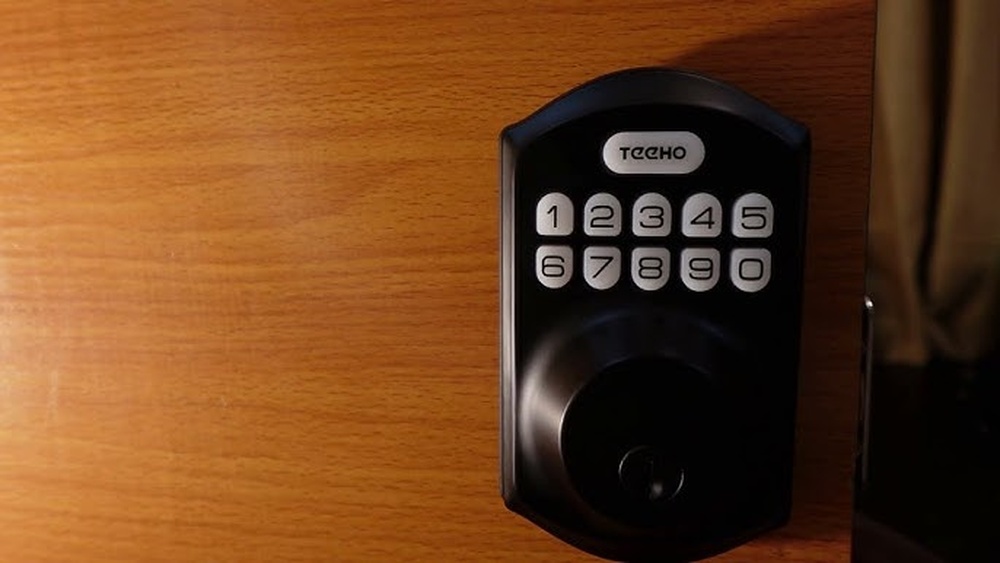
The Teeho deadbolt lock offers many useful features that improve home security. It blends modern technology with easy use. Designed for safety and convenience, this lock suits many homes and offices.
Its smart design makes it simple to control access without keys. The features focus on ease of use and strong protection. Let’s explore some key aspects of the Teeho deadbolt.
Keyless Entry Benefits
The Teeho lock allows entry without a physical key. You can use a code or a smartphone app. This means no worries about lost or stolen keys. It also lets you share access with family or friends easily. Keyless entry speeds up getting inside your home. It is handy, especially during bad weather or at night.
Battery And Power Options
This lock uses batteries that last a long time. It alerts you when battery power is low. You can replace batteries quickly without special tools. The lock also has a backup power option. This ensures it works even if the main batteries die. You won’t get locked out due to power failure.
Security Enhancements
The Teeho deadbolt has strong materials to resist break-ins. It includes alarms that sound if someone tries to force it open. The lock logs every entry and exit, so you know who comes in. It also locks automatically after a set time for safety. These features give extra peace of mind for your home.
Preparing For Programming
Preparing your Teeho deadbolt lock for programming is a simple step that ensures smooth setup. This phase helps avoid errors during programming and saves time. You will need to gather some basic tools, find the lock’s programming code, and reset the lock if needed. Each step sets the stage for a successful programming process.
Gathering Required Tools
Start by collecting the tools needed for programming your lock. Usually, you will need a small screwdriver to open the battery cover. A fresh set of batteries is helpful to ensure the lock works properly. Keep the user manual nearby for reference. Having everything ready prevents interruptions.
Locating The Programming Code
The programming code is essential for setting up your Teeho deadbolt lock. You can find this code on a sticker inside the battery compartment or in the user manual. Keep this code private and secure. Without it, you cannot make changes to the lock’s settings.
Resetting The Lock
Resetting the lock clears previous settings and prepares it for new programming. To reset, open the battery cover and press the reset button inside. Hold the button for a few seconds until you hear a beep. This step ensures the lock is ready for fresh codes and configurations.
Programming Master Code
Programming the master code on your Teeho deadbolt lock is the first step in controlling access. This code lets you add or remove user codes. It also protects the lock settings from unauthorized changes. Keep the master code safe and private. Changing it to a unique number improves your lock’s security.
Entering Programming Mode
Start by pressing the lock’s keypad. Hold the “Program” button for 3 seconds. The lock will beep or flash to show it is in programming mode. This step prepares the lock to accept new codes. Do not press other buttons until the lock signals it is ready.
Setting Up Master Code
Enter the default master code provided in the manual. Press the “” key after typing the code. Then, enter your new master code. Choose a number between 4 and 8 digits. Press “” again to save the new master code. The lock will beep to confirm the change.
Verifying Master Code
Exit programming mode by pressing the “Program” button once. Test the new master code by entering it on the keypad. The lock should respond with a beep or unlock. If it does not, repeat the setup steps carefully. Verification ensures your new code works correctly.

Credit: manuals.plus
Adding User Codes
Adding user codes to your Teeho deadbolt lock lets you control who can enter. It is a simple way to keep your home safe. Each user code gives access to a different person. This section explains how to add, change, or remove these codes easily.
Accessing User Code Settings
Start by waking up the lock’s keypad. Press the program button on the inside part of the lock. Enter your master code to access the settings. Look for the option called “User Codes” or “Manage Codes.” This menu lets you add or change codes.
Creating New User Codes
Select the option to add a new user code. Enter a code that is easy to remember but hard to guess. The code should be 4 to 8 digits long. Confirm the new code by entering it again. The lock will save the code and allow access for that user.
Editing And Deleting Codes
Go back to the user code menu. Choose the code you want to change or remove. To edit, enter the new code twice to confirm. To delete, select the delete option and confirm. The lock will update the list and remove access for deleted codes.
Lock Operation Tips
Understanding how to operate your Teeho deadbolt lock properly keeps your home safe. Simple tips help you use the lock smoothly every day. Learn the basic steps for locking and unlocking. Know how to use the auto-lock feature for hands-free security. Also, keep an eye on the battery to avoid lockouts.
Locking And Unlocking Procedures
To lock the deadbolt, press the lock button on the keypad or turn the thumb turn inside. For unlocking, enter your code on the keypad, then turn the thumb turn. Always wait for the green light or sound before opening the door. This confirms the lock has accepted your code.
Use the physical key only if the electronic method fails. Keep your code private to prevent unauthorized access. Change the code regularly to maintain security.
Using Auto-lock Feature
The auto-lock feature locks the door automatically after a set time. This helps if you forget to lock the door. You can set the delay time through the lock’s programming menu. The delay can be as short as 5 seconds or longer.
Make sure the auto-lock is activated in your lock settings. Test the feature to confirm it works correctly. Auto-lock adds convenience and extra protection to your home.
Battery Replacement Guide
Low battery can cause the lock to fail or beep warning sounds. Replace batteries promptly to avoid lockout. Use four AA alkaline batteries for best performance. Remove the battery cover on the inside of the lock.
Take out old batteries and insert new ones with correct polarity. Close the battery cover tightly. Test the lock after battery replacement to ensure proper function. Keep spare batteries nearby for quick changes.
Troubleshooting Common Issues
Troubleshooting common issues with your Teeho deadbolt lock can save time and frustration. This section covers simple fixes for frequent problems. Follow these clear steps to keep your lock working smoothly.
Resetting Forgotten Codes
Forgetting your code happens to many users. To reset, start by removing the lock’s cover. Press and hold the reset button inside. Enter a new code while holding the button. Release the button after the code is set. Test the new code several times. This process restores access without needing a professional.
Addressing Lock Malfunctions
Sometimes the lock won’t respond or jams. Check the batteries first; weak power causes many issues. Replace batteries with fresh, high-quality ones. Clean the keypad and keyhole gently to remove dirt. Ensure the lock mechanism moves freely. If the problem continues, try resetting the lock as described above.
When To Contact Support
Contact support if the lock still fails after basic fixes. Persistent mechanical problems need expert help. Support can guide you through advanced troubleshooting. They may arrange repairs or replacement if needed. Keep your lock model and purchase details ready for faster service.
Enhancing Lock Security
Enhancing the security of your Teeho deadbolt lock is essential for protecting your home or office. Strong security measures keep unwanted visitors out and give you peace of mind. Simple steps can make a big difference in the lock’s effectiveness.
Focus on keeping your lock updated and combining it with other safety tools. Also, regular maintenance helps the lock work better and last longer. Small actions add up to strong protection.
Regular Code Updates
Change your lock codes often. Use new, random numbers for better security. Avoid easy codes like birthdays or “1234.” Regular updates stop old codes from being used by others.
Set reminders to change codes every few months. This practice helps protect your lock from hackers or thieves. It keeps your lock’s security fresh and reliable.
Combining With Other Security Measures
Use the deadbolt lock with alarms or cameras. Extra devices create layers of security. This makes breaking in much harder for intruders.
Good lighting outside your door also helps. It scares away people who want to sneak in. Combining tools increases your home’s overall safety.
Maintaining Firmware Updates
Keep your lock’s software up to date. Manufacturers release firmware updates to fix bugs and improve security. These updates protect your lock from new threats.
Check the lock’s app or website regularly for updates. Installing updates quickly ensures your lock stays secure. A well-maintained lock works better and lasts longer.

Credit: manuals.plus

Credit: www.youtube.com
Frequently Asked Questions
How Do I Reset My Teeho Deadbolt Lock?
To reset your Teeho deadbolt lock, press and hold the reset button inside the lock for 10 seconds. This erases all stored codes, restoring factory settings. After resetting, you can reprogram new user codes easily following the lock’s manual instructions.
What Is The Default Programming Code For Teeho Locks?
The default programming code is usually “1234” or “0000”. Check your specific model’s manual for accuracy. Use this code to enter programming mode and customize your lock settings, including adding or deleting user codes.
How Can I Add A New User Code To Teeho Deadbolt?
Enter programming mode using the master code, then press the “Add” button. Input the new user code and confirm. The lock will beep to verify successful programming. This allows multiple users to access the lock securely.
Can I Delete User Codes On A Teeho Lock?
Yes, you can delete user codes through programming mode. Enter the master code, select the delete option, then input the user code to remove. This keeps your lock secure by managing access effectively.
Conclusion
Programming your Teeho deadbolt lock is simple and quick. Follow the steps carefully to set your code right. Double-check your work to avoid any mistakes. This lock adds safety and control to your home. You can change codes anytime for extra security.
Practice a few times to feel confident using it. Enjoy the peace of mind with your new lock. Keep this guide handy for future reference. Your home deserves reliable protection every day.