If you’ve just got a Schlage Connect Smart Deadbolt, you’re probably eager to unlock its full potential. Programming your smart lock might sound tricky, but it’s easier than you think—and it puts complete control of your home’s security right in your hands.
Imagine never fumbling for keys again or sharing access with family and friends instantly. In this guide, you’ll discover simple steps to set up and customize your Schlage Connect, making your door smarter and your life safer. Ready to take control?
Let’s get started.
Credit: www.schlage.ca
Schlage Connect Features
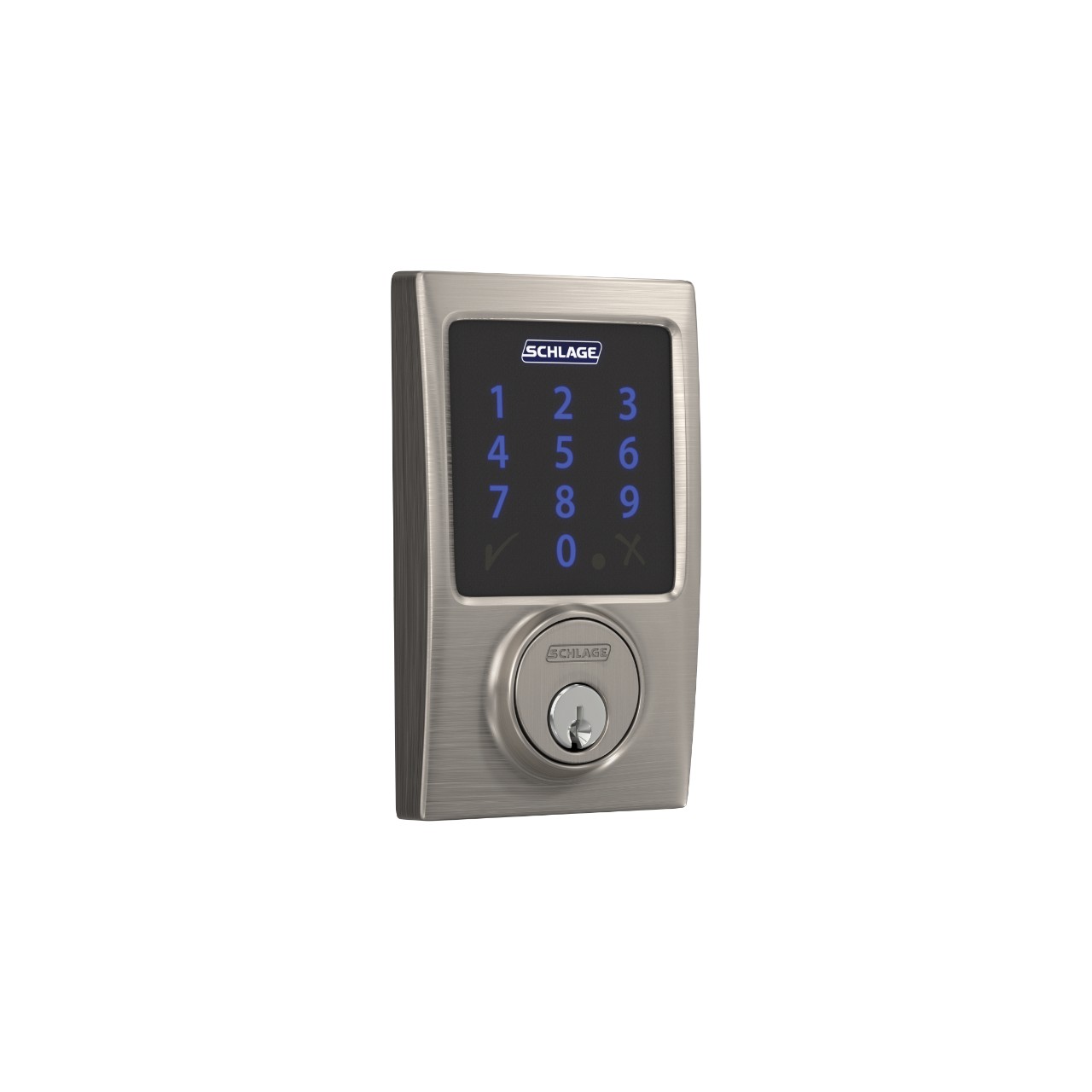
The Schlage Connect smart deadbolt offers many useful features. It combines security with convenience for your home. You can control the lock easily using your phone or keypad. This lock adds safety without complicated setup.
Key Benefits
The Schlage Connect provides strong security for your door. It has a built-in alarm to alert you of forced entry. The lock supports multiple user codes for family or guests. You can check lock status remotely with a smart home system. The keypad is backlit, making it easy to use at night. The lock also works with voice assistants for hands-free control.
Compatibility
This smart deadbolt works with many smart home systems. It supports Z-Wave technology for easy integration. You can connect it to systems like Samsung SmartThings or Wink. The lock also works with Alexa and Google Assistant devices. It fits standard doors and replaces existing deadbolts. This makes it a flexible choice for most homes.
Preparing For Installation
Preparing for the installation of the Schlage Connect Smart Deadbolt is a crucial step. This ensures a smooth setup and reliable performance. Taking time to gather tools and check the lock’s condition saves frustration later. Follow the steps below carefully to get ready.
Tools Needed
Prepare these basic tools before you start. A Phillips screwdriver is essential for removing and installing screws. A flathead screwdriver might help with prying or adjusting. A tape measure is handy to check door thickness. Keep a pencil nearby for marking spots. Having these tools ready speeds up the process.
Battery Installation
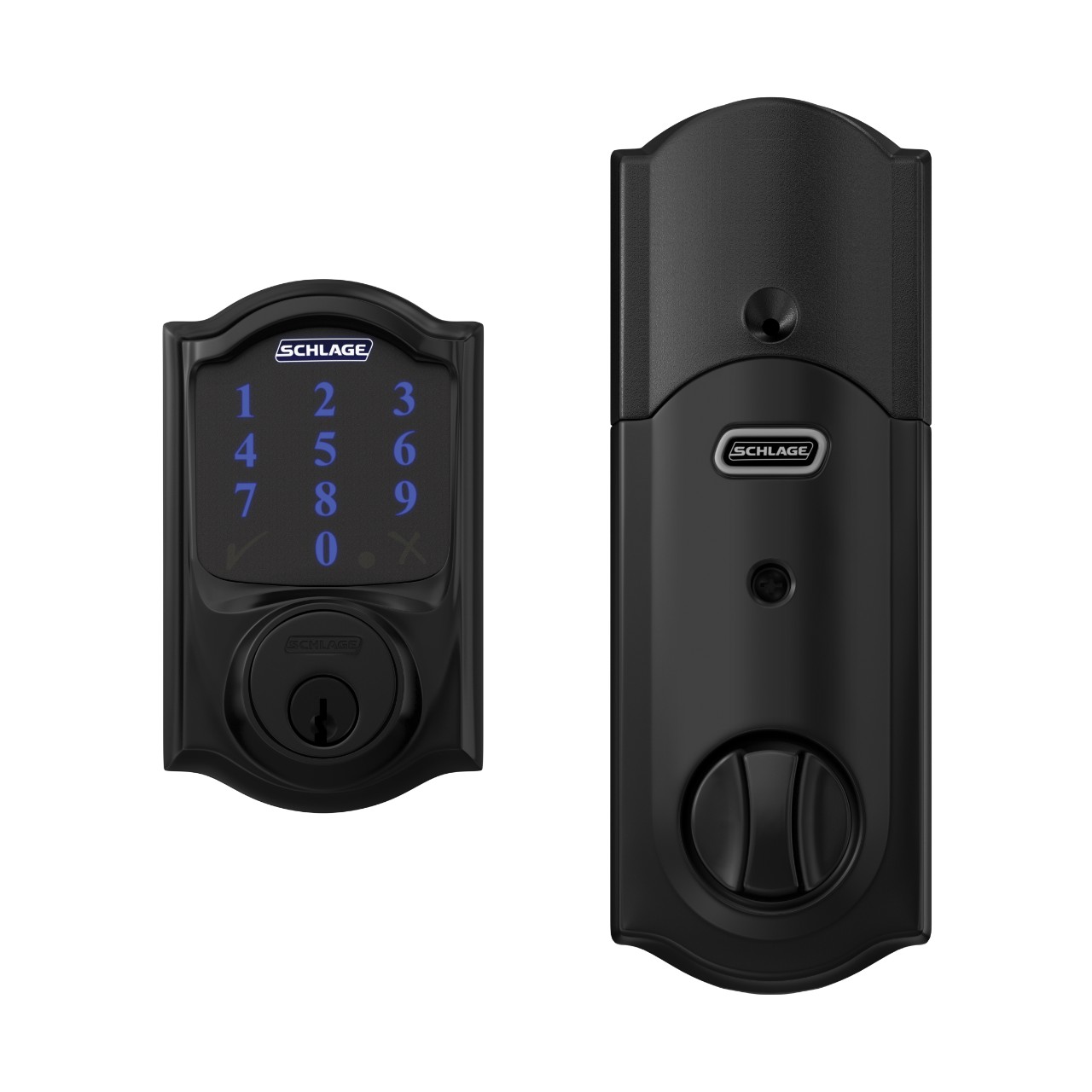
The lock runs on four AA batteries. Open the battery cover on the inside part of the lock. Insert the batteries following the correct polarity. Use fresh, high-quality batteries for longer life. Close the battery cover securely to protect the power source. Proper battery installation prevents lock malfunctions.
Resetting The Lock
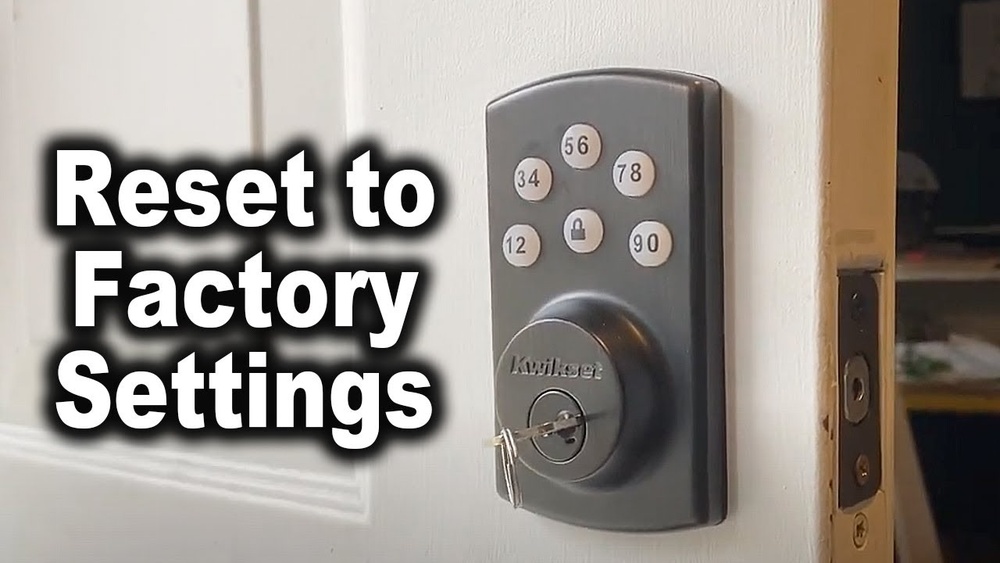
Resetting the lock clears previous settings. This is useful for new users or troubleshooting. To reset, remove the battery cover and batteries. Press and hold the Schlage button while reinserting the batteries. Keep holding the button until the lock beeps. Release the button; the lock is now reset and ready to program.
Programming The Lock
Programming the Schlage Connect smart deadbolt lets you control who can enter your home. It helps keep your space safe and secure. You can add new user codes or remove old ones with ease. The process is simple and quick. This guide will walk you through the basic steps.
Accessing Programming Mode
Start by pressing the Schlage button on the keypad. Enter the 6-digit programming code. This code is on the inside of the lock or in the user manual. Press the Schlage button again to confirm. The keypad will light up, showing you are in programming mode.
Adding User Codes
In programming mode, press the number 1. Enter a new 4 to 8-digit user code. Press the Schlage button to save it. The lock will beep and flash to confirm the new code works. You can add up to 30 different user codes for family or friends.
Deleting User Codes
To delete a user code, enter programming mode first. Press the number 2 on the keypad. Enter the user code you want to delete. Press the Schlage button to confirm. The lock will beep to show the code has been removed. This keeps your home secure from old or unused codes.
Credit: www.schlage.com
Setting Up Auto-lock
Setting up the auto-lock feature on your Schlage Connect smart deadbolt adds security and convenience. This feature locks your door automatically after a set time. It helps keep your home safe without extra effort. You can control when and how fast the lock activates.
Enabling Auto-lock
Start by opening the Schlage Connect app on your phone. Tap the lock device in the app menu. Find the “Auto-Lock” option and select it. Turn the toggle switch on to enable auto-lock. Your lock will now automatically lock after you close the door.
Make sure your lock is connected to Wi-Fi or Bluetooth. This connection allows the app to send commands to the lock. Check for any firmware updates in the app for smooth operation.
Adjusting Auto-lock Timing
Adjust the timing to fit your needs. The default auto-lock delay is usually 30 seconds. You can change this delay from 15 seconds up to 4 minutes. Use the slider or input box in the app to set your preferred time.
Choose a shorter delay for quick locking after closing the door. Pick a longer delay if you need more time to exit. Test different settings to find what works best for your routine.
Connecting To Smart Home Systems
Connecting your Schlage Connect Smart Deadbolt to smart home systems makes your home safer and more convenient. It allows you to control the lock remotely and create automation routines. This section explains how to link the lock with popular smart home devices.
Using Z-wave Integration
The Schlage Connect uses Z-Wave technology to communicate with other devices. Z-Wave is a wireless protocol designed for home automation. To connect, activate the lock’s Z-Wave mode by pressing the Schlage button. Then, use your smart hub or controller to add the device. The hub will recognize the lock and add it to your network. This process lets you control the lock from your phone or voice assistant. Z-Wave also ensures reliable and secure connections.
Pairing With Smart Hubs
Pairing with a smart hub helps manage multiple devices in one app. Popular hubs like Samsung SmartThings, Wink, or Hubitat work well with Schlage Connect. Open your hub’s app and select the option to add a new device. Follow the on-screen instructions to put the lock into pairing mode. The hub will search for the lock and link it to your system. After pairing, you can lock or unlock doors remotely. You can also set schedules or alerts for added security.

Credit: www.youtube.com
Troubleshooting Tips
Troubleshooting your Schlage Connect Smart Deadbolt can save time and frustration. Small issues may stop the lock from working right. Knowing some quick tips helps fix problems fast. This section covers common errors and reset steps.
Common Errors
One common error is the lock not responding to keypad presses. Check if the batteries are low or dead. Replace them with fresh ones to restore function.
Another issue is the lock not programming new codes. Confirm you enter the programming code correctly. Mistakes in code entry can block new settings.
Sometimes, the lock fails to connect with your smart home system. Make sure your Wi-Fi signal is strong near the door. Weak signals disrupt communication.
Also, the lock may jam physically. Dirt or debris inside the mechanism can cause this. Clean the lock gently and lubricate if needed.
Reset Procedures
Resetting the lock can clear errors and restore default settings. Begin by removing the battery cover. Take out one battery and wait 10 seconds.
Put the battery back in and hold the Schlage button. Wait for the lock to beep and the LED to flash. This signals the reset is complete.
After reset, you must reprogram your user codes. Follow the programming instructions carefully. This step restores full control over the lock.
Use reset only when other fixes fail. It helps solve software glitches or forgotten codes quickly.
Maintaining Your Deadbolt
Maintaining your Schlage Connect Smart Deadbolt keeps it working smoothly. Regular care helps avoid problems and extends the lock’s life. Simple steps can prevent lockouts and ensure security.
Check the lock often for any signs of wear. Keep the keypad clean and free from dirt. Follow the maintenance tips below to keep your deadbolt in top shape.
Battery Replacement
The lock runs on batteries that need regular changes. Low battery causes the lock to work slowly or stop. Replace batteries every six months or when the lock shows low power alerts.
Use four AA alkaline batteries for the best performance. Open the battery cover on the inside of the lock. Remove old batteries and insert new ones with correct polarity. Close the cover firmly to protect the batteries.
Test the lock by entering your code to ensure power is good. Keep spare batteries nearby for quick replacement.
Firmware Updates
Firmware keeps your lock’s software up to date. Updates fix bugs and add new features. Check for updates regularly through the Schlage app or connected hub.
Connect your lock to Wi-Fi or the smart home system. Follow app instructions to download and install updates. Do not interrupt the update process to avoid errors.
Updated firmware improves security and lock performance. Schedule updates during low-usage times to avoid inconvenience.
Frequently Asked Questions
How Do I Program The Schlage Connect Lock?
To program the Schlage Connect, enter the programming code on the keypad. Follow prompts to add or delete user codes. Use the Schlage app for remote programming if supported. Always test new codes to ensure successful programming.
Can I Add Multiple User Codes To Schlage Connect?
Yes, you can add up to 30 unique user codes. Each code can be assigned to a different user. This allows controlled access for family, friends, or service providers. Manage codes easily via the keypad or the Schlage app.
What If I Forget My Schlage Connect Programming Code?
If you forget the programming code, you must reset the lock to factory settings. This erases all codes and settings. After reset, use the default programming code found in the manual to reprogram your lock.
How Do I Delete A User Code From Schlage Connect?
To delete a user code, enter the programming code on the keypad. Follow prompts to select the user code to delete. Confirm deletion to remove access. This keeps your lock secure by managing authorized users.
Conclusion
Programming your Schlage Connect Smart Deadbolt is simple and quick. Follow the steps carefully and take your time. Test your codes to make sure they work right. Keep your access codes private to stay safe. Regularly update your codes for added security.
Enjoy the convenience of keyless entry every day. This smart lock makes home security easier to manage. Stay confident knowing your door locks properly each time.