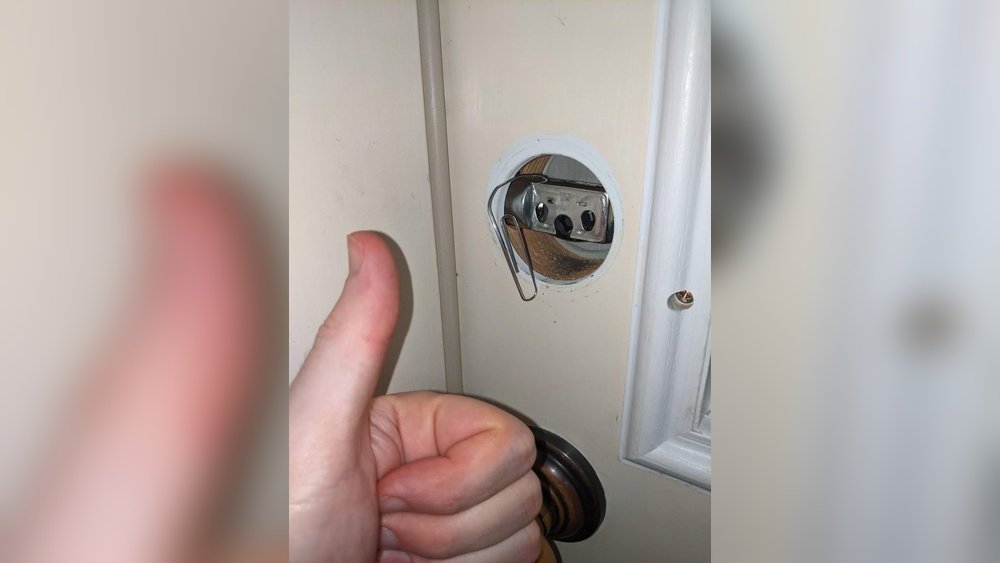
Are you having trouble with your Kwikset digital deadbolt? Whether you forgot your code or just want to set up a new one, knowing how to reset your lock is key to keeping your home secure.
In this guide, you’ll find simple, step-by-step instructions to get your Kwikset deadbolt working like new again. By the end, you’ll feel confident managing your lock without any hassle. Keep reading to take control of your home’s security with ease.
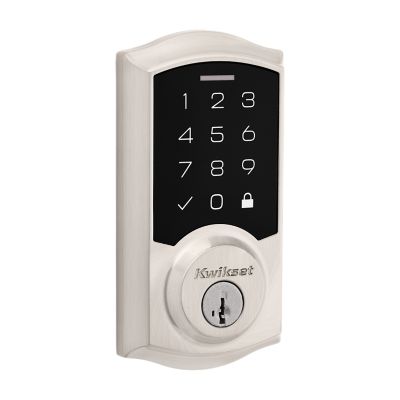
Credit: www.kwikset.com
Kwikset Digital Deadbolt Basics
Kwikset digital deadbolts offer a modern way to secure your home. These locks combine electronic technology with traditional deadbolt strength. They provide convenience and safety with easy access control. Understanding the basics helps users reset and manage their locks effectively.
Key Features
Kwikset digital deadbolts include keypad entry for keyless access. Many models support multiple user codes for family members. They often have a backup key option for emergencies. Some versions feature auto-locking after a set time. Most locks have a low battery warning to avoid lockouts. The locks use strong materials for durability and security.
Common Models
Popular Kwikset digital deadbolts include the SmartCode series. SmartCode 914 and 888 are widely used for home security. The Halo model works well with smart home systems. The Kevo model offers keyless entry with smartphone control. Each model varies slightly in features and reset methods. Knowing your model helps with correct reset steps.
Reasons To Reset Your Deadbolt
Resetting your Kwikset digital deadbolt may be necessary for several reasons. This process helps maintain security and ensures your lock works properly. Understanding why you should reset the lock makes the task clearer and simpler.
Lost Or Forgotten Codes
Forgetting your access codes is common. Without the correct code, you cannot unlock the door. Resetting the deadbolt allows you to create new codes. This restores your access without needing a locksmith.
Security Updates
Security threats change over time. Old codes may become unsafe if shared or guessed. Resetting the deadbolt lets you update your codes. This keeps your home safer from unauthorized entry.
Malfunction Fixes
Sometimes the lock may act strangely or fail to respond. Resetting can fix errors inside the lock’s system. It refreshes the settings, often restoring normal function quickly.
Tools Needed For Reset
Resetting a Kwikset digital deadbolt needs a few simple tools. Having these tools ready makes the process smooth. You do not need any complex equipment.
Gathering the right tools saves time and avoids frustration. Most tools are common and easy to find. Below are the basic tools needed for a reset.
Screwdriver
A screwdriver is essential to remove the lock’s cover. Usually, a Phillips head screwdriver works best. It helps access the reset button inside the lock.
New Batteries
Fresh batteries ensure the lock works properly during reset. Use the type recommended by Kwikset, often AA alkaline. Weak batteries may cause reset failure.
Reset Tool Or Paperclip
Some Kwikset models need a reset tool or a small paperclip. This tool presses the tiny reset button inside the lock. A straightened paperclip works well if you do not have a reset tool.
Owner’s Manual
The owner’s manual guides you through the reset steps. It lists any special tools needed for your lock model. Keep it nearby to avoid mistakes during reset.
Credit: www.kwikset.com
Step-by-step Reset Process
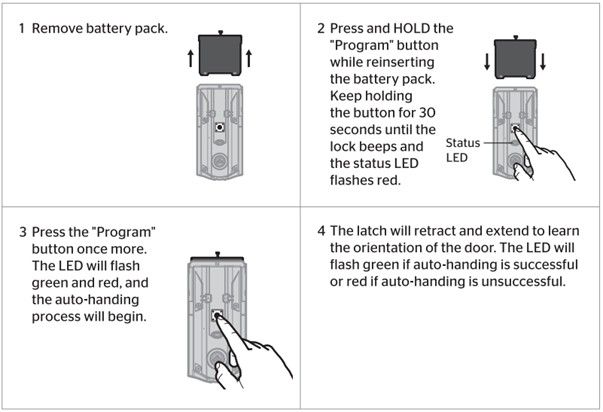
Resetting a Kwikset digital deadbolt is simple when following clear steps. This guide breaks down the process into four easy parts. Each part helps you reset the lock safely and set new codes. Follow these steps to make sure your lock works correctly again.
Accessing The Interior Panel
Start by opening the door. Look at the inside part of the lock. You will see a panel covering the lock’s electronics. This panel usually snaps or screws into place. Carefully remove the screws or pull the panel off. Keep the panel safe for later.
Removing The Battery Cover
Behind the interior panel, find the battery cover. It protects the batteries that power the lock. Slide or lift the battery cover off. Take out the batteries to reset the lock. Wait about 10 seconds before putting the batteries back.
Resetting The Lock
Press and hold the reset button inside the panel. It is usually small and red or black. Hold the button for 5 to 10 seconds. You will hear a beep or see a light flash. This means the lock is resetting to factory settings.
Reprogramming New Codes
After reset, the lock needs new user codes. Enter the programming code found in the manual. Follow the instructions to add new codes. Test each code by locking and unlocking the door. Save your codes in a safe place for future use.
Troubleshooting Common Issues
Troubleshooting common issues with your Kwikset digital deadbolt can save time and frustration. Many problems have simple solutions. Understanding these fixes helps you keep your lock working smoothly. This section covers typical issues and how to handle them easily.
Lock Not Responding
If the lock does not respond, start by checking the power. Make sure the batteries are not dead or loose. Press the buttons firmly. Dirt or debris might block the keypad. Clean it gently with a soft cloth. Reset the lock by removing and reinserting the batteries. This can refresh the system and fix minor glitches.
Failed Code Programming
Code programming can fail if the lock is not in programming mode. Follow the instructions carefully to enter this mode. Use the correct master code before adding new codes. Avoid pressing buttons too fast or too slow. Clear any previous codes if the lock reaches the limit of stored codes. Resetting the lock can restore programming functions.
Battery Problems
Battery issues are the most common cause of lock failure. Replace the batteries regularly with fresh, high-quality alkaline ones. Avoid mixing old and new batteries. Check the battery contacts for corrosion or dirt. Clean the contacts gently to improve power flow. Low battery warnings appear on the lock’s display or beep sounds. Act on these signs quickly to prevent lockouts.

Credit: www.youtube.com
Tips For Maintaining Your Deadbolt
Maintaining your Kwikset digital deadbolt keeps it working smoothly and securely. Regular care prevents problems and extends its life. Small actions make a big difference in performance and safety.
Battery Replacement Schedule
Check the battery status often to avoid lockouts. Change batteries every six months or when the low battery alert appears. Use fresh, high-quality batteries for best results. Keep extra batteries nearby for quick replacement.
Regular Code Updates
Change your access codes regularly to keep your lock secure. Use unique codes for different users and update them if you suspect a breach. Avoid simple or easily guessed codes. This practice reduces the risk of unauthorized access.
Cleaning And Care
Clean the lock with a soft, dry cloth to remove dirt. Avoid harsh chemicals that can damage the finish or electronics. Lubricate the mechanical parts yearly with a silicone-based spray. Keep the keypad free from dust and moisture for reliable use.
Frequently Asked Questions
How Do You Reset A Kwikset Digital Deadbolt?
To reset, locate the programming button inside the lock. Press and hold it for 10 seconds. The lock will beep, indicating a factory reset.
Can I Reset Kwikset Lock Without A Code?
No, you must enter the existing programming code to reset. If lost, perform a factory reset to erase all codes and start fresh.
What If My Kwikset Lock Won’t Reset?
Ensure the battery is fresh and installed correctly. Try holding the reset button longer. Consult the user manual if issues persist.
How To Reset User Codes On Kwikset Deadbolt?
After reset, reprogram user codes through the keypad. Use the programming code to add or delete user codes easily.
Conclusion
Resetting a Kwikset digital deadbolt is simple and quick. Follow the steps carefully to avoid mistakes. Keep your new code safe and easy to remember. Regularly changing your code helps keep your home secure. Now, you can manage your lock with confidence.
A working deadbolt means peace of mind. Try the reset process yourself—it works well. Stay safe and enjoy your smart lock’s convenience.