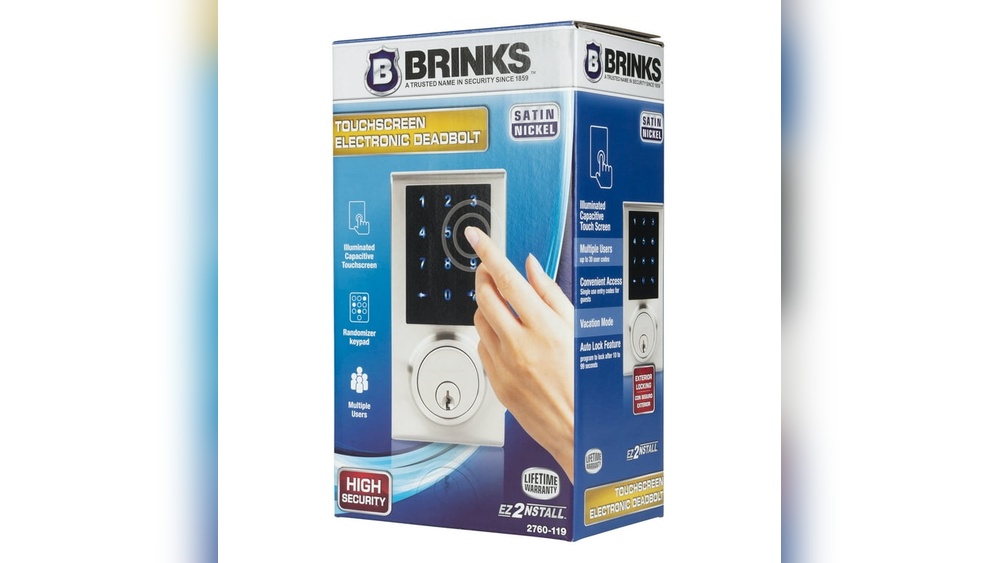
Are you ready to take control of your home’s security with just a few simple steps? Programming your Brinks Touchscreen Electronic Deadbolt might sound tricky, but it’s easier than you think.
Imagine unlocking your door with a code you choose, giving you peace of mind and convenience every day. In this guide, you’ll learn exactly how to set up your deadbolt quickly and confidently. Keep reading—you’re just moments away from making your home smarter and safer.
Preparing The Deadbolt
Preparing your Brinks touchscreen electronic deadbolt is the first step to a smooth setup. This stage ensures the lock works properly and is ready for programming. Take time to get everything right. It makes the rest of the process easier and faster.
Gathering Tools And Materials
Start by collecting all tools and materials needed. You will need a small Phillips screwdriver and fresh batteries. Also, have the user manual handy for reference. Having these items ready saves time and avoids frustration.
Installing Batteries
Open the battery compartment on the inside of the deadbolt. Insert four AA alkaline batteries, matching the positive and negative ends. Close the compartment firmly to secure the batteries. The lock will beep or light up, showing it has power.
Resetting To Factory Settings
Reset the deadbolt to clear old codes and settings. Press and hold the reset button for 10 seconds. Release it when the lock beeps twice. This step ensures you start fresh without previous user data.
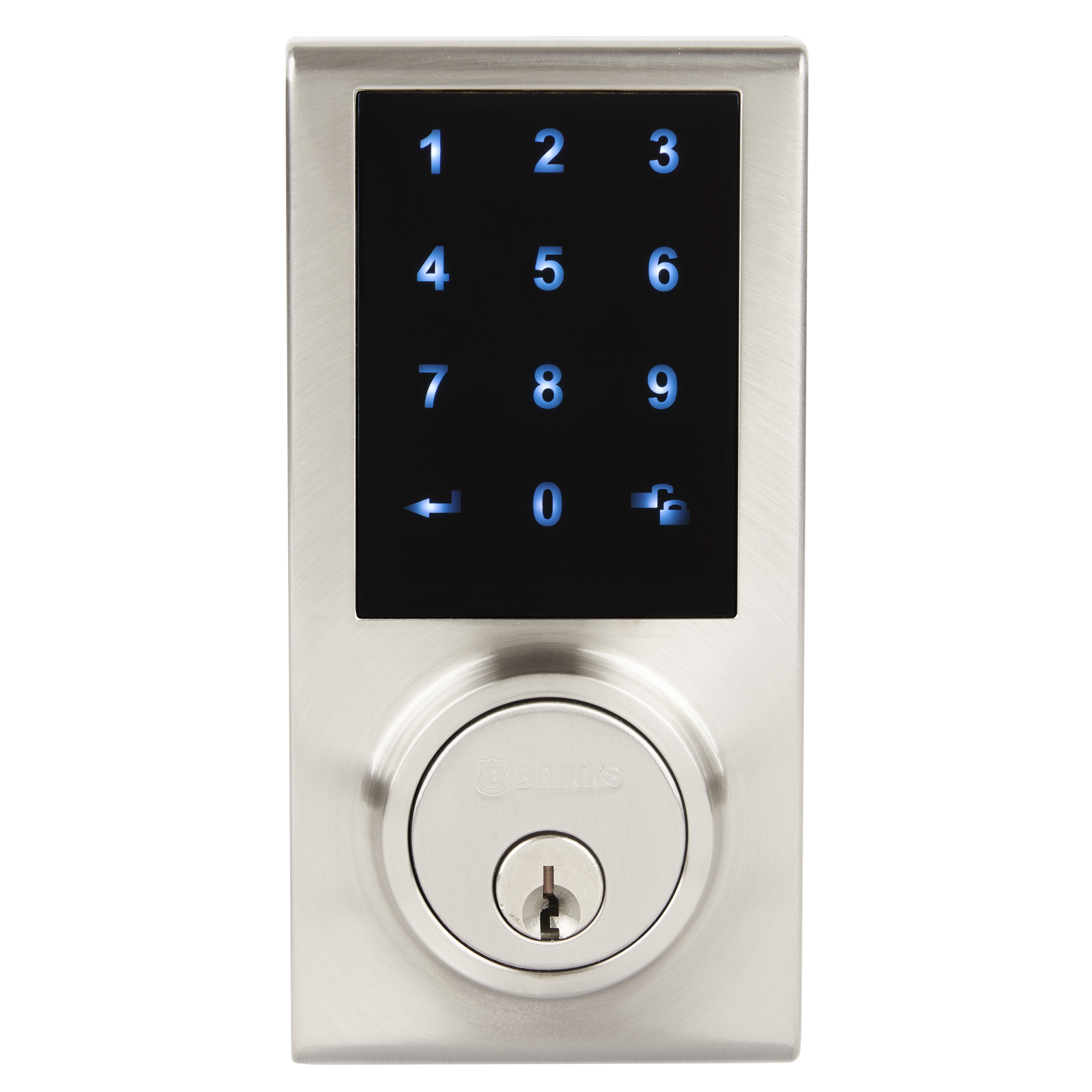
Credit: www.walmart.com
Accessing Programming Mode
Accessing the programming mode on your Brinks touchscreen electronic deadbolt is the first step to customizing its settings. This mode allows you to change codes, set up user access, and adjust other important features. The process is simple and quick, designed for easy use.
Entering The Master Code
Start by waking the lock’s touchscreen. Press any button to activate it. Enter your current master code carefully. The master code is a series of numbers you set during installation. After typing the code, press the lock button or the “Enter” key. The lock will confirm access by showing a green light or a beep. If the code is wrong, try again. You have limited attempts before the lock locks temporarily.
Navigating The Menu Options
Once inside programming mode, use the touchscreen to move through the menu. Options appear as numbers or words on the screen. Tap the number that matches the option you want to change. For example, to add a user code, select the “User Codes” menu. Follow the on-screen instructions step-by-step. The lock guides you through each process. To exit programming mode, select the “Exit” option or wait for the lock to time out. This method keeps your lock secure and easy to manage.
Setting User Codes
Setting user codes on your Brinks touchscreen electronic deadbolt helps control who can enter your home. Each user code acts like a digital key. You can add, edit, or delete codes anytime. This makes managing access easy and safe.
Adding New User Codes
Start by entering the master code on the touchscreen. Press the menu button to find the user code settings. Choose the option to add a new code. Enter the new user code, usually 4 to 8 digits. Confirm the code by typing it again. The lock will beep or flash to show the code is saved.
Editing Existing Codes
Enter the master code to access the menu. Select the option to edit user codes. Pick the code you want to change. Type the new code carefully. Confirm by re-entering the new code. The lock will confirm the change with a sound or light. This keeps your access secure and up to date.
Deleting User Codes
Open the menu using the master code. Choose the delete user code option. Select the code to remove from the list. Confirm the deletion by pressing the confirm button. The lock will notify you that the code is deleted. This prevents unwanted access easily.

Credit: www.ebay.com
Configuring Lock Features
Configuring the lock features of your Brinks Touchscreen Electronic Deadbolt helps you customize security and convenience. You can change settings to suit your daily needs. These options make your lock smarter and easier to use. Let’s explore how to adjust some key features.
Adjusting Auto-lock Settings
The auto-lock function locks the door automatically after a set time. This keeps your home secure without extra effort. To change the timing, access the lock’s menu on the touchscreen. Choose the auto-lock option, then select how many seconds before it locks. You can set it from 5 seconds to 60 seconds. Save the setting to activate it.
Enabling Privacy Mode
Privacy Mode stops all keypad access temporarily. This is useful when you want to prevent entry from anyone else. To enable it, open the settings on the touchscreen. Find the Privacy Mode option and turn it on. The lock will ignore all codes until you turn off Privacy Mode. This adds an extra layer of security.
Setting Up Lockout Mode
Lockout Mode blocks keypad use after several wrong code attempts. It protects your lock from forced entry. To set it up, go to the security settings on the touchscreen. Enable Lockout Mode and set the number of wrong attempts allowed. After reaching this limit, the keypad will lock for a short time. This helps keep your home safe.
Testing The Deadbolt
Testing the Brinks touchscreen electronic deadbolt is important after programming. It ensures the lock works properly and keeps your home secure. Check each feature carefully. This helps find any issues early. Take your time to verify everything functions as expected.
Verifying User Codes
Start by entering each user code you programmed. See if the lock accepts the code and unlocks the door. Try every code to confirm it works well. If a code does not work, reprogram or delete it. This step confirms only authorized users can open the lock.
Checking Lock And Unlock Functions
Test the lock button on the touchscreen. Press it to lock the door and listen for the sound. Then, use a valid user code to unlock it. Check if the deadbolt moves smoothly. Repeat locking and unlocking a few times. This ensures the mechanical parts and electronics work together.
Troubleshooting Tips
Troubleshooting your Brinks touchscreen electronic deadbolt can save time and frustration. Some issues may stop the lock from working correctly. Simple fixes often solve these problems without calling for help. Below are easy tips to handle common problems.
Common Programming Errors
Entering the wrong code is a frequent mistake. Double-check each number before pressing “Enter.” Avoid pressing buttons too fast. The lock needs a moment to register each command. Make sure the lock is in programming mode before starting. Follow the steps exactly as the manual says.
Battery Replacement Advice
Low battery power can cause the lock to malfunction. Replace batteries every six months to keep it working well. Use only fresh alkaline batteries for best results. Remove old batteries carefully and insert new ones with correct polarity. The lock may beep or flash to signal low battery.
Resetting The Deadbolt
Reset the lock if it stops responding or programming fails. Locate the reset button inside the battery compartment. Press and hold it for 10 seconds until the lock beeps. This action clears all settings and restores factory defaults. Reprogram your codes after the reset to regain control.

Credit: www.crown-micro.com
Frequently Asked Questions
How Do I Program A Brinks Touchscreen Deadbolt?
To program your Brinks touchscreen deadbolt, enter the master code, then press the programming button. Follow on-screen prompts to add or delete user codes.
Can I Reset My Brinks Electronic Deadbolt?
Yes, you can reset it by removing the battery, pressing the reset button, and reinstalling the battery. This restores factory settings.
How Many User Codes Can I Store?
The Brinks touchscreen deadbolt typically supports up to 20 unique user codes for personalized access control.
What Should I Do If The Touchscreen Is Unresponsive?
Try replacing the batteries first. If unresponsive, perform a reset by following the manufacturer’s instructions for troubleshooting.
Conclusion
Programming your Brinks touchscreen deadbolt is simple and quick. Follow the steps carefully to avoid mistakes. Test the lock after programming to make sure it works well. Change codes regularly to keep your home safe. Keep the user manual nearby for future reference.
Enjoy the convenience and security this lock provides. You now have control over who enters your home. Safe and easy security is within your reach.