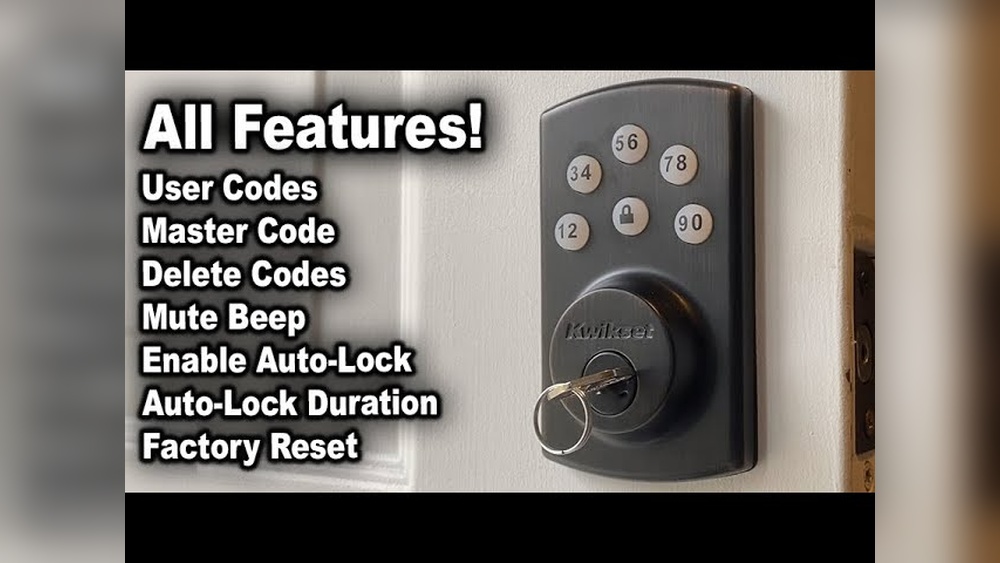
Are you struggling to change the code on your Kwikset electronic deadbolt? You’re not alone.
Whether you want to boost your home’s security or just give family members easy access, reprogramming your lock is simpler than you think. In this guide, you’ll discover clear, step-by-step instructions to update your Kwikset deadbolt quickly and safely. By the end, you’ll feel confident controlling who gets in and when—no locksmith needed.
Keep reading to take full control of your lock and protect what matters most.
Prepare Your Tools
Before you start reprogramming your Kwikset electronic deadbolt, it is important to prepare the tools you will need. This step helps make the process smooth and quick. Having everything ready keeps you focused and avoids mistakes. Small details matter when working with electronic locks.
Gather Required Items
Collect all necessary items before you begin. You will need the Kwikset electronic deadbolt manual. It contains useful instructions and codes. Keep a small screwdriver nearby. This tool helps open the battery compartment if needed. Also, have fresh batteries ready. Low power can cause errors during programming. Finally, have a pen and paper to write down new codes or notes.
Locate The Programming Code
The programming code is essential for reprogramming your lock. Usually, it is found on the back of the keypad assembly. You might need to remove the lock’s cover to see it. Check the manual for exact details. Some models have the code on a sticker inside the battery compartment. Keep this code safe. It is the key to changing your lock’s settings. Do not share it with others.
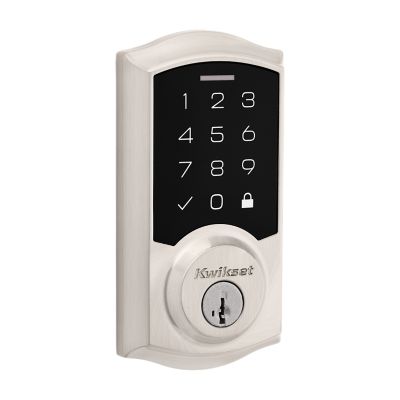
Credit: www.kwikset.com
Access Programming Mode
Accessing the programming mode is the first step to reprogram your Kwikset electronic deadbolt. This mode lets you change settings and add new codes. You must follow the steps carefully to enter programming mode successfully.
Remove The Battery Cover
Start by locating the battery cover on the inside part of the lock. Use your fingers to slide or lift the cover off gently. Removing the cover gives you access to the batteries and the program button. Keep the cover aside safely while you work.
Press The Program Button
Inside the battery compartment, find the small program button. Press and hold this button for a few seconds until you hear a beep or see a light flash. This signal means the lock is now in programming mode. You can release the button and proceed to make changes.
Change User Codes
Changing user codes on your Kwikset electronic deadbolt keeps your home secure. It lets you remove old codes and add new ones easily. This guide shows simple steps to update your codes fast.
Delete Existing Codes
Start by entering programming mode. Press the lock button three times. Enter your current master code to confirm.
Choose the option to delete user codes. Select the code number you want to remove. Press the lock button to confirm deletion.
Repeat for any other codes you want to erase. This clears old or unused codes quickly.
Add New User Codes
Enter programming mode again by pressing the lock button three times. Input the master code to proceed.
Select the option to add a new user code. Enter the new code carefully. It should be easy to remember but hard to guess.
Press the lock button to save the new code. Test the code to make sure it works properly.
Repeat for any additional codes you want to add. Keep your access secure with updated user codes.
Set Up Auto-lock Feature
Setting up the auto-lock feature on your Kwikset electronic deadbolt adds convenience and safety. This feature locks the door automatically after a set time. It helps keep your home secure without needing to lock the door manually every time.
Configuring the auto-lock is simple. You can choose when the lock activates after closing the door. Adjusting the timing fits your daily routine perfectly. Follow these steps to enable and customize the auto-lock feature.
Enable Auto-lock
Start by entering the programming mode on your Kwikset lock. Press the program button on the interior side of the lock. Then enter your current master code on the keypad. Select the auto-lock option from the menu. Activate the feature by pressing the corresponding number. Your lock will now automatically secure the door after closing.
Adjust Auto-lock Timing
After enabling, set how long the lock waits before locking. The default time is usually 30 seconds. Use the keypad to choose a shorter or longer delay. This timing lets you open the door again if needed. Confirm your selection by pressing the program button. The lock now follows your preferred auto-lock schedule.
Reset To Factory Settings
Resetting your Kwikset electronic deadbolt to factory settings clears all programmed codes. This step restores the lock to its original state. It removes all user codes and settings. Use this option when starting fresh or troubleshooting. The reset helps fix issues caused by wrong codes or settings.
When To Reset
Reset your Kwikset lock if you forget all codes. Reset if the lock does not respond correctly. Use reset before giving the lock to a new user. Reset if you want to remove all codes quickly. It is useful after multiple failed attempts to program the lock.
Reset Procedure
First, remove the battery cover on the inside of the lock. Take out the batteries to power off the lock. Press and hold the “Program” button. While holding the button, reinsert the batteries. Keep holding the button for about 30 seconds. Release the button after the lock beeps or flashes. The lock is now reset to factory settings. Reprogram the lock with new codes as needed.

Credit: www.youtube.com
Troubleshooting Tips
Troubleshooting a Kwikset electronic deadbolt can solve many common problems. Knowing simple fixes saves time and stress. This section helps you quickly identify and fix issues.
Common Issues
Sometimes the keypad does not respond. This may happen if the battery is low or dead. Another issue is the lock not turning smoothly. Dirt or debris in the mechanism can cause this. The lock might also fail to register new codes. This usually happens if the programming steps were not followed correctly.
Check if the lock makes any unusual sounds. Clicking or grinding noises may point to internal problems. Make sure the door is properly aligned. Misalignment can stop the lock from working well. Resetting the lock can help clear minor errors. Refer to the user manual for reset instructions.
Battery Replacement
The battery is often the root of many problems. A weak battery can cause the keypad to stop working. Replace the batteries every six months for best performance. Use fresh, high-quality alkaline batteries only.
To replace the battery, remove the battery cover on the inside of the door. Take out the old batteries carefully. Insert new batteries, matching the positive and negative ends. Close the cover securely. Test the keypad to ensure the lock works after replacement.
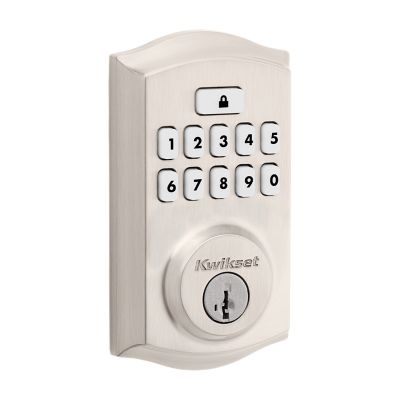
Credit: www.kwikset.com
Frequently Asked Questions
How Do I Reset A Kwikset Electronic Deadbolt?
To reset, remove the battery cover and batteries. Press the reset button inside for 5 seconds. Replace batteries and cover. This restores factory settings and clears all codes.
Can I Add Multiple User Codes To Kwikset Locks?
Yes, Kwikset locks allow multiple user codes. You can program up to 30 unique codes for family members or trusted users. Each code operates independently for secure access.
What Tools Are Needed To Reprogram Kwikset Deadbolt?
No special tools are needed. You only require the existing programming code and fresh batteries. Use the keypad to enter commands and set new user codes.
How Long Does Kwikset Reprogramming Usually Take?
Reprogramming takes about 5 to 10 minutes. The process is simple and quick with clear step-by-step instructions. Ensure batteries are fresh to avoid interruptions.
Conclusion
Reprogramming your Kwikset electronic deadbolt is simple and quick. Follow each step carefully for best results. Keep your new code private to stay safe. Test the lock after reprogramming to ensure it works well. Regularly updating your code helps protect your home.
This guide helps you manage your lock with ease. Stay secure and feel confident in your home’s safety.