Are you ready to take full control of your lighting with the Hue Dimmer Switch? Connecting this smart device to your lights can transform the way you set the mood in any room.
Imagine adjusting brightness with just a click, creating the perfect atmosphere without lifting a finger. In this guide, you’ll discover simple, step-by-step instructions to connect your Hue Dimmer Switch to your lights quickly and easily. Keep reading to unlock the power of effortless lighting control and make your home smarter today.

Credit: www.youtube.com
Hue Dimmer Switch Basics
The Hue Dimmer Switch is a simple tool to control your smart lights. It allows you to turn lights on or off and adjust brightness. You do not need to use a phone or app each time. This switch works with Philips Hue lighting systems and gives you easy control.
Understanding its basics helps you get the best use from the switch. You learn what features it offers and which lights it works with. This knowledge makes connecting and using the switch easier and faster.
Features And Benefits
The Hue Dimmer Switch has four buttons for easy use. One button turns the light on, another turns it off. Two buttons adjust brightness up or down. The switch uses wireless technology, so no wires are needed. You can place it anywhere in your home. It also has a magnetic back for wall mounting or use as a remote. This switch saves energy by controlling light levels. It is battery-powered and lasts a long time without charging.
Compatibility With Lights
The Hue Dimmer Switch works with all Philips Hue bulbs and fixtures. It connects easily to Hue Bridge, which controls your smart home lights. Some Hue lights also work directly with the switch without the Bridge. It does not support non-Hue bulbs or lights. Make sure your lights are part of the Hue system. This ensures smooth control and full use of the switch’s features.
Preparing Your Devices
Preparing your devices is the first step to connect your Hue Dimmer Switch to a light. This step ensures everything works well together. It saves time and avoids frustration. Follow these simple checks before you start the connection process.
Check your light and switch carefully. Make sure they can work as a pair. Also, check the power source of your switch. It needs power to function properly. Let’s explore these steps in detail.
Check Light And Switch Compatibility
Not all lights work with the Hue Dimmer Switch. Confirm your light supports Hue or Zigbee technology. This is important for proper communication between devices. Also, check if your light needs a hub. Some lights connect directly, others need a bridge. Compatibility ensures smooth operation and avoids connection problems.
Charge Or Insert Batteries
The Hue Dimmer Switch runs on batteries. Check if your switch has batteries inside. If not, insert new ones before starting. If the switch uses rechargeable batteries, make sure they are fully charged. A weak battery can cause connection issues. Power your switch well to maintain strong signal and control.
Connecting Via Hue Bridge
Connecting your Hue Dimmer Switch via the Hue Bridge makes controlling lights easy and flexible. The Hue Bridge acts as the central hub, linking your dimmer switch to the smart lights. This setup allows you to manage multiple lights and customize settings from your phone.
Start with the Hue Bridge setup. This step ensures a stable connection for all your Hue devices. Next, add the dimmer switch in the Hue app. This lets the system recognize your switch and prepare it for pairing. Finally, pair the dimmer switch with your lights. This step lets you control specific lights with the switch.
Setup Hue Bridge
Plug in your Hue Bridge and connect it to your Wi-Fi router. Wait until the lights on the Bridge turn solid. Download and open the Philips Hue app on your smartphone. Follow the app instructions to create an account or log in. The app will search and connect to your Hue Bridge automatically.
Add Dimmer Switch In App
Open the Hue app and go to Settings. Tap on “Accessory setup” or “Add accessory.” Choose “Hue Dimmer Switch” from the list. Press the setup button on your dimmer switch to activate pairing mode. The app will find the switch and add it to your system.
Pairing With Lights
In the app, select your dimmer switch from the accessory list. Choose “Assign lights” or “Control lights.” Pick the lights you want to control with the dimmer switch. Save your choices and test the switch by pressing its buttons. Your lights should respond to dimming and on/off commands.

Credit: runlesswire.com
Direct Connection Without Bridge
Connecting your Hue Dimmer Switch directly to a light means no need for a Hue Bridge. This setup works well for simple control of a single light or a small group of lights. It reduces the cost and complexity of the smart lighting system. The switch communicates directly with the light using Zigbee technology.
Direct connection is quick and easy but has some limits. It suits users who want basic on/off and dimming functions. This method does not support advanced features like scenes or remote control via app.
Steps To Connect Directly
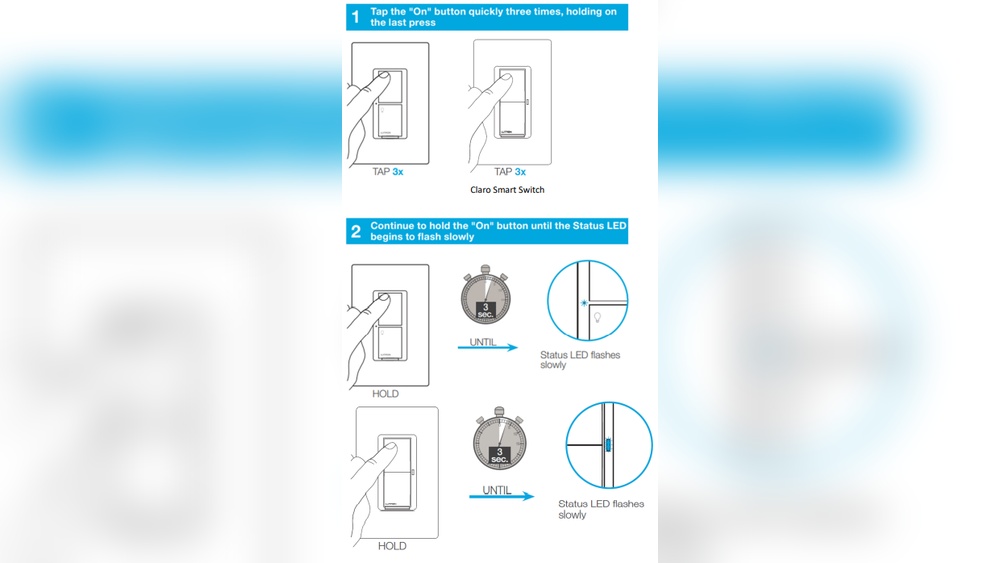
First, make sure your Hue light is powered on. Hold the Hue Dimmer Switch close to the light. Press and hold the “ON” button on the switch for about 10 seconds. The light will blink to confirm pairing. Test the switch by pressing the buttons to control brightness. If the light does not respond, repeat the process. Keep the switch and light close during setup.
Limitations To Consider
Direct connection supports fewer lights than using a bridge. You can pair the switch with up to 10 lights max. No access to the Hue app for remote control or scheduling. Limited control options: only on/off and dimming. No voice assistant integration without the bridge. The connection range is shorter compared to using a bridge.
Configuring Switch Settings
Configuring the switch settings lets you control how your Hue Dimmer Switch works. This step is key to making the switch fit your needs. You can change what each button does and how sensitive the dimmer is. This helps you use the light just the way you want.
Customizing Button Actions
Each button on the Hue Dimmer Switch can do different things. You can set the top button to turn the light on. The bottom button can turn it off. The middle buttons can change brightness or switch light scenes. Changing these actions is simple. Open the Hue app, select your switch, and pick the button you want to change. Choose a new action from the list. This makes your switch work exactly how you like.
Adjusting Dimmer Sensitivity
Dimmer sensitivity controls how fast the light changes brightness. You can make the dimmer more or less sensitive. A higher sensitivity means small presses change brightness a lot. Lower sensitivity makes brightness change slowly. Adjusting this helps you find the perfect feel. Use the Hue app to set sensitivity. Test the dimmer until it feels right in your hands.
Troubleshooting Connection Issues
Connecting your Hue Dimmer Switch to lights usually goes smoothly. Sometimes, connection issues can occur. These problems can stop the switch from working properly. Troubleshooting helps fix these problems quickly. Follow clear steps to solve connection troubles and enjoy easy control of your lights.
Common Problems And Fixes
One common problem is the switch not pairing with the light. Check if the light is powered on. Make sure the switch is close to the light during setup. Another issue is weak battery power. Replace the battery if the switch does not respond.
Interference from other devices can block the connection. Move the switch and light away from routers or microwaves. Sometimes, the Hue app may not show the switch. Restart the app and try pairing again. These simple fixes solve most connection problems.
Resetting The Dimmer Switch
If fixes do not work, reset the dimmer switch. Press and hold the setup button on the back for 10 seconds. The LED light will blink, showing the reset is complete. Resetting clears old connections and lets you start fresh.
After resetting, open the Hue app to add the switch again. Follow the pairing steps carefully. Resetting often solves hidden issues that block connection. This step is important for smooth operation of your Hue Dimmer Switch.
Tips For Optimal Performance
Getting the best from your Hue Dimmer Switch and lights needs some care. Small steps help keep the connection strong and the system working smoothly. Follow these tips for a better lighting experience.
Placement Of Switch And Lights
Place the Hue Dimmer Switch close to the lights it controls. Walls or surfaces without metal objects nearby work best. Metal can block signals and cause delays. Avoid placing the switch behind furniture or inside cabinets. Keep it within range of your Hue Bridge or smart hub. This placement ensures quick response and fewer connection issues.
Maintaining Battery Life
Check the battery regularly to avoid sudden power loss. Use only the recommended battery type. Remove the battery if you do not use the switch for a long time. Keep the contacts clean and dry. Avoid exposing the switch to extreme temperatures. Good battery care helps keep your dimmer switch ready to use.

Credit: www.techhive.com
Frequently Asked Questions
How Do I Pair Hue Dimmer Switch With My Light?
To pair, press and hold the switch’s setup button until the LED blinks. Open the Hue app, select “Add accessory,” then follow prompts to connect your light.
Can I Connect Hue Dimmer Switch To Multiple Lights?
Yes, you can control multiple lights with one switch. Group the lights in the Hue app, then pair the dimmer switch to that group for synchronized control.
What If Hue Dimmer Switch Isn’t Connecting To Light?
Check that your Hue Bridge is connected and updated. Ensure the switch is close to the light. Restart the Hue app and retry the pairing process for best results.
Does Hue Dimmer Switch Work Without Hue Bridge?
No, the Hue Dimmer Switch requires a Hue Bridge to connect and control lights. The Bridge acts as the central hub for communication between devices.
Conclusion
Connecting your Hue Dimmer Switch to a light is simple and quick. Follow each step carefully for best results. This setup lets you control your lights easily. No extra tools or skills are needed. Enjoy adjusting brightness and turning lights on or off with one click.
Save energy and create the perfect mood in any room. Try it today and see how simple smart lighting can be.