Are you struggling to connect your Kasa Light Switch to a new WiFi network? Changing your WiFi settings might seem tricky, but it doesn’t have to be.
In this guide, you’ll learn simple, step-by-step instructions to switch your Kasa Light Switch to the right network quickly and without hassle. Whether you’ve moved to a new home or upgraded your router, this article will help you get your smart switch back online in no time.
Keep reading and take control of your smart home setup today!

Credit: device.report
Prepare Your Kasa Light Switch
Preparing your Kasa Light Switch is the first step to change its WiFi network. Proper preparation ensures a smooth and quick connection to your new network. Taking time to get your device ready helps avoid errors during setup.
Check Device Compatibility
Make sure your Kasa Light Switch supports the WiFi network type. It works best with 2.4 GHz networks, not 5 GHz. Confirm your router broadcasts a 2.4 GHz signal. Also, check if your device firmware is up to date. Updated firmware improves connection stability and security.
Reset The Light Switch
Resetting the switch clears old network settings. Press and hold the reset button for about 5 seconds. The indicator light will blink, showing the device is resetting. Wait for the light to turn solid, meaning reset is complete. This step prepares the switch to connect to a new WiFi network easily.
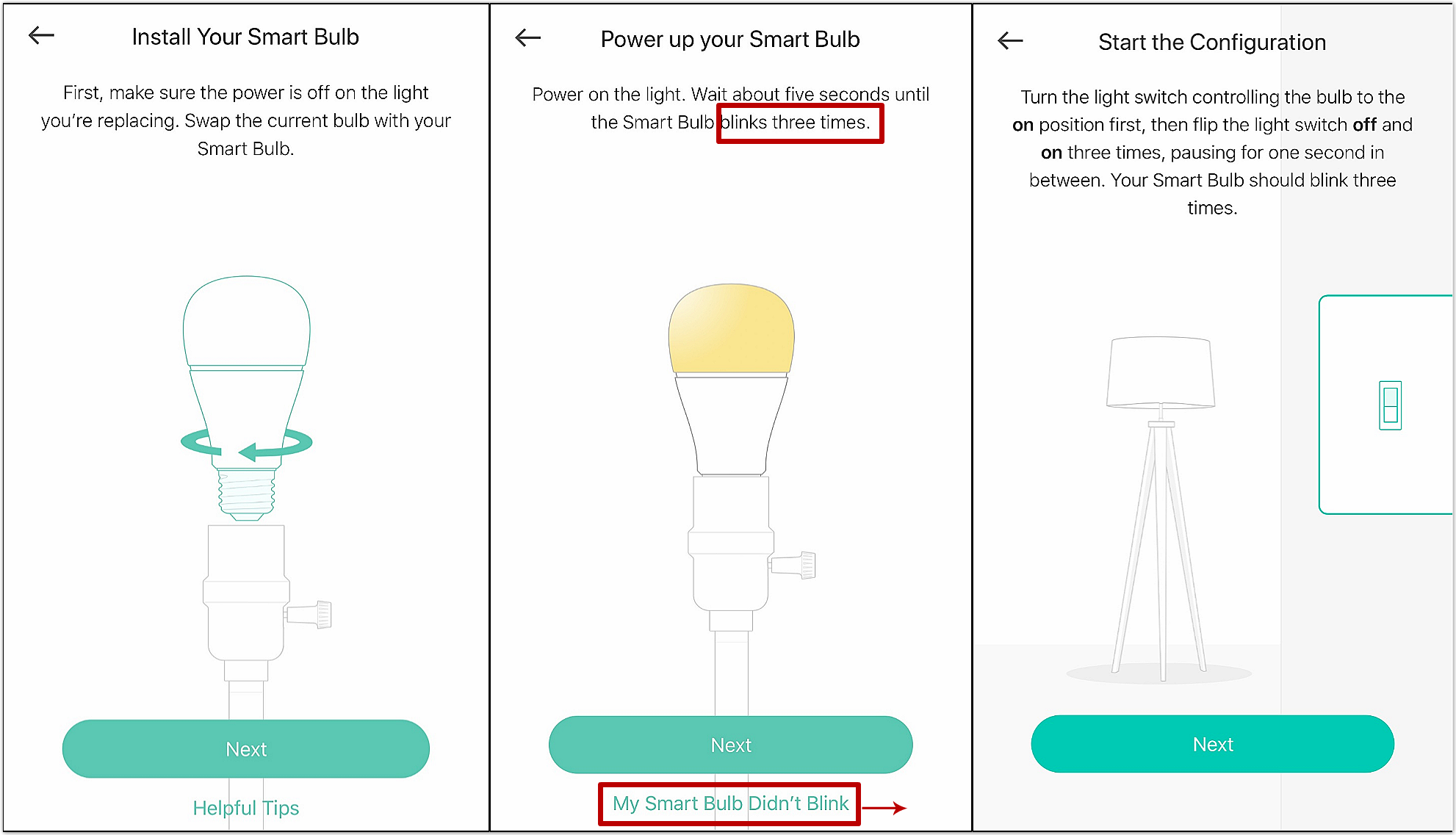
Credit: www.tp-link.com
Access The Kasa App
Accessing the Kasa app is the first step to change your WiFi network on the Kasa Light Switch. This app lets you control and manage your smart devices with ease. You need the app to update settings and connect to a new network.
Download And Install The App
Find the Kasa app in the Apple App Store or Google Play Store. The app is free to download. Tap the download button and wait for the app to install on your device. Make sure your phone or tablet has enough space for the app.
Log Into Your Account
Open the Kasa app after installation. Enter your email and password to log in. If you do not have an account, create one by following the sign-up instructions. Logging in syncs your devices with your account for easy control.
Remove Old Wifi Network
Removing the old WiFi network from your Kasa Light Switch is a key step before connecting it to a new network. This helps avoid connection issues and keeps the device running smoothly. The process is simple and takes only a few moments.
Navigate To Device Settings
Start by opening the Kasa app on your phone. Find your light switch in the device list. Tap on the device to open its settings. The device settings menu shows options related to your light switch. This is where you manage the WiFi connections.
Forget Current Network
In the device settings, look for the WiFi or network section. Select the option to forget or remove the current WiFi network. Confirm your choice if asked. This action disconnects the switch from the old WiFi. Now, your device is ready to connect to a new network.

Credit: device.report
Connect To New Wifi Network
Connecting your Kasa Light Switch to a new WiFi network is simple. Follow clear steps to ensure the switch works smoothly with your new network. This guide helps you change your WiFi network easily.
Put The Switch In Setup Mode
Start by putting the switch into setup mode. Press and hold the power button for about 5 seconds. The LED light will start blinking quickly. This means the switch is ready to connect to a new network.
Select New Network
Open the Kasa app on your phone. Go to the device settings for your light switch. Find the option to change WiFi network. Choose your new WiFi network from the list of available networks.
Enter Wifi Password
Type the password for your new WiFi network carefully. Double-check to avoid errors. Tap “Connect” to link your switch to the new network. The LED light will stop blinking once connected.
Verify Connection
After changing the WiFi network on your Kasa Light Switch, verifying the connection is key. This step ensures the switch works properly with the new network. It helps avoid issues later and confirms your setup is correct.
Check Switch Status
First, look at the switch’s LED light. A solid or blinking light usually means it is connected. No light or a different color might mean connection problems. Also, open the Kasa app on your phone. Check if the switch shows as online. If it is offline, the switch might not be connected to the new WiFi.
Test Light Switch Operation
Next, try turning the light on and off using the app. If the light responds quickly, the switch is connected well. You can also use the physical switch to check if it controls the light. Both methods should work without delay. If the light does not respond, recheck the WiFi settings and connection.
Troubleshoot Common Issues
Troubleshooting common issues is key when changing the WiFi network on your Kasa light switch. Problems can stop the switch from connecting properly. Simple steps often solve these problems fast.
Try these tips to get your switch working with the new network. They help fix most connection troubles.
Resetting The Switch Again
Resetting the switch clears old settings. Press and hold the reset button for about 5 seconds. Wait until the light blinks rapidly. This means the switch is ready to connect to a new WiFi network. Resetting often fixes connection errors.
Ensuring Strong Wifi Signal
A weak WiFi signal causes connection problems. Place the switch near the router during setup. Avoid walls or metal objects that block the signal. Test your WiFi strength with a phone app. Strong signal helps the switch connect smoothly.
Updating The Kasa App
The app controls the switch and must be up to date. Open your app store and check for updates. An outdated app may not connect to the switch. Updating the Kasa app adds new features and fixes bugs.
Frequently Asked Questions
How Do I Change Wifi On My Kasa Light Switch?
Open the Kasa app, select your device, and go to settings. Choose “WiFi” and follow prompts to connect to a new network. Ensure your phone is on the desired WiFi during setup.
Can I Use 5ghz Wifi With Kasa Light Switch?
No, Kasa Light Switches only support 2. 4GHz WiFi networks. Make sure your router broadcasts a 2. 4GHz signal to connect the device.
What If Kasa Switch Doesn’t Connect To New Wifi?
Reset the switch by holding the button for 5 seconds. Then, reopen the Kasa app and repeat the WiFi setup process.
Will Changing Wifi Erase My Kasa Light Switch Settings?
No, changing WiFi only updates the network connection. Your switch settings and schedules remain intact after updating WiFi.
Conclusion
Changing the WiFi network on your Kasa Light Switch is simple and quick. Just follow the steps carefully to avoid any issues. This helps keep your smart home devices connected and working well. A strong WiFi connection means better control and convenience.
Now, you can enjoy seamless lighting control without any interruptions. Keep your app updated for the best experience. Stay connected, stay in control.