If you’ve just got a Kwikset Z Wave Deadbolt, you’re probably eager to unlock its full potential. But before you can enjoy the convenience of keyless entry and smart home integration, you need to pair it correctly.
Don’t worry—pairing your Kwikset Z Wave Deadbolt is easier than you think. In this guide, you’ll find simple, step-by-step instructions that will get your lock connected and working smoothly in no time. Keep reading, and you’ll be securing your home smarter and faster than ever before.

Credit: www.youtube.com
Kwikset Z Wave Deadbolt Features
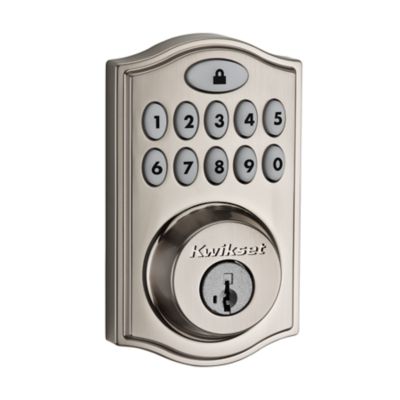
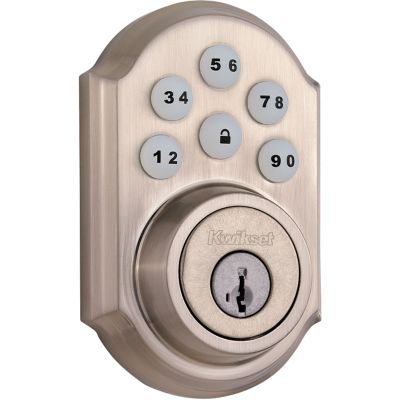
The Kwikset Z Wave Deadbolt offers smart security with simple control. It blends traditional lock strength with modern technology. This deadbolt lets you lock and unlock your door remotely. It works with smart home systems to add convenience and safety. These features make it a reliable choice for home security.
Key Benefits
The Kwikset Z Wave Deadbolt provides easy keyless entry. Use a code on the keypad or control it from your phone. It sends alerts to notify you about door activity. The lock has a strong, sturdy design to protect your home. You can create multiple access codes for family and guests. It also supports voice commands through smart assistants.
Compatibility Requirements
This deadbolt works with Z-Wave enabled hubs. It needs a smart home hub to connect and control remotely. Compatible hubs include SmartThings, Wink, and Hubitat. The lock supports popular smart home platforms for smooth integration. Check your hub’s Z-Wave support before pairing. The lock runs on standard batteries, making power easy to maintain.
Credit: www.kwikset.com
Preparing Your Deadbolt
Preparing your Kwikset Z-Wave deadbolt is the first step to ensure smooth pairing. The deadbolt must be fully ready before you connect it to your smart home system. Two key tasks need your attention: installing fresh batteries and resetting the device. These steps guarantee proper power and a clean start.
Installing Batteries
Open the battery compartment on the inside of the deadbolt. Insert four fresh AA alkaline batteries. Match the positive and negative ends as shown. Close the compartment securely. The keypad will light up, signaling power. Avoid using rechargeable batteries as they may cause issues.
Resetting The Device
Resetting clears previous connections and settings. Press and hold the programming button inside the lock. Hold it for about 5 seconds until the keypad flashes. Release the button and wait for the device to reset. The deadbolt is now ready for pairing with your Z-Wave hub.
Connecting To Your Z Wave Hub
Connecting your Kwikset Z Wave Deadbolt to your Z Wave hub is a key step. This link allows you to control the lock remotely. It also enables automation and security alerts. The process is simple when you follow the right steps carefully.
This section guides you through the connection process. You will learn how to put your hub in inclusion mode. Then, you will use the hub interface to add the deadbolt. Let’s get started.
Entering Inclusion Mode
First, activate inclusion mode on your Z Wave hub. This mode lets the hub search for new devices. Typically, you press a button or select an option in the app. Check your hub’s manual for exact instructions.
Next, trigger the Kwikset deadbolt to enter pairing mode. Usually, press and hold the lock’s program button. The lock’s LED should start blinking. This signals that it’s ready to connect.
Once both devices are in the right mode, the hub will detect the deadbolt. Wait for confirmation on your hub or app. The lock is now paired and ready for setup.
Using The Hub Interface
Open your Z Wave hub app or web interface. Look for the “Add Device” or “Include” option. Follow the prompts to confirm the new device.
Assign a name to your Kwikset deadbolt for easy control. You can customize settings like notifications and lock schedules. These options help you manage your home security better.
Test the lock from the app to ensure it works properly. Lock and unlock the door remotely. If the command succeeds, your deadbolt is fully connected.
Credit: www.kwikset.com
Pairing Process
The pairing process connects your Kwikset Z Wave Deadbolt to your smart home system. This step is essential for remote control and monitoring. The process is simple and fast when done correctly.
Follow each step carefully to ensure a secure connection. This guide breaks down the process into clear actions. Stay with each part until the deadbolt pairs successfully.
Activating The Deadbolt For Pairing
Start by locating the programming button on the deadbolt’s interior side. Press and hold this button for about five seconds. The LED light will start flashing, indicating the deadbolt is in pairing mode.
Keep the deadbolt close to your Z Wave hub or controller. The hub should detect the deadbolt automatically. If not, use your hub’s app to add a new device manually.
Confirming Successful Pairing
Once the hub detects the deadbolt, wait for a confirmation signal. The LED on the deadbolt will stop flashing and stay solid. Your app will also show the deadbolt as connected.
Test the lock using the app to make sure it responds correctly. Lock and unlock the deadbolt remotely to confirm full functionality. If it doesn’t respond, repeat the pairing steps carefully.
Troubleshooting Tips
Troubleshooting pairing issues with your Kwikset Z-Wave deadbolt can save time and frustration. Many users face common problems during the setup process. Knowing simple fixes helps you get your lock connected quickly. Below are practical tips to resolve common issues and steps to reset the device and try pairing again.
Common Pairing Issues
The deadbolt may not connect due to weak signal strength. Walls and metal objects can block the Z-Wave signal. Ensure your hub is close to the lock during pairing.
Incorrect inclusion mode on the hub can cause pairing failures. Check your hub’s instructions to confirm it is ready to add a new device.
Low battery power in the lock might stop pairing. Replace batteries with fresh ones before trying again.
Sometimes the lock is already paired with another hub. Remove it from previous networks to avoid conflicts.
Reset And Retry Steps
Start by removing the batteries from the lock. Wait for 30 seconds, then reinsert them to reset the device.
Press and hold the programming button until the lock beeps. This signals the reset is complete.
Activate your hub’s inclusion mode again. Try pairing the lock while it is in range.
Follow on-screen or app instructions carefully for the next steps. Be patient, as pairing may take a few attempts.
Managing Your Deadbolt After Pairing
After pairing your Kwikset Z Wave Deadbolt, managing it properly keeps your home safe. Regular tasks like changing codes and updating firmware maintain strong security. These tasks ensure the deadbolt works smoothly and protects your home.
Changing Codes
Changing access codes helps control who enters your home. Use the smart app linked to your deadbolt to add or remove codes. Change codes often to prevent unauthorized access. Assign unique codes to family members or guests. Deleting old or unused codes keeps your lock secure.
Firmware Updates
Firmware updates improve your deadbolt’s performance and security. Updates fix bugs and add new features. Check the app regularly for update notifications. Install updates promptly to keep your lock running well. Stay protected against new security risks with the latest firmware.
Frequently Asked Questions
How Do I Reset My Kwikset Z Wave Deadbolt?
To reset, press and hold the program button for 10 seconds. The lock will beep twice. This clears all previous pairings for a fresh start.
Can I Pair Kwikset Z Wave With Any Z-wave Hub?
Yes, Kwikset Z Wave deadbolts are compatible with most Z-Wave hubs. Ensure your hub supports the lock’s specific model for smooth integration.
What Steps Ensure Successful Pairing Of Kwikset Z Wave Lock?
Start by putting the hub in pairing mode. Press the program button on the lock. Follow your hub’s instructions to complete the connection.
How Long Does Kwikset Z Wave Deadbolt Pairing Usually Take?
Pairing typically takes under five minutes. It depends on your hub and lock model but usually completes quickly and easily.
Conclusion
Pairing your Kwikset Z Wave deadbolt is simple and quick. Follow the steps carefully for a smooth setup. Make sure your hub supports Z Wave devices. Keep your deadbolt close to the hub during pairing. Check the battery level to avoid connection issues.
Once paired, you can control your lock remotely. Enjoy the extra security and convenience it offers. Regularly update your device for best performance. This setup helps protect your home easily and smartly.