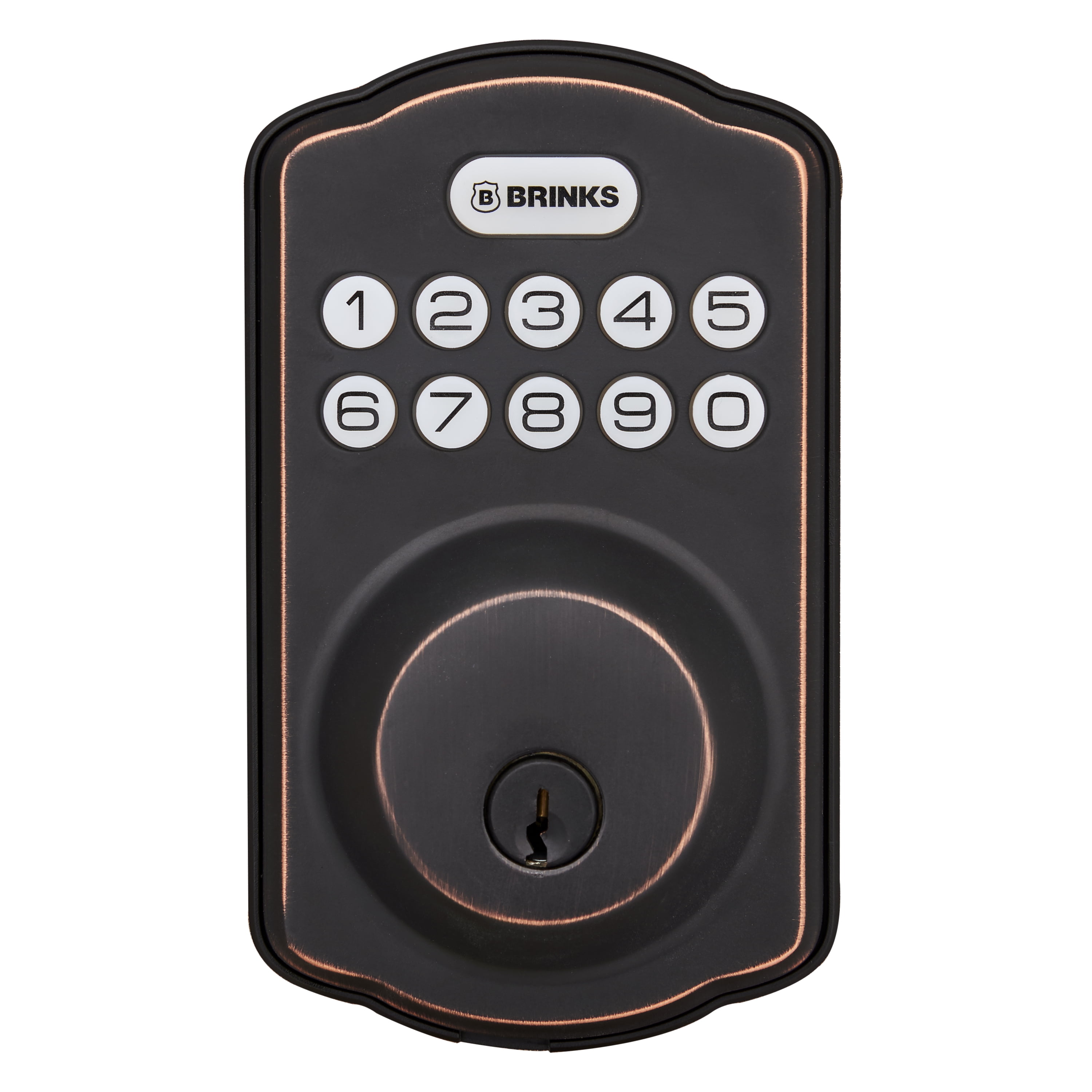
Are you looking to take control of your home’s security with your Brinks electronic deadbolt? Learning how to program it yourself can save you time and give you peace of mind.
Whether you want to set a new access code or add temporary codes for guests, this guide will walk you through each step clearly and simply. By the end, you’ll feel confident managing your deadbolt like a pro. Ready to unlock the full potential of your Brinks lock?
Let’s get started.
Gather Required Materials
Start by collecting all needed tools and materials for programming your Brinks electronic deadbolt. Have the user manual, fresh batteries, and the deadbolt unit ready. This saves time and makes the process smooth.
Before programming your Brinks electronic deadbolt, gather all needed materials. This step saves time and prevents frustration during installation.
Having everything ready helps the process go smoothly. It also ensures you do not miss any important tools or parts.
Electronic Deadbolt Unit
Start with the Brinks electronic deadbolt itself. Make sure it is the correct model for your door.
Check if the package includes the keypad and locking mechanism. Both are essential for programming.
Batteries
Insert fresh batteries before programming. Most Brinks deadbolts use AA or 9-volt batteries.
Use new batteries to avoid interruptions during setup. Old batteries may cause errors or lockouts.
User Manual
Keep the user manual close. It contains important instructions for programming the lock.
The manual helps you follow each step correctly. It also explains error codes and reset options.
Small Screwdriver
A small screwdriver is useful for removing the battery cover or adjusting screws.
Use the right size screwdriver to avoid damaging the lock or screws.
Pen And Paper
Write down your new access codes. This keeps your codes safe and easy to find.
Do not rely on memory alone. Pen and paper help prevent lockouts from forgotten codes.
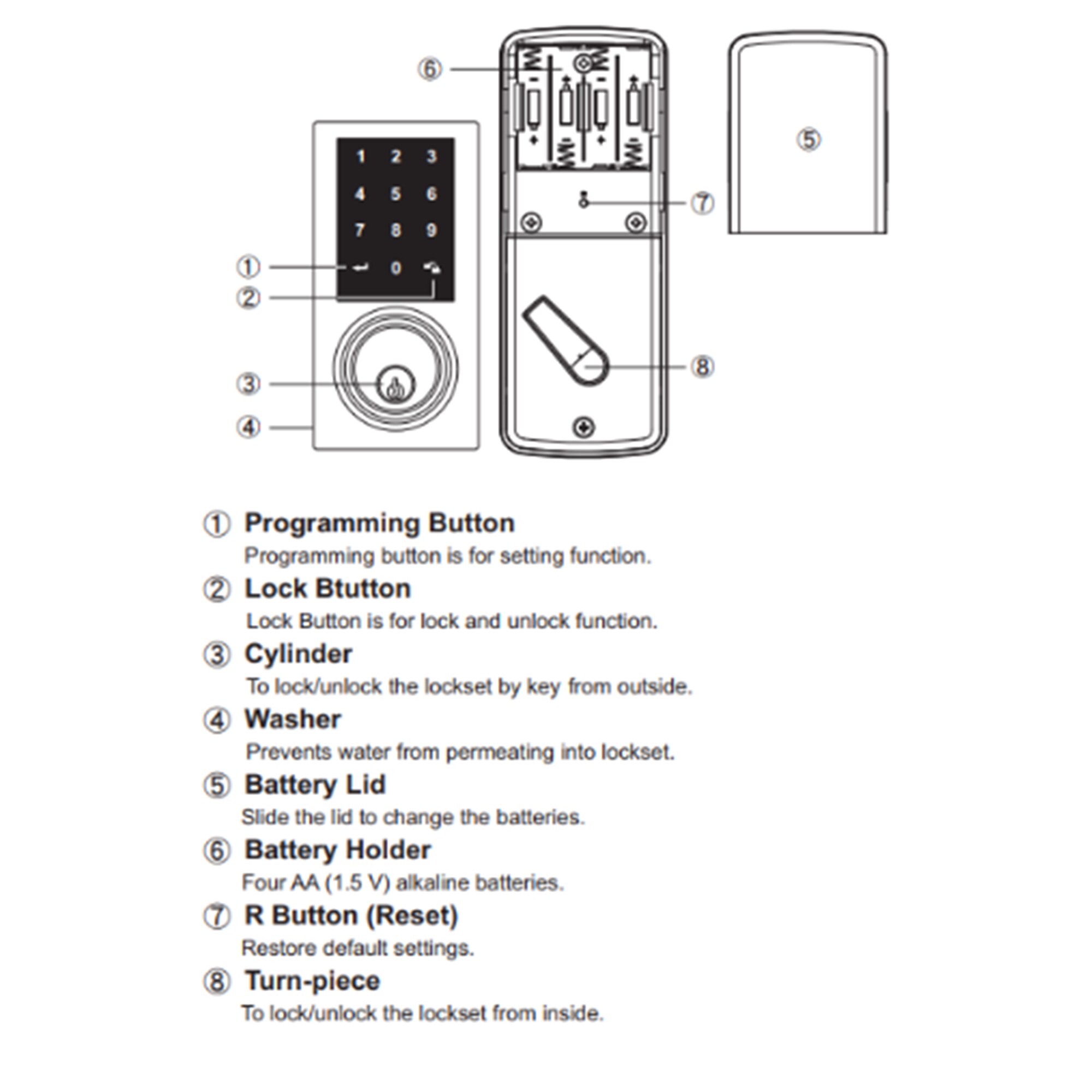
Locate The Programming Button
Locating the programming button is the first step to set up your Brinks electronic deadbolt. This button controls the lock’s settings and codes. Finding it quickly makes programming easier and faster.
The programming button is usually inside the lock’s interior part. You need to open the battery cover to see it. The button is small and often red or black.
Remove The Battery Cover
Start by opening the battery cover on the inside of the lock. Use your fingers or a small tool. Gently lift or slide the cover off. This exposes the battery compartment and the programming button.
Identify The Programming Button
Look inside the battery compartment for a small button. It is often labeled “Program” or marked with a symbol. The button is usually red or black. Pressing this button lets you enter programming mode.
Use A Flashlight For Better Visibility
Light helps when the area inside the lock is dark. Use a small flashlight or your phone’s light. Shine it into the battery compartment. This makes finding the button easier and faster.
Enter Programming Mode
Entering programming mode on your Brinks electronic deadbolt allows you to set or change codes. This step is essential before adding new users or adjusting settings.
Programming mode gives you control over your lock’s security features. Follow simple steps to access it safely and quickly.
Start by finding the programming button on the inside part of the lock. It is usually a small, red or black button.
This button activates the programming mode once pressed correctly.
Press And Hold The Programming Button
Press the programming button firmly. Hold it for about three to five seconds until the lock beeps or flashes.
The sound or light signals that programming mode is active.
Enter Your Master Code
Type your master code using the keypad. This code is needed to access programming functions.
After entering the code, press the lock or unlock button to confirm.
Confirm Programming Mode Activation
The lock will beep again or flash to confirm it is ready for programming. Now you can add or change user codes.
Do not press any other buttons until you complete your programming tasks.
Add A New User Code
Adding a new user code to your Brinks electronic deadbolt gives extra access. This is useful for family, friends, or trusted workers. The process is simple and quick. Follow clear steps to keep your home secure.
Choose A Secure Code
Select a code that is easy to remember but hard to guess. Avoid using common numbers like 1234 or your birth year. Use a mix of numbers that do not follow a pattern. Keep the code private. Do not share it with many people.
Test The New Code
After programming, try the new code on the lock. Make sure it unlocks the door smoothly. Test it several times to confirm it works every time. Check that old codes still work only if you want them to. This step ensures your lock functions well and stays secure.
Delete Existing Codes
Deleting existing codes on your Brinks electronic deadbolt keeps your lock secure. It removes old or unused access codes. This step is important before adding new users.
Removing codes is quick and easy. You do not need special tools. Just follow the steps below carefully.
First, find the programming button inside the lock. Usually, it is near the battery pack. Remove the cover to see it clearly.
Press and hold the programming button for a few seconds. The lock will beep or flash to show it is ready. This means you are in programming mode.
Delete All User Codes
Press the programming button again. Then enter the master code followed by the delete command. The lock will confirm by beeping twice.
Verify Code Deletion
Try entering the old user codes. They should no longer work. This confirms the codes are deleted successfully.
Credit: www.lowes.com
Change Master Code
Changing the master code on your Brinks electronic deadbolt is important for security. The master code controls access to the lock’s programming features. Regularly updating it keeps your home safe from unwanted entry.
This process is simple and takes only a few steps. Follow the instructions carefully to set a new code that you can remember easily.
First, find the programming button on the inside part of the lock. It is usually near the battery compartment. Press and hold this button to start the programming mode.
Enter The Current Master Code
Type the current master code using the keypad. This code is needed to access the settings. After entering the code, press the lock or unlock button to confirm.
Set Your New Master Code
Enter your new master code carefully. Choose a number sequence that is easy for you to remember. Press the lock or unlock button again to save the new code.
Test The New Master Code
Exit programming mode by pressing the programming button once more. Test the new code on the keypad to ensure it works. The lock should respond by locking or unlocking.
Reset The Deadbolt
Resetting your Brinks electronic deadbolt is a key step before programming new codes. This process clears all existing settings. It prepares the lock for fresh programming. Resetting helps fix issues like unresponsive buttons or forgotten codes.
Follow these steps carefully to reset your deadbolt safely. The reset will erase all current codes and settings. Make sure to have your master code ready after the reset.
Locate The Reset Button
Start by removing the battery cover on the inside part of the lock. Look for a small reset button near the batteries. Use a paperclip or a small tool to press it.
Press And Hold The Reset Button
Hold the reset button for about 10 seconds. You will hear a beep or see a light flash. This signals the lock is resetting.
Release The Button And Wait
Let go of the reset button. Wait for the lock to finish the reset process. The deadbolt will return to factory settings.
Test The Reset
Try to use the keypad. It should not accept any old codes. This confirms the reset worked successfully.
Troubleshooting Common Issues
Troubleshooting common issues with your Brinks electronic deadbolt can save time and avoid frustration. Many problems have easy fixes you can try at home. This section covers the most frequent issues and their solutions.
Deadbolt Not Responding
Check if the lock is powered. Deadbolts may stop working if the battery is dead. Press the keypad buttons firmly. Dirt or debris can block the sensor, so clean it gently. Reset the lock by removing the battery for a few seconds. This often restores normal function.
Code Not Working
Make sure you enter the code correctly. Numbers must be pressed in order without pause. If the code still fails, reset it using the programming instructions. Double-check if you are using the master code or a user code. Clear any old codes you no longer use to avoid confusion.
Battery Replacement Tips
Use fresh batteries recommended by Brinks for best results. Remove the battery cover carefully to avoid damage. Replace all batteries at the same time to maintain power balance. Avoid mixing old and new batteries. After replacement, test the lock to ensure it responds properly.
Maintenance Tips For Longevity
Proper maintenance helps your Brinks electronic deadbolt last longer. It keeps the lock working smoothly. Small steps can prevent big problems. Follow these simple tips to protect your investment.
Clean The Lock Regularly
Use a soft cloth to wipe the lock. Remove dust and dirt. Avoid using water or strong cleaners. They can damage the lock’s finish and electronics.
Check And Replace Batteries
Weak batteries cause the lock to fail. Test batteries every few months. Replace them as soon as the lock shows low battery signs. Use high-quality batteries for best results.
Lubricate Moving Parts
Apply a small amount of graphite lubricant to the keyhole and bolt. This helps parts move smoothly. Avoid oil-based lubricants. They attract dust and cause jams.
Inspect For Wear And Tear
Look over the lock and door frame regularly. Tighten loose screws. Fix any misalignment. Early repairs prevent bigger damage later.
Protect From Harsh Weather
Install a cover or shield if the lock faces rain or snow. Moisture can harm the electronics. Keep the lock dry for better performance.
Credit: www.walmart.com

Credit: www.youtube.com
Frequently Asked Questions
How Do I Start Programming Brinks Electronic Deadbolt?
Begin by opening the battery cover on your Brinks deadbolt. Press and hold the program button until the keypad lights up. This activates programming mode, allowing you to add or change codes easily.
Can I Add Multiple User Codes On Brinks Deadbolt?
Yes, Brinks electronic deadbolts support multiple user codes. You can program up to 19 unique access codes, ideal for family or trusted guests. This feature enhances security by tracking who enters your home.
What If I Forget The Master Code For My Deadbolt?
If you forget the master code, reset your Brinks deadbolt to factory settings. This erases all user codes and restores the default master code. Refer to the manual for specific reset instructions.
How Do I Delete A User Code From Brinks Lock?
Enter programming mode by pressing the program button. Select the option to delete user codes, then enter the specific code you want to remove. This keeps your lock secure by managing access efficiently.
Conclusion
Programming your Brinks electronic deadbolt is simple with clear steps. Follow each instruction slowly and carefully. Test the lock after programming to ensure it works. Keep your code safe and easy to remember. Changing codes regularly can improve your home security.
This guide helps you manage your lock confidently. Enjoy the convenience and safety your deadbolt provides.