Imagine walking into a room and turning on the lights without lifting a finger. Sounds like magic, right?
But with Alexa, controlling your light switch is not just simple—it’s smart. If you want to make your home more convenient and modern, learning how to control your light switch with Alexa is a game-changer. You’ll discover easy steps to set it up, tips to make it work flawlessly, and how this small change can make your daily life smoother.
Ready to transform the way you light up your home? Let’s dive in.
Choosing Compatible Smart Switches
Choosing the right smart switch is key to controlling lights with Alexa. Not all switches work the same way or connect easily. Selecting a compatible switch ensures smooth setup and reliable control.
Smart switches come in different types and offer various features. Understanding these helps pick the best option for your home and Alexa system.
Wi-fi Vs Zigbee Switches
Wi-Fi switches connect directly to your home network. They need no extra hub and work with Alexa through your Wi-Fi router. Setup is simple, and they are easy to move between rooms.
Zigbee switches require a smart hub like Amazon Echo Plus. They use less power and offer faster response times. Zigbee devices create a mesh network, improving connection in larger homes.
Choose Wi-Fi for simplicity. Pick Zigbee for better performance and range in bigger houses.
Key Features To Look For
Check if the switch supports Alexa voice commands. It should allow dimming or just on/off control based on your needs. Look for easy installation guides and good customer support.
Energy monitoring helps track power use. Some switches include this useful feature. Also, confirm the switch fits your wall box size and wiring type.
Safety certifications and durability matter for long-term use. Pick switches with good reviews and reliable build quality.
Popular Brands
Philips Hue offers Zigbee switches with strong Alexa support. They are well-known for quality and ease of use. Lutron Caseta switches are also popular and work with a hub.
TP-Link and Leviton provide reliable Wi-Fi switches. These brands offer affordable options with simple Alexa integration. Both have good customer service and user-friendly apps.
Choose brands with proven compatibility and positive user feedback to avoid issues.

Credit: www.amazon.com
Setting Up Your Smart Switch
Setting up your smart light switch is the first step to control lights with Alexa. This process involves a few simple tasks. Follow these steps carefully to get your smart switch working smoothly. Understanding the setup will help avoid common mistakes and make your home smarter.
Tools And Safety Tips
Gather basic tools like a screwdriver, voltage tester, and wire stripper. Always turn off the power at the circuit breaker before working. Use a voltage tester to check wires for electricity. Wear insulated gloves for extra safety. Avoid rushing to prevent accidents or damage.
Wiring The Switch
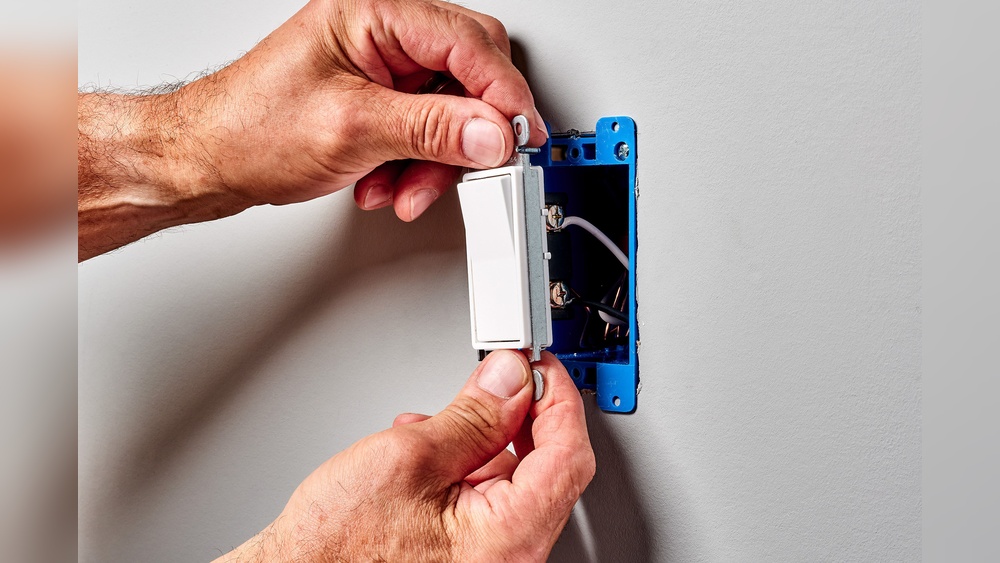
Remove the old switch carefully by unscrewing it from the wall. Note the position of each wire before disconnecting. Connect the wires to the new smart switch as shown in the manual. Tighten screws firmly to avoid loose connections. Push the wires back gently into the electrical box. Attach the switch to the wall and secure it with screws.
Connecting To Your Home Network
Turn the power back on at the circuit breaker. Open the smart switch app on your phone. Follow app instructions to connect the switch to your Wi-Fi network. Ensure your phone is on the same Wi-Fi during setup. Name your switch for easy Alexa control. Test the connection by turning the light on and off through the app.
Linking Switch To Alexa
Linking your light switch to Alexa lets you control lights with voice commands. This setup makes daily tasks easier and adds smart features to your home. The process involves a few simple steps using the Alexa app and your smart switch.
Installing The Alexa App
First, download the Alexa app from the App Store or Google Play. Open the app and sign in with your Amazon account. The app connects Alexa to your smart devices and helps manage them.
Enabling The Smart Switch Skill
Next, find the skill for your smart switch in the Alexa app. Use the search bar to type the switch brand name. Tap “Enable” to link the skill to your Alexa account. This step allows Alexa to control your specific switch.
Discovering Devices
Finally, ask Alexa to discover devices or use the app’s “Add Device” option. Alexa will search for your smart switch on the network. Once found, your switch appears in the app. You can now control the light switch by voice or app commands.

Credit: kdfoundation.org
Controlling Lights With Voice Commands
Controlling lights with voice commands makes your home smart and easy to manage. Alexa lets you turn lights on or off using simple speech. It saves time and adds comfort to your daily routine.
Using voice commands is quick. You do not need to find switches or use your phone. Just speak, and Alexa listens. It works well with many smart light switches and bulbs.
Basic Voice Commands
Start with simple commands. Say “Alexa, turn on the living room light.” Alexa will respond and switch on the light. You can also say “Alexa, turn off the bedroom light.”
Adjust brightness by saying “Alexa, dim the kitchen light to 50 percent.” Or make it brighter by saying “Alexa, brighten the dining room light.”
Using Groups And Scenes
Group lights in one room or area for easy control. Create a group called “Downstairs” to control all lights there. Then say, “Alexa, turn off Downstairs lights.”
Scenes let you set mood lighting. For example, say “Alexa, set movie night.” Alexa changes lights to your preset colors and brightness. It creates the right atmosphere fast.
Customizing Commands
You can make commands your own. Rename lights or groups to simple names. For example, call your study light “Desk Light” and say “Alexa, turn on Desk Light.”
Create routines that run multiple actions with one command. Say “Alexa, good night” to switch off all lights and lock doors. This saves time and effort.
Troubleshooting Common Issues
Troubleshooting common issues is key to keeping your Alexa-controlled light switch working well. Problems can happen, but most have simple fixes. Follow these tips to solve usual troubles fast.
Connection Problems
Check if your Wi-Fi is working. Alexa needs a strong connection to control devices.
Restart your router and Alexa device. This often solves connection glitches.
Ensure the light switch is connected to the same network as Alexa.
Update your Alexa app and device firmware regularly to avoid bugs.
Alexa Not Responding
Make sure Alexa is listening. Say the wake word clearly and loud enough.
Check the microphone on your Alexa device. It might be muted.
Try restarting Alexa. This can fix temporary errors.
Confirm Alexa is set up to control your light switch in the app.
Switch Not Controlling Lights
Verify the light switch is properly installed and powered.
Check if the light bulbs are working and compatible with the switch.
Remove and re-add the switch in the Alexa app to refresh settings.
Look for firmware updates for the switch to ensure smooth operation.
Enhancing Your Smart Lighting Setup
Enhancing your smart lighting setup brings comfort and control to your home. Alexa lets you manage lights easily with simple voice commands. You can make your lighting smarter by adding features that fit your lifestyle.
Small changes can make your smart lights more useful and energy-efficient. Explore ways to schedule lights, connect devices, and save power. These tips help you get the most from your Alexa-controlled lights.
Scheduling Lights
Set your lights to turn on or off at specific times. Use the Alexa app to create schedules for different days. This keeps your home lit only when needed. Scheduling helps you feel safe and saves electricity. No more forgetting to turn off lights.
Integrating With Other Smart Devices
Connect your lights to other smart home gadgets. Link Alexa with smart plugs, sensors, or security cameras. Lights can react to motion or alarms automatically. This creates a smart home that works together. Integration adds convenience and improves home security.
Energy Saving Tips
Use Alexa to reduce your energy use with smart lighting. Choose dimmer settings or turn off lights remotely. Schedule lights to stay off when rooms are empty. Use energy-efficient bulbs for longer life and lower costs. Small habits help lower your electricity bill.

Credit: www.bn-link.com
Frequently Asked Questions
How Do I Connect A Light Switch To Alexa?
To connect a light switch to Alexa, use a compatible smart switch. Install it, then link it via the Alexa app. Enable the related skill and discover devices to control the switch with voice commands.
What Smart Switches Work Best With Alexa?
Smart switches from brands like TP-Link, Lutron, and Wemo work well with Alexa. Choose one that supports Alexa integration and fits your wiring setup for seamless control.
Can Alexa Control Multiple Light Switches Simultaneously?
Yes, Alexa can control multiple light switches at once. Group your switches in the Alexa app, then use voice commands to turn them on or off together.
Is Installation Of Smart Switches Complicated For Alexa Use?
Installation varies but is generally straightforward with basic electrical knowledge. Follow instructions carefully or hire a professional to ensure safe and proper setup for Alexa control.
Conclusion
Controlling your light switch with Alexa makes daily life easier. Just follow simple steps to connect your devices. Speak commands to turn lights on or off instantly. Save energy by managing lights without moving. This setup fits well in any home.
Enjoy hands-free control and comfort every day. Start small, and expand your smart home later. Alexa helps keep your home bright and smart.