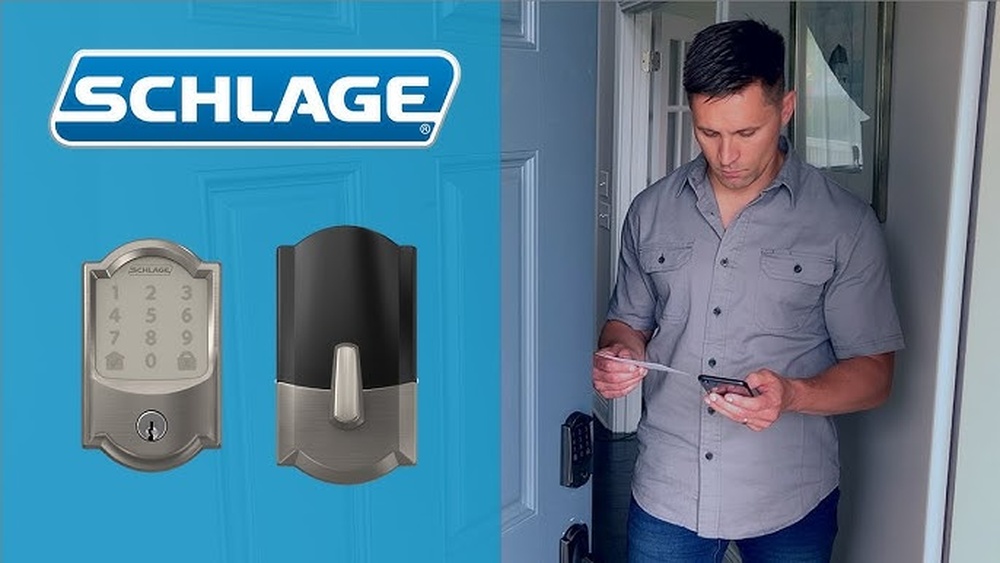
Are you ready to take your home security to the next level? Installing the Schlage Encode Smart WiFi Deadbolt is easier than you might think, and it gives you full control over your door right from your phone.
Imagine locking and unlocking your door from anywhere, granting access to friends or family with just a tap. In this guide, you’ll find simple, step-by-step instructions that make the installation process smooth and stress-free. Keep reading, and by the end, you’ll have a smart lock that offers convenience, safety, and peace of mind.

Credit: www.walmart.com
Tools And Materials Needed
Before starting the installation of the Schlage Encode Smart WiFi Deadbolt, gather all necessary tools and materials. Having everything ready makes the process smooth and faster. It also helps avoid interruptions during setup.
This section lists all items you need. Each tool and material plays a role in the installation. Understanding them helps prepare better.
Tools Required
- Phillips screwdriver – for screws on the lock and door
- Flathead screwdriver – useful for prying or adjustments
- Drill with bits – to make holes if needed
- Measuring tape – to check door thickness and alignment
- Level – ensures the lock is straight
- Pencil – to mark drill points
Materials Needed
- Schlage Encode Smart WiFi Deadbolt kit – includes all lock parts
- Batteries (4 AA) – power the smart lock
- Mounting screws – come with the lock for secure fixing
- Strike plate – fits on the door frame for the latch
- Door template – helps with correct hole placement
Optional Supplies
- Wood filler – to fix old holes if needed
- Sandpaper – smoothens edges after drilling
- Masking tape – protects door surface while working
Preparing The Door
Preparing your door is an important step before installing the Schlage Encode Smart Wifi Deadbolt. This ensures the new lock fits and works properly. It also helps avoid installation problems later.
Start by checking if your door can support the new deadbolt. Then, remove the old lock carefully. These steps make the installation smooth and quick.
Check Door Compatibility
Measure the thickness of your door. The Schlage Encode fits doors between 1 3/8 inches and 1 3/4 inches thick. Check the backset, which is the distance from the door edge to the center of the hole. It should be either 2 3/8 inches or 2 3/4 inches.
Look at the hole size on your door. The new deadbolt needs a 2 1/8 inch diameter hole. Also, check the edge bore hole; it should be 1 inch wide. Ensure the door swings in the correct direction for the lock.
Remove Existing Deadbolt
Use a screwdriver to remove the screws on the interior side of the current deadbolt. Take off the interior and exterior lock parts. Remove the latch from the edge of the door by unscrewing it.
Clear away any old hardware and clean the area. Make sure no parts block the new lock. Keep the screws and parts in case you need them later.
Installing The Deadbolt
Installing the Schlage Encode Smart Wifi Deadbolt is simple with clear steps. Follow this guide to fit your new lock correctly and safely. Each part has a role in securing your door. Taking your time makes the process easier and ensures the lock works well.
Insert The Latch
Start by placing the latch into the door’s edge. Align it so the bolt faces the door frame. Use a screwdriver to fasten the screws tightly. Make sure the latch moves smoothly when you push it.
Attach The Exterior Keypad
Next, put the keypad on the outside of the door. Feed the cable through the hole carefully. Hold the keypad steady and secure it with screws. Confirm the keypad sits flush against the door surface.
Secure The Interior Assembly
Inside the door, connect the cable to the interior assembly. Position the assembly over the latch and align the screw holes. Tighten the screws to hold it firmly in place. Check that the lock’s buttons and battery cover fit well.
Powering The Lock
Powering the Schlage Encode Smart WiFi Deadbolt is a simple step in the installation process. The lock runs on batteries, so it needs power before you can use it. Proper battery installation ensures the lock works smoothly and lasts longer. Follow these steps to insert and test the batteries correctly.
Insert Batteries
Open the battery compartment on the inside part of the lock. Use four AA alkaline batteries for best performance. Place each battery in the right direction. Check the positive and negative ends carefully. Close the battery cover securely after inserting all batteries.
Test Battery Connection
Press any button on the keypad to check if the lock powers on. The lock should light up and beep. If it does not, remove the batteries and try again. Make sure each battery fits tightly and contacts are clean. Replace old or weak batteries for better results.
Setting Up The Wifi Connection
Setting up the WiFi connection is a key step in using your Schlage Encode Smart WiFi Deadbolt. This allows you to control your lock remotely and receive alerts on your phone. The process is simple and takes just a few minutes.
Follow these steps carefully to connect your deadbolt to your home network. Make sure your phone is nearby and your WiFi signal is strong.
Download The Schlage App
Start by downloading the Schlage app on your smartphone. It is available for both iOS and Android devices. Open the App Store or Google Play Store and search for “Schlage.” Tap to download and install the app.
Once installed, open the app and create an account. This account will help you manage your lock and settings easily. Follow the on-screen instructions to complete your profile setup.
Connect To Home Network
Next, connect your deadbolt to your home WiFi network. Open the Schlage app and select “Add a Device.” Choose your Schlage Encode model from the list.
The app will guide you to put the lock in setup mode. Press the lock’s button to start. Then, select your WiFi network and enter the password carefully.
Wait for the app to confirm the connection. A successful connection means your lock is ready to use. Test the lock by locking and unlocking it through the app.

Credit: www.youtube.com
Programming User Codes
Programming user codes is an important step to secure your Schlage Encode Smart WiFi Deadbolt. User codes let you control who can enter your home. You can create a special code for yourself and add codes for family or friends. This section explains how to set up these codes clearly and simply.
Create Master Code
The master code controls all user codes. Start by setting a strong master code. Open the Schlage app or use the keypad on the lock. Enter the default code found in your manual. Then, follow prompts to create your new master code. Choose a code easy to remember but hard to guess. This code lets you add or delete other codes later.
Add User Codes
After creating the master code, add user codes for others. Enter the master code on the lock keypad. Press the program button or select add user in the app. Type a new user code with 4 to 8 digits. Confirm the code by entering it again. Repeat this for each person you want to give access. You can delete or change codes anytime through the app or keypad.
Troubleshooting Common Issues
Troubleshooting common issues with the Schlage Encode Smart WiFi Deadbolt helps keep your lock working smoothly. Small problems can stop the lock from working properly. Fixing these issues quickly ensures your home stays secure.
Below are solutions for two frequent problems users face. These tips are easy to follow and improve your lock’s performance.
Wifi Connection Problems
Check if your WiFi signal is strong near the lock. Weak signals cause connection drops.
Restart your router to refresh the internet connection. This often fixes the issue.
Ensure the lock is within the 2.4 GHz WiFi range. The lock does not support 5 GHz networks.
Remove and re-add the lock in the Schlage app to reset the connection. Follow app instructions carefully.
Update the lock’s firmware through the app. Updates improve connectivity and fix bugs.
Lock Not Responding
Replace the batteries with fresh, high-quality ones. Low power causes unresponsiveness.
Make sure the batteries are installed correctly. Check for proper contact and placement.
Reset the lock by pressing the reset button inside the lock housing. This clears minor glitches.
Test the lock manually to see if it turns smoothly. Mechanical issues may block operation.
Check for physical damage or debris around the lock. Clean the area gently if needed.
Credit: www.schlage.com
Maintenance Tips
Maintaining your Schlage Encode Smart Wifi Deadbolt helps it work well for years. Regular care keeps the lock smooth and secure. Small efforts now prevent bigger problems later.
Follow these simple tips to protect your smart lock. They keep it clean, powered, and ready to use every day.
Cleaning The Lock Surface
Use a soft cloth to wipe the lock surface. Avoid harsh chemicals that can damage the finish. Light soap and water work best for dirt and dust.
Dry the lock completely after cleaning. Moisture can cause rust or damage to electronic parts.
Checking Battery Life
Monitor battery status through the Schlage app regularly. Replace batteries when the app shows low power. Use high-quality alkaline batteries for best performance.
Keep spare batteries nearby. This prevents lockouts due to dead batteries.
Testing The Lock Functions
Test the lock and unlock functions weekly. Confirm the keypad and wifi connection work well. Early checks help catch issues before they become serious.
Make sure the door closes fully for proper locking. Misalignment can cause the lock to fail.
Updating Firmware
Check for firmware updates in the Schlage app. Updates fix bugs and improve security. Install updates promptly to keep your lock safe.
Lubricating Moving Parts
Use graphite or silicone spray to lubricate the bolt and latch. Avoid oil-based lubricants that attract dust. Apply lubricant once a year or if you hear squeaking.
Frequently Asked Questions
How Do I Install Schlage Encode Step-by-step?
First, remove your old deadbolt. Align Schlage Encode with your door. Secure it with screws. Connect the WiFi module. Finally, download the app and follow setup instructions.
What Tools Are Needed For Installation?
You only need a Phillips screwdriver and a drill. These tools help mount the lock and secure screws easily.
Can I Install Schlage Encode Without Professional Help?
Yes, installation is designed for DIY. The instructions are clear, and the process takes about 30 minutes.
How To Connect Schlage Encode To Wifi?
Use the Schlage Home app. Follow prompts to connect to your 2. 4 GHz WiFi network. Ensure strong signal near the lock.
Conclusion
Installing the Schlage Encode Smart WiFi Deadbolt is simple and quick. Follow each step carefully to avoid mistakes. You can control your lock from anywhere using your phone. This adds safety and convenience to your home. Take your time during installation for best results.
Enjoy the peace of mind this smart lock provides.