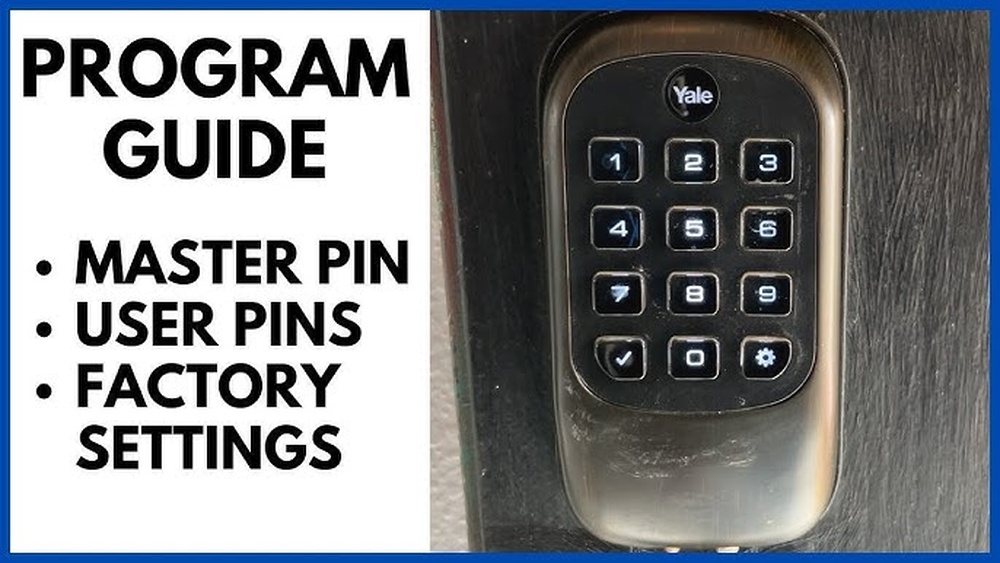
Are you looking to take control of your home’s security with a Yale deadbolt lock? Programming your lock might seem tricky at first, but it’s easier than you think.
With just a few simple steps, you can set up your lock to fit your needs, keep your home safe, and even share access with family or friends. In this guide, you’ll learn exactly how to program your Yale deadbolt lock quickly and confidently.
Keep reading—you’re just minutes away from mastering your lock and boosting your peace of mind.
Yale Deadbolt Basics
Yale deadbolt locks are popular for home security. They offer strong protection and easy use. Understanding the basics helps you program and use them correctly.
These locks come in different types. Each type has unique features. Knowing these helps you choose and operate the right lock.
Types Of Yale Deadbolt Locks
Yale offers several deadbolt models. Single-cylinder deadbolts use a key outside and a thumb turn inside. Double-cylinder deadbolts need a key on both sides. Smart deadbolts connect to Wi-Fi or Bluetooth. They allow keyless entry and remote control. Choose the type that fits your needs best.
Key Features To Know
Most Yale deadbolts have strong metal construction. They resist picking and forced entry. Some models include alarm systems for extra safety. Smart versions support mobile apps for easy access. Many allow multiple user codes. Programming is simple with clear instructions. Knowing these features makes programming easier.
Credit: support.shopyalehome.com
Tools Needed
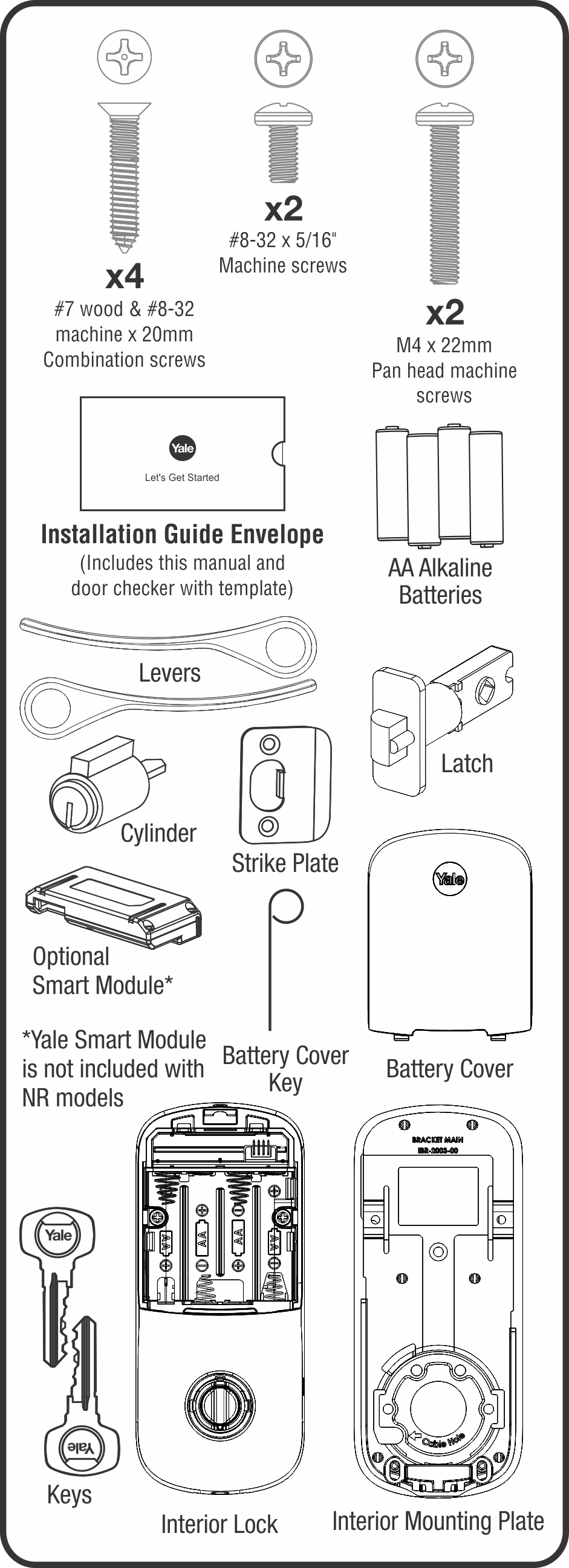
Programming a Yale deadbolt lock requires a few simple tools. Having the right tools makes the process faster and easier. This section lists the essential tools and safety tips for programming your lock.
Essential Tools For Programming
You need a small Phillips screwdriver to open the lock cover. A flathead screwdriver may also help in some steps. Keep the lock’s user manual nearby for reference. A fresh set of batteries ensures the lock works properly. A pen and paper help note down codes or instructions.
Safety Precautions
Turn off the lock before opening the cover to avoid damage. Work in a well-lit area to see all parts clearly. Avoid forcing any parts to prevent breaking the lock. Keep small parts away from children and pets. Follow the user manual instructions carefully for safe handling.
Preparing The Lock
Preparing your Yale deadbolt lock is the first step to programming it successfully. This step ensures the lock is ready to accept new codes or settings. Proper preparation helps avoid errors during programming.
Start by accessing the lock’s internal components. This allows you to check the battery and reset the lock if needed. Both actions are important for smooth programming.
Removing The Battery Cover
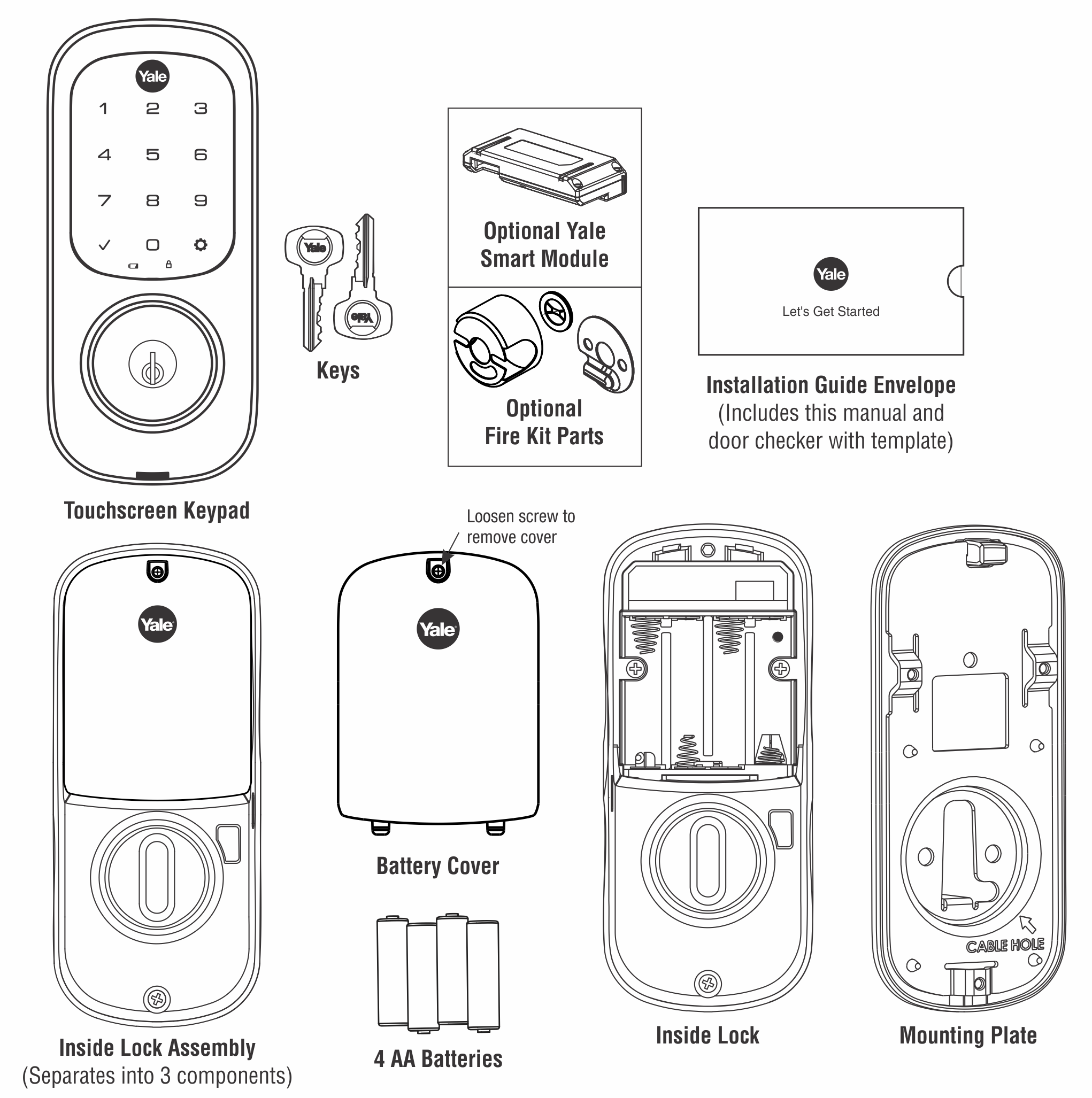
Locate the battery cover on the inside part of the lock. It usually slides or pops off easily. Use your fingers or a small tool to remove it carefully.
Once open, you can see the batteries inside. Check if they are properly placed and have enough power. Replace old batteries with fresh ones for best results.
Resetting The Lock
Resetting clears previous codes and settings. This gives you a fresh start for programming. Find the reset button inside the battery compartment.
Press and hold the reset button for about 10 seconds. Release it when the lock beeps or flashes. The lock is now reset and ready to program.
Credit: support.shopyalehome.com
Programming Master Code
Programming the master code on your Yale deadbolt lock is essential for controlling access. This code lets you manage other user codes and secure your home easily. Setting it right ensures only authorized people can change the lock settings.
Accessing Programming Mode
Start by pressing the Yale lock’s keypad. Enter the current master code carefully. Then press the gear button or the program button. The lock will beep or flash to show it is in programming mode. Now, you can change the master code or add new codes.
Setting A New Master Code
While in programming mode, select the option to change the master code. Enter your new code using the keypad. Make sure the code is easy to remember but hard to guess. Confirm the new code by entering it again. The lock will beep or flash to confirm the change. Your new master code is now active and ready to use.
Adding User Codes
Adding user codes to your Yale deadbolt lock lets you control who can enter your home. You can set unique codes for family, friends, or service workers. Managing these codes keeps your home secure and makes access easy for trusted people.
Entering User Code Setup
Start by pressing the programming button on the lock. Enter the master code on the keypad. Press the star () button to begin adding a new user code. Type your new user code, usually 4 to 8 digits long. Press the pound () button to save the code. The lock will beep to confirm the new code is added.
Saving Multiple User Codes
You can add several user codes for different people. Repeat the user code setup steps for each new code. The lock stores many codes, depending on the model. Make sure each code is unique to avoid confusion. Delete old codes to keep your list up to date and secure.
Deleting User Codes
Deleting user codes on your Yale deadbolt lock keeps your home secure. Remove old or unused codes quickly. This helps control who can enter your home. Follow simple steps to delete codes safely.
Accessing Code Deletion Mode
Start by entering your master code on the keypad. Press the gear or settings button next. This puts the lock in code deletion mode. Wait for a beep or light signal. This confirms the lock is ready for code changes.
Removing Specific Codes
Enter the user code you want to delete next. Press the delete or clear button afterward. The lock will beep to confirm deletion. Repeat for each code you want to remove. Always test the lock to ensure codes are deleted.
Testing The Lock
Testing your Yale deadbolt lock after programming is essential. It ensures that all settings work correctly. This step helps prevent lockouts or security issues.
Start by checking each user code. Make sure the lock responds as expected. Testing confirms the lock recognizes all programmed codes.
Verifying User Codes
Enter each user code on the keypad. The lock should unlock smoothly every time. If a code does not work, it might need reprogramming. Test all codes separately to avoid confusion. This guarantees every authorized user can access the lock.
Troubleshooting Common Issues
The lock might not respond to codes for several reasons. Batteries could be low or installed incorrectly. Try replacing the batteries first. Ensure the lock’s keypad is clean and dry. Reset the lock if codes still fail. Follow the user manual for reset instructions. If problems continue, contact Yale support for help.
Maintaining Your Deadbolt
Maintaining your Yale deadbolt keeps it working smoothly and extends its life. Regular care prevents issues and keeps your home secure. Simple steps help avoid costly repairs and ensure the lock works every time you need it.
Battery Replacement Tips
Check the battery status often to avoid sudden lock failure. Use fresh, high-quality batteries for best results. Replace batteries as soon as the lock signals low power. Always carry spare batteries nearby for quick swaps. Remove old batteries carefully to prevent damage. Reset the lock after battery replacement to keep it synced.
Regular Lock Maintenance
Clean the lock surface gently with a soft cloth. Avoid harsh chemicals that can damage the finish or mechanism. Lubricate the deadbolt with graphite powder or a silicone spray. Test the lock function monthly to catch problems early. Tighten screws and check the strike plate for proper alignment. Keep the keypad dry and free from dust for smooth operation.
Credit: www.youtube.com
Frequently Asked Questions
How Do I Program A Yale Deadbolt Lock?
To program a Yale deadbolt, enter the master code, press the programming button, and add new user codes. Follow the specific model’s instructions for confirmation tones or lights.
Can I Change The Master Code On My Yale Lock?
Yes, you can change the master code by accessing programming mode. Enter the current master code, then set a new one following your lock’s manual instructions.
What Should I Do If My Yale Lock Won’t Program?
If programming fails, check the battery level and replace if needed. Reset the lock to factory settings, then try programming again using the correct procedure.
How Many User Codes Can A Yale Deadbolt Store?
Most Yale deadbolt models store up to 25 user codes. Check your model’s manual for the exact number and instructions to add or delete users.
Conclusion
Programming your Yale deadbolt lock is simple and quick. Follow each step carefully for best results. Keep your code safe and easy to remember. Change your code regularly to keep your home secure. Test the lock after programming to ensure it works well.
Enjoy the convenience and safety your Yale lock provides. Stay confident in controlling access to your home. Small effort, big peace of mind.


