Have you ever fumbled in the dark, trying to turn off the flashlight on your iPhone? It’s a small thing, but it can be surprisingly tricky if you don’t know the exact steps.
You want a quick, simple way to switch it off without wasting time or battery. In this guide, you’ll discover easy methods to turn off your iPhone’s light instantly. Keep reading, and you’ll never struggle with this again.
Using Control Center
Using the Control Center is the fastest way to switch off the flashlight on your iPhone. This feature gives you quick access to many tools, including the light. You do not need to unlock your phone or open any app.
Control Center is easy to open and use. It helps you save time and effort when turning off the light.
Accessing Control Center
To open the Control Center, swipe down from the top-right corner on iPhone X or newer models. For older iPhones with a home button, swipe up from the bottom edge of the screen. The Control Center will appear on your screen instantly.
Turning Off The Flashlight
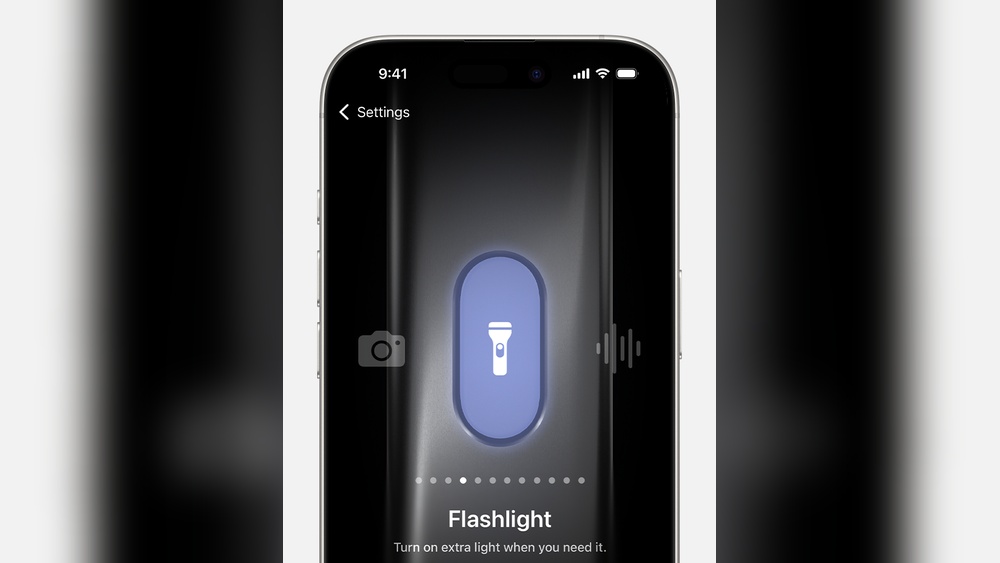
Look for the flashlight icon in the Control Center. It looks like a small torch. Tap the icon once, and the light will switch off immediately. You can check if it is off by seeing the icon turn gray.
Credit: www.macobserver.com
Using The Lock Screen
The iPhone’s lock screen offers a quick way to control the flashlight. This feature lets you switch the light on or off without unlocking your phone. It saves time and is very easy to use.
Learn how to find the flashlight icon and turn it off fast right from the lock screen.
Locating The Flashlight Icon
Wake your iPhone by pressing the side or home button. The lock screen appears. Look at the bottom left corner. You will see a small flashlight icon there. This is the button to control the light.
Sometimes, you might need to press the icon harder on iPhones with 3D Touch. This action turns the flashlight on or off directly.
Disabling The Light Quickly
To switch off the light, press and hold the flashlight icon again. The light turns off immediately. No need to unlock the phone or open any apps. This method is fast and saves battery life.
This quick action works every time from the lock screen. It is perfect for moments when you only need the light briefly.
Using Siri Voice Command
Using Siri voice command is an easy way to control your lights with an iPhone. This hands-free method saves time and effort. You can switch off your lights without touching any buttons or screens. Siri listens to your voice and follows your command instantly.
This feature works with smart home devices connected to your iPhone. Make sure your lights support HomeKit or other compatible systems. Once set up, you just speak and your lights respond.
Activating Siri
To activate Siri, press and hold the side button on your iPhone. On older models, press and hold the Home button. You can also say “Hey Siri” if this feature is enabled. Siri will then be ready to listen to your command.
Voice Command To Turn Off Light
After activating Siri, say “Turn off the light.” Be clear and speak the exact name of the light as it appears in your app. For example, “Turn off bedroom light” or “Switch off living room light.” Siri will confirm and switch off the light immediately.

Credit: support.apple.com
Using The Home Screen Shortcut
Using the Home Screen Shortcut is a quick way to control your iPhone’s flashlight. It saves time and keeps things simple. No need to open Control Center or other apps. Just tap the icon on your home screen to turn the light on or off.
This method is perfect for those who want fast access to the flashlight. It works well in dark places or when your hands are busy. Setting up the shortcut takes just a few steps. Once added, switching the light off is easy and immediate.
Adding Flashlight To Home Screen
Open the Shortcuts app on your iPhone. Tap the plus (+) button to create a new shortcut. Search for the action called “Set Flashlight.” Choose this action and set it to “Turn On.”
Next, tap the three dots at the top right. Name your shortcut “Flashlight.” Enable “Show on Home Screen.” Tap the icon to select a suitable image. Finally, tap “Add” to place the shortcut on your home screen.
Switching Off Light With Shortcut
To switch off the flashlight, tap the shortcut icon on your home screen. The light will turn off immediately. If the light is on, tapping the icon again will turn it off. This shortcut acts as a simple toggle for your flashlight.
Using this shortcut saves time and avoids searching for controls. It is useful during quick tasks in the dark. This method keeps your flashlight handy at all times.
Troubleshooting Flashlight Issues
Sometimes, your iPhone flashlight may not turn off as expected. This can be frustrating when you want to save battery or stop the light quickly. Troubleshooting flashlight issues can help you fix the problem without stress.
Simple steps can solve most flashlight problems. Understanding what to do when the light won’t turn off helps you handle the issue fast.
When The Light Won’t Turn Off
Your iPhone flashlight might stay on due to software glitches. Try closing the Control Center and reopening it to toggle the flashlight off. If that does not work, check the Camera app. Sometimes, using the camera flash locks the light on. Close the app fully from the app switcher. Then try turning off the flashlight again.
Restarting Your Iphone
Restarting your iPhone often fixes flashlight problems. Hold down the power button and slide to power off. Wait for a few seconds, then turn your phone back on. This simple action clears small bugs that may cause the light to stay on. After restarting, check if the flashlight turns off normally.
Tips For Battery Saving
Saving battery on your iPhone helps it last longer throughout the day. The flashlight uses power, so using it wisely is important. Small changes can make a big difference in battery life. Here are some simple tips to save battery while using the flashlight.
Limiting Flashlight Use
Turn off the flashlight when you don’t need it. Avoid keeping it on for long periods. Use the flashlight only in dark places. This reduces battery drain and keeps your phone ready for other tasks.
Checking Battery Usage
Open Settings to see which apps use the most battery. Look for the flashlight or camera app usage. If the flashlight uses a lot of power, try to reduce its use. Monitoring helps you understand your battery habits better.

Credit: www.freepik.com
Frequently Asked Questions
How Do I Turn Off The Flashlight On Iphone?
To turn off the iPhone flashlight, open Control Center and tap the flashlight icon. Alternatively, tap the flashlight button on the Lock Screen to switch it off quickly.
Can I Disable The Flashlight Using Siri Voice Commands?
Yes, simply say, “Hey Siri, turn off the flashlight. ” Siri will instantly switch off the flashlight without needing manual input.
Why Won’t My Iphone Flashlight Turn Off?
If the flashlight won’t turn off, try restarting your iPhone. Check for iOS updates or reset settings if the issue continues.
How To Turn Off Iphone Flashlight From Lock Screen?
On the Lock Screen, press and hold the flashlight icon until it turns off. This method works without unlocking your phone.
Conclusion
Switching off the light on your iPhone is quick and easy. You can use the Control Center or ask Siri to help. Remember, the flashlight icon turns the light on or off. Practicing these steps will make it simple every time.
No need to search or struggle. Your iPhone’s light is always just a tap away. Keep your phone handy, and you control the light with ease. Simple tools make daily tasks better and faster. Try it now, and see how smooth it feels.