Are you ready to take control of your home’s security with your Kwikset SmartCode Deadbolt? Programming it might seem tricky, but it’s easier than you think.
In this guide, you’ll learn simple, step-by-step instructions to set up your deadbolt quickly and confidently. Imagine never fumbling for keys again or giving access to friends and family with just a code. Keep reading to unlock the full potential of your Kwikset SmartCode Deadbolt and make your home safer today.
Kwikset Smartcode Features
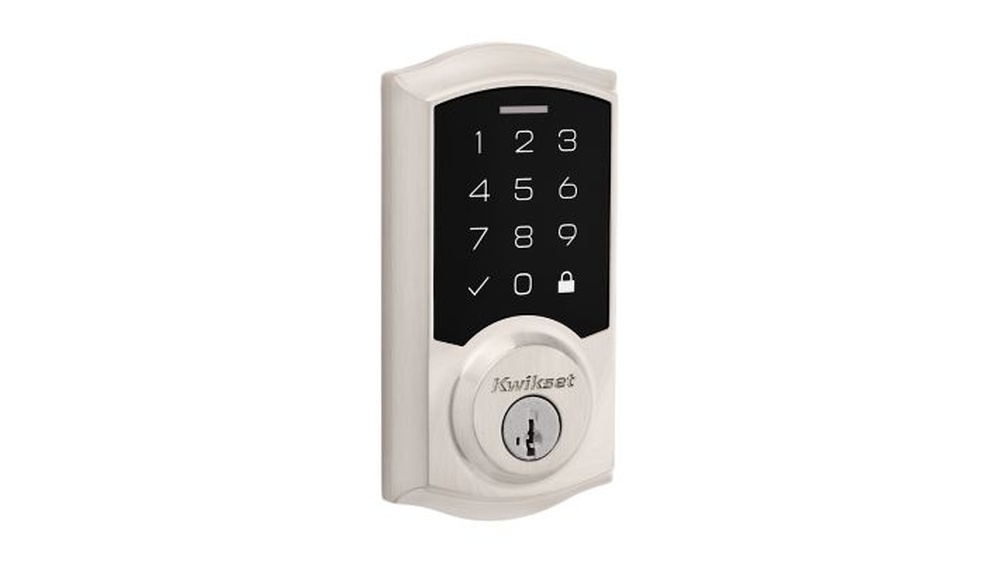
The Kwikset SmartCode deadbolt offers several features that improve home security and convenience. This smart lock lets you lock and unlock your door without a key. It combines modern technology with simple use. The design fits many homes and allows easy programming.
These features help you control access to your home. The lock supports multiple user codes and has a backlit keypad. It also includes auto-lock options and a low battery indicator. These make it a reliable choice for everyday use.
Keyless Entry Benefits
Keyless entry means no more lost keys or hiding spare keys. You can create unique codes for family members or guests. This adds security and control over who enters your home. The keypad lights up for easy use at night. Some models offer remote access through a smartphone app. This feature lets you lock or unlock your door from anywhere.
Compatibility And Models
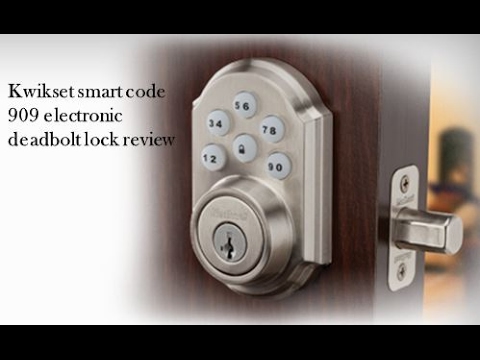
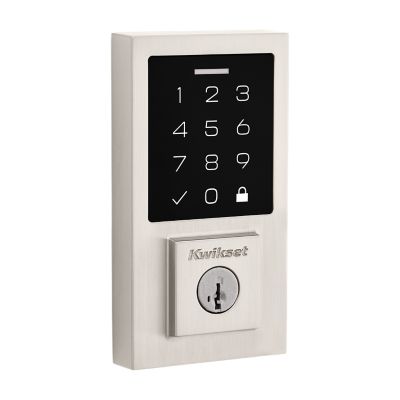
Kwikset SmartCode locks fit standard doors and most deadbolt preparations. The lock works with single-cylinder deadbolts. Several models exist, each with different features and finishes. Some include Wi-Fi or Bluetooth connectivity. Others focus on simple, easy-to-use keypads. Choose a model based on your home’s needs and technology preferences.
Credit: www.youtube.com
Preparing For Programming
Before you start programming your Kwikset SmartCode deadbolt, preparation is key. Taking a few simple steps helps ensure a smooth setup process. Proper preparation saves time and avoids frustration. Let’s explore the essential steps to prepare for programming.
Gathering Tools And Materials
Collect all necessary items before programming. You will need the SmartCode deadbolt itself. Have the user manual handy for reference. A small screwdriver may be required to open the battery cover. Keep a pen and paper nearby for noting codes or instructions. A good light source helps you see clearly. Preparation makes the process easier and quicker.
Checking Battery And Lock Status
Check the battery level before programming. Low batteries can cause errors or failure. Open the battery cover and inspect the batteries. Replace them if they look weak or old. Make sure the lock is properly installed on your door. Test the lock to confirm it opens and closes smoothly. This ensures the lock is ready for programming.
Programming Master Code
The Programming Master Code is the key to managing your Kwikset SmartCode Deadbolt. It allows you to add or delete user codes and control lock settings. Knowing how to program this code keeps your lock secure and easy to use.
Changing the Master Code is important for safety. You can set a new code anytime you want. The process is simple and quick.
Accessing Programming Mode
Start by opening the lock’s battery cover. Press and hold the Program button until the lock beeps. This sound means the lock is in programming mode.
Use the keypad to enter the current Master Code. The lock will beep twice, confirming access. Now, you can change settings or codes.
Setting A New Master Code
While in programming mode, press the Program button again. Enter the new Master Code using the keypad. The code must be 4 to 8 digits long.
Press the lock button to save the new code. The lock will beep three times to confirm the change. The new Master Code is now active.
Credit: www.kwikset.com
Adding User Codes
Adding user codes to your Kwikset SmartCode Deadbolt makes it easy to control who has access to your home. You can create codes for family members, friends, or service workers. Managing codes helps keep your home secure and organized.
Entering User Code Mode
Start by pressing the lock’s programming button. This button is usually inside the battery compartment. Once pressed, enter your master code on the keypad. The lock will beep to confirm you are in user code mode. Now you can add, change, or delete user codes.
Creating Multiple User Codes
In user code mode, press the button to add a new code. Enter a new 4 to 8 digit code on the keypad. Confirm by pressing the lock button again. Repeat this process for each new user code. You can create many codes for different people.
Editing And Deleting Codes
To edit a code, enter user code mode first. Choose the code number you want to change. Enter the new code and confirm. To delete a code, select the code number and press the delete option. The lock will beep to confirm removal. This keeps your access list up to date.
Using The Lock Features
Using the lock features of your Kwikset SmartCode Deadbolt makes your home safer and easier to access. The lock has many useful functions. These features help control who can enter and keep your home secure.
Learn how to lock and unlock the door, set auto-lock, and create temporary access codes. Each feature is simple to use and adds convenience to your daily routine.
Locking And Unlocking
To lock the door, press the lock button on the keypad. You will hear a beep confirming the door is locked. To unlock, enter your access code and press the unlock button. The door will click open.
You can also use the physical key if the keypad is not working. Make sure to keep your code private to avoid unwanted access.
Auto-lock Settings
The auto-lock feature locks the door automatically after a set time. This keeps your home safe if you forget to lock the door. You can set the delay time from 30 seconds to 4 minutes.
To activate auto-lock, enter the programming mode and follow the instructions in the user manual. Auto-lock gives peace of mind by securing the door every time.
Temporary Access Codes
Temporary access codes are great for guests or service workers. These codes only work for a limited time or number of uses. You can create and delete these codes easily from the keypad.
Set start and end dates for temporary codes to control access. This feature helps you share your home safely without giving permanent access.
Troubleshooting Tips
Troubleshooting your Kwikset SmartCode Deadbolt can save time and frustration. Many users face small issues during programming or daily use. Simple fixes often restore full function quickly. This section covers common problems and solutions.
Common Programming Errors
Entering the wrong code is a frequent mistake. Double-check each digit before pressing the lock button. Avoid rushing through the steps. Make sure you follow the programming guide exactly. Using an expired user code can also cause errors. Always delete old codes to prevent conflicts.
Resetting The Lock
Resetting the lock restores factory settings. Press and hold the reset button for 10 seconds. The lock will beep or flash to confirm. This removes all user codes and settings. Use reset only if programming fails repeatedly. After resetting, reprogram your user codes carefully.
Battery Replacement Advice
Weak batteries cause many lock problems. Replace batteries every six months for best results. Use four fresh AA alkaline batteries. Avoid rechargeable or low-quality batteries. Remove old batteries immediately to prevent corrosion. Always test the lock after changing batteries.
Maintenance And Security
Maintaining your Kwikset SmartCode Deadbolt keeps it working smoothly and protects your home. Regular care prevents problems and keeps your lock secure. Understanding simple steps helps you avoid lockouts and security risks.
Focus on two key areas: updating codes often and securing the lock against threats. Both help keep your home safe and your lock reliable over time.
Regular Code Updates
Change your access codes regularly. This stops unwanted people from entering your home. Use different codes for different users if possible. Delete codes that are no longer needed. Always choose strong, easy-to-remember numbers. Avoid simple sequences like 1234 or 0000. Keep your code list private and secure.
Securing Your Smartcode Deadbolt
Check the lock’s battery often. Replace batteries before they run out. Clean the lock surface gently to remove dust. Avoid using harsh chemicals on the lock. Test the lock regularly to ensure it works well. Keep the lock’s firmware updated if your model supports it. Limit access to the programming features. Use the lock’s security settings to add extra protection.

Credit: www.youtube.com
Frequently Asked Questions
How Do I Program A Kwikset Smartcode Deadbolt?
To program, press the “Program” button inside the lock. Enter your new code on the keypad. Confirm by locking and unlocking the door. Always refer to your user manual for specific steps.
Can I Add Multiple User Codes To Kwikset Smartcode?
Yes, you can add up to 30 unique user codes. Each code allows different users to access the lock. This feature helps manage access for family or guests securely.
What If I Forget My Kwikset Smartcode Programming Code?
If forgotten, reset the lock by removing batteries and pressing the reset button. Reprogram your lock with a new code afterward. Consult your manual for exact reset instructions.
How Do I Delete User Codes On Kwikset Smartcode?
Press the “Program” button and enter the master code. Select the user code to delete and confirm removal. This process helps maintain lock security by controlling access.
Conclusion
Programming your Kwikset SmartCode deadbolt is simple and quick. Just follow the steps carefully and take your time. You can change codes anytime to keep your home safe. No need to call a locksmith or expert. Enjoy the convenience of keyless entry and better security.
Keep the manual nearby for future reference. Stay secure and feel confident with your smart lock. Easy to use, even for beginners. Ready to protect your home?