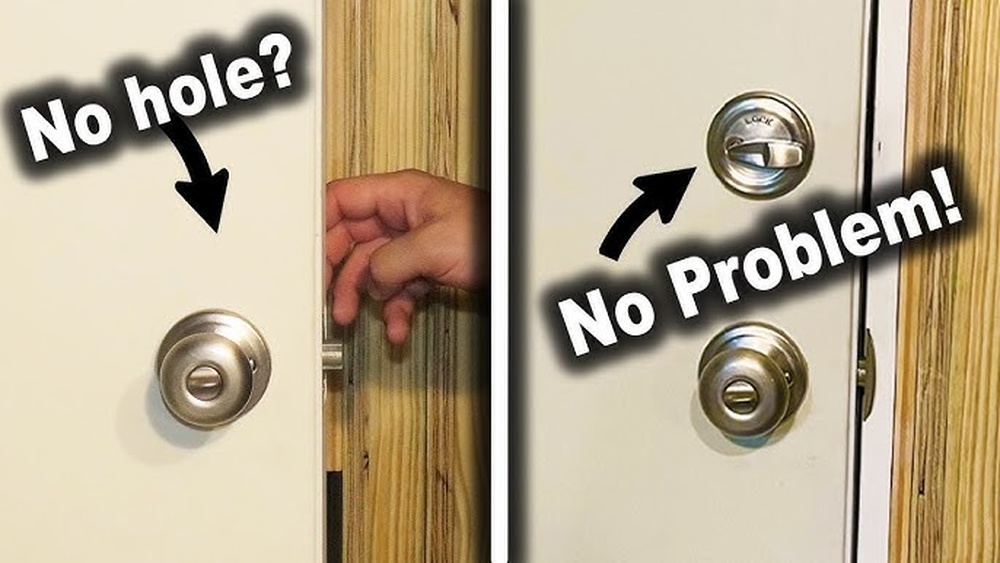
Are you tired of your deadbolt locking automatically when you don’t want it to? It can be frustrating when you need quick access or are carrying groceries, only to find your door locked again.
Knowing how to disable the auto lock feature on your deadbolt gives you control and peace of mind. You’ll discover simple steps to turn off that auto lock and make your daily routines easier. Keep reading to learn how to take charge of your door’s locking system without any hassle.
Types Of Auto Lock Deadbolts
Auto lock deadbolts come in different types. Each type offers unique features and ways to disable the auto lock. Understanding these types helps you choose the right method to turn off the auto lock function.
Some deadbolts have digital keypads, while others connect to smart devices. Traditional models work mechanically and may need manual adjustment. Let’s explore the main types you might find.
Keypad Deadbolts
Keypad deadbolts allow entry using a code. They often have a button or setting to disable auto lock. Disabling may involve entering a specific code or changing the lock’s settings. These models are common in homes and offices.
Smart Deadbolts
Smart deadbolts connect to phones or home systems. You can control them through apps or voice commands. The app usually offers an option to turn off auto lock. Some models allow scheduling when the lock should auto lock or stay unlocked.
Traditional Auto Lock Models
Traditional deadbolts use mechanical parts for auto locking. Disabling auto lock may require removing or adjusting internal components. Sometimes, you need to change the position of a switch inside the lock. These models are simpler but less flexible than digital ones.
Tools Needed To Disable Auto Lock
Disabling an auto lock deadbolt requires specific tools. Having the right tools makes the job easier and safer. Without proper tools, you might damage the lock or door. Prepare before you start to save time and effort.
Basic Tools List
You will need a screwdriver set, usually Phillips and flathead. A small Allen wrench or hex key may be required. A pair of needle-nose pliers helps with small parts. A flashlight can improve visibility inside the lock. A cloth or towel protects the door surface from scratches.
Safety Precautions
Wear safety glasses to protect your eyes from dust or debris. Work in a well-lit area to avoid mistakes. Keep small parts away from children and pets. Turn off power if your lock has electronic components. Follow the lock manufacturer’s instructions carefully to avoid damage.
Step-by-step Guide To Disable Auto Lock
Disabling the auto lock feature on your deadbolt can improve convenience and control over your door security. This step-by-step guide shows how to turn off the auto lock. Follow each step carefully for a smooth process.
Locate The Lock Mechanism
Find the deadbolt on your door. Look closely at the lock body for a small panel or button. Some models have a visible control panel on the inside. Others may need you to remove a cover to see the mechanism.
Access The Control Panel Or Manual Settings
Open the control panel carefully. Use a screwdriver if needed. Some locks have manual switches or buttons inside. Check the user manual for exact instructions on accessing settings. This step is key to changing the lock behavior.
Turn Off Auto Lock Feature
Locate the auto lock option in the panel or settings. It may be a switch, button, or menu item. Switch the auto lock to “off” or “disable.” Confirm the change if the system asks you to. This stops the deadbolt from locking automatically.
Test The Deadbolt Functionality
Close the door and observe the deadbolt. See if it locks by itself after a few seconds. Try locking and unlocking manually. Ensure the auto lock no longer activates. Test several times to confirm the feature is disabled.

Credit: www.pirouette-editions.fr
Troubleshooting Common Issues
Troubleshooting common issues with your auto lock deadbolt helps keep your home secure. Problems may occur even after disabling the auto lock feature. Finding the root cause saves time and effort.
Check each possible issue carefully. Follow simple steps to fix the deadbolt and stop unwanted locking. Clear instructions make the process easy to understand.
Lock Still Auto Locking
The deadbolt may keep auto locking despite disabling it. This can happen if settings did not save properly. Try turning the feature off again using the app or keypad.
Make sure to wait a few seconds after changing settings. Some models need time to update. Test the lock after each change to see if it stops auto locking.
Battery And Power Concerns
Low battery power affects the deadbolt’s behavior. Weak batteries may cause the lock to auto lock unexpectedly. Replace batteries with fresh ones to ensure stable power.
Check battery contacts for dirt or corrosion. Clean them gently if needed. Proper power supply helps the lock respond to your commands correctly.
Resetting The Deadbolt
Resetting the deadbolt returns it to factory settings. This clears any software glitches causing auto lock issues. Use the reset button or follow the manual’s instructions carefully.
After resetting, set up your preferences again. Disabling auto lock must be done once more. Resetting often solves persistent problems and restores normal function.
When To Seek Professional Help
Disabling the auto lock on your deadbolt might seem simple. But sometimes, it is not. Knowing when to ask for help can save time and avoid damage to your lock or door.
Complex Lock Systems
Some deadbolts have advanced features. They include smart technology or multiple locking points. These systems need special knowledge and tools. Trying to disable auto lock without experience can cause problems. It may break the lock or void its functions. Professionals understand how these locks work. They can safely disable auto lock without harm.
Warranty And Service Options
Many locks come with a warranty. Doing repairs yourself might cancel it. Professional technicians follow rules to keep your warranty valid. They also provide service options. These include maintenance and future repairs. Using experts can protect your investment. It ensures your lock stays reliable and covered.

Credit: www.youtube.com

Credit: www.amazon.sa
Frequently Asked Questions
How Do I Turn Off The Auto Lock Feature On Deadbolts?
To disable auto lock, locate the lock’s settings or programming mode. Use the provided manual or app to turn off auto lock. This stops the deadbolt from locking automatically after a set time, giving you full manual control over locking.
Can I Disable Auto Lock On Smart Deadbolts?
Yes, smart deadbolts often allow you to disable auto lock through their app or control panel. Check the lock’s app settings or manufacturer instructions to find and switch off the auto lock feature quickly.
Why Would I Want To Disable Auto Lock On My Deadbolt?
Disabling auto lock prevents the door from locking unexpectedly. This is helpful if you want to avoid being locked out or if you prefer manual control for convenience or security reasons.
Is It Safe To Disable The Auto Lock On A Deadbolt?
Disabling auto lock can reduce security if you forget to lock your door manually. Ensure you have a routine to lock the door, especially in high-risk areas, to maintain safety.
Conclusion
Disabling the auto lock deadbolt is simple with clear steps. Follow the instructions carefully for safety and convenience. You can control when the door locks on its own. This can save time and avoid frustration. Always check your lock model before making changes.
Keep your home secure while adjusting settings. Small changes can make a big difference in daily life. Stay safe and comfortable with the right lock setup.