Are you having trouble with your Schlage Encode Smart WiFi Deadbolt? Maybe it’s not responding, or you want to set it up fresh for a new home.
Knowing how to reset your smart lock can save you time and frustration. In this guide, you’ll get clear, simple steps to reset your Schlage Encode quickly and easily. By the end, you’ll have your lock working like new, giving you peace of mind and full control over your home’s security.
Keep reading to unlock the solution!
Schlage Encode Features
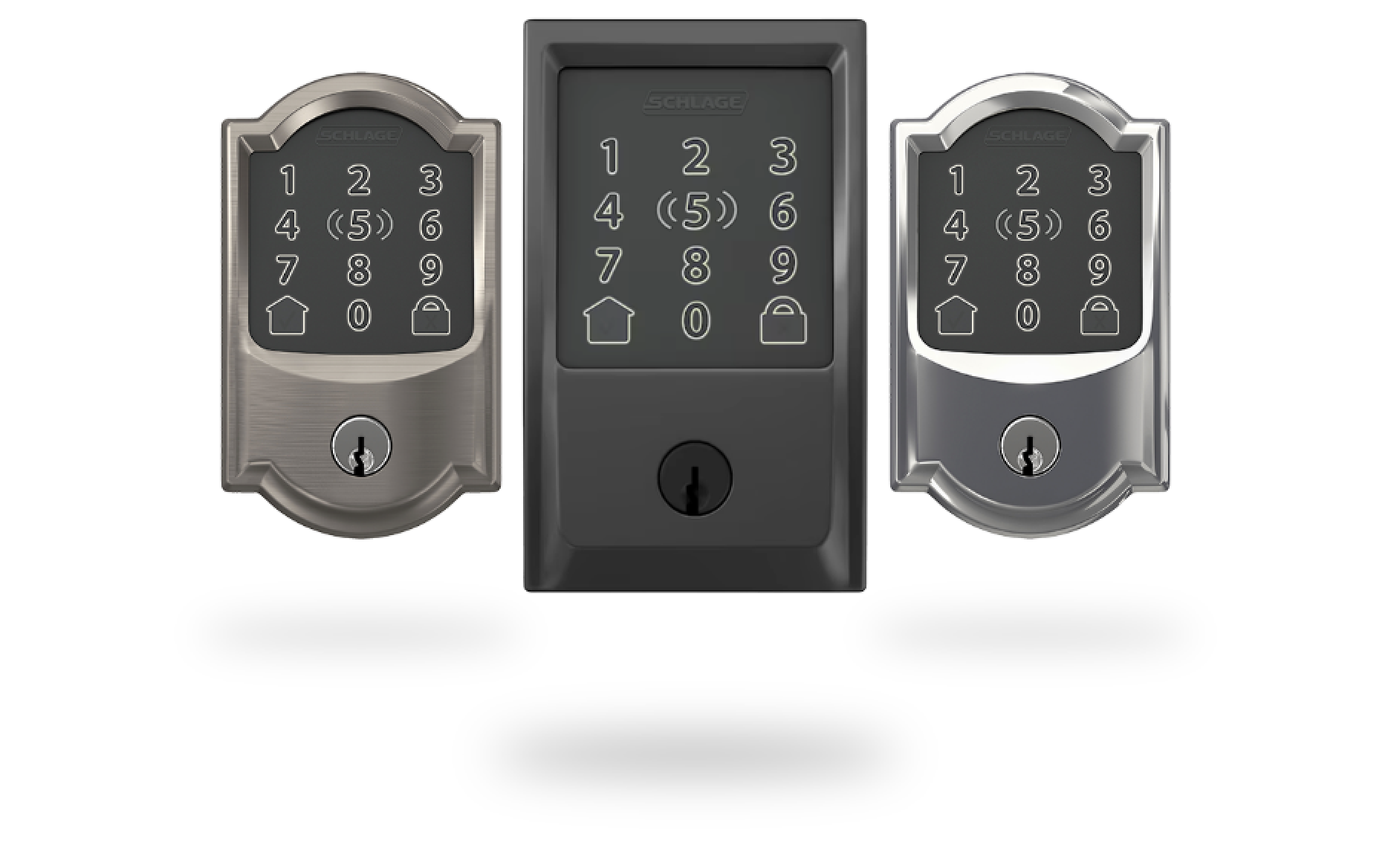
The Schlage Encode Smart WiFi Deadbolt offers many useful features. It provides strong security with easy control. You can lock or unlock your door from anywhere using your phone. No extra hub is needed for WiFi connection.
This smart lock also supports voice control with Alexa. You can check the lock status at any time. The built-in alarm senses forced entry attempts. It alerts you quickly to keep your home safe.
Built-in Wifi Connectivity
The Schlage Encode connects directly to your home WiFi. This means no extra devices are required. You control the lock with the Schlage app. It gives real-time notifications about lock activity.
Keyless Entry
Use a code to unlock the door. You can create up to 100 unique access codes. Share codes with family or friends. Set schedules to limit when codes work. It keeps your home secure and flexible.
Voice Assistant Compatibility
This lock works with Amazon Alexa. You can lock or check status using voice commands. No need to take out your phone. Voice control adds convenience to your daily routine.
Built-in Alarm Technology
The lock has an alarm for forced entry. It detects if someone tries to tamper with it. The alarm sounds loudly to scare off intruders. This feature adds an extra layer of protection.
Easy Installation
The Schlage Encode fits standard doors. Installation takes about 30 minutes. No special tools are needed. Clear instructions guide you through the process.
Credit: www.schlage.com
Reasons To Reset
Resetting your Schlage Encode Smart WiFi Deadbolt is sometimes necessary. It helps fix problems and keeps your lock working well.
Knowing why to reset can save time and avoid frustration. Let’s explore common reasons for a reset.
Incorrect Or Forgotten Access Codes
Forgetting your access code can lock you out. Resetting removes old codes. You can add new ones easily.
Connectivity Problems
Sometimes the lock loses connection to WiFi. Resetting restores the link. This helps control the lock remotely again.
Preparing For A New User
Giving the lock to someone else? Resetting clears your settings. The new user starts fresh with their own codes.
Software Glitches Or Errors
Glitches can make the lock unresponsive. Resetting fixes minor bugs. It refreshes the lock’s system quickly.
Security Concerns
If you suspect someone else knows your code, reset immediately. This protects your home and privacy.
Prepare For Reset
Preparing to reset your Schlage Encode Smart Wifi Deadbolt helps avoid problems. A good start makes the process smooth and quick.
Gathering tools and saving your current settings ensures you do not lose access. Follow these steps carefully to prepare well.
Gather Necessary Tools
Collect a small Phillips screwdriver. You will need it to open the lock’s battery cover.
Have fresh AA batteries ready. Old batteries can cause reset failures.
Keep your smartphone nearby. You may need it to reconnect the lock after reset.
Backup Codes And Settings
Write down your current access codes. Resetting deletes all saved codes from the lock.
Save your lock’s network settings in the Schlage app. This helps reconnect faster after reset.
Note any custom settings or schedules you use. You will need to set them again after reset.
Reset Process
The reset process for the Schlage Encode Smart Wifi Deadbolt is simple and clear. It helps fix problems or erase old settings. Follow these steps carefully to reset your lock without trouble.
Locate The Reset Button
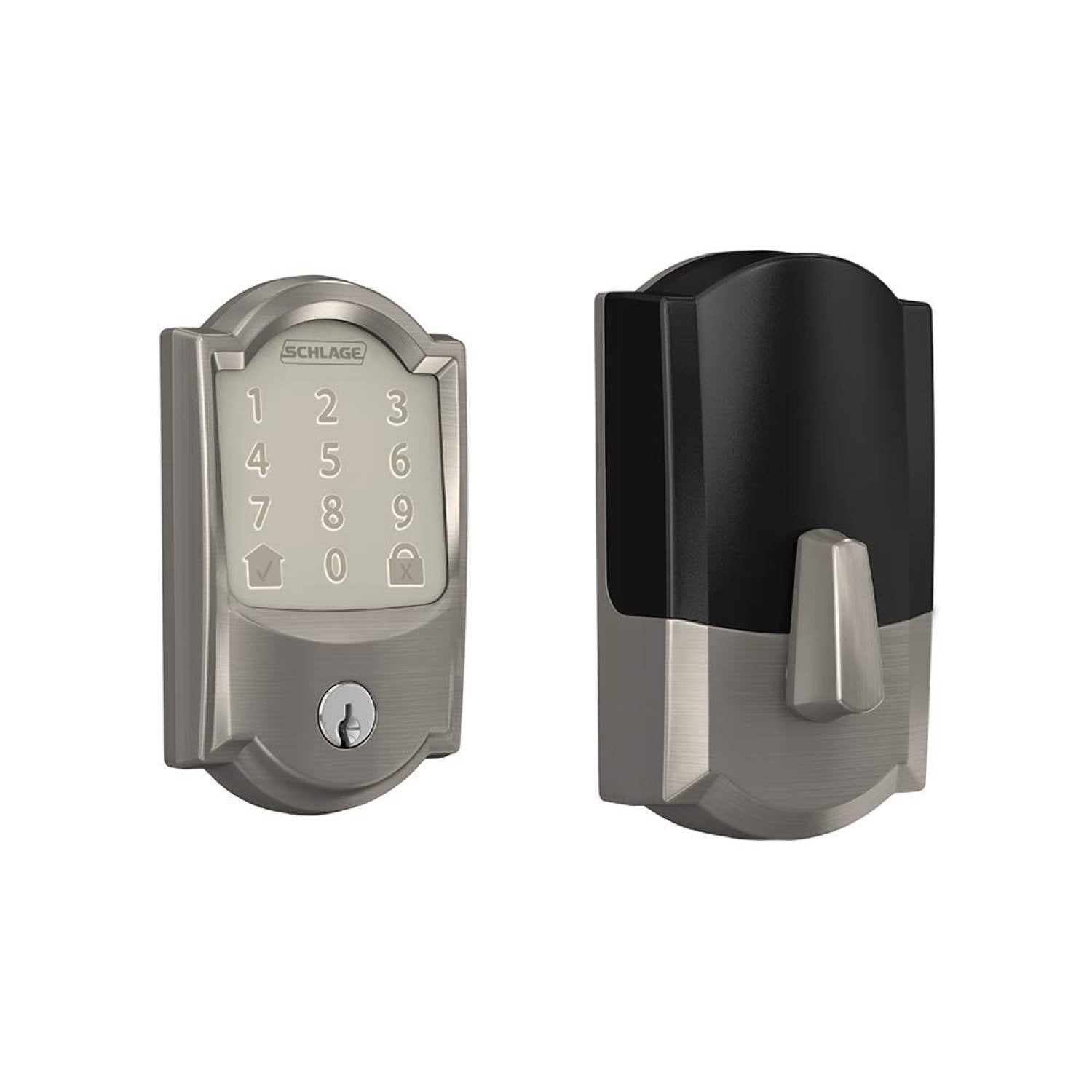
First, find the reset button on your lock. It is usually inside the keypad area or on the interior side. You may need to remove the battery cover to see it. The button is small and round.
Performing The Reset
Press and hold the reset button for about 10 seconds. Use a small tool like a paperclip if needed. Release the button when the lock beeps or the lights flash. This action clears all settings and returns the lock to factory mode.
Confirming Reset Success
After reset, check if the lock is back to default. The keypad should light up and the lock should beep. Test the lock by entering the default code or checking the app connection. If it works, the reset was successful.
Reprogramming The Lock
Reprogramming the Schlage Encode Smart WiFi Deadbolt lets you customize its settings. This step is important after resetting the lock. It ensures your lock works with your home network and personal codes. Follow the steps carefully to reconnect and secure your door again.
Connecting To Wifi
Start by opening the Schlage Home app on your phone. Make sure your phone is near the lock and connected to your home WiFi. Select the lock from the app. Follow the prompts to connect the lock to your WiFi network. Enter your WiFi password when asked. Wait until the app confirms a successful connection.
Setting New Codes
Go to the “Access Codes” section in the app. Delete old codes to keep security tight. Tap “Add Code” to create a new entry code. Choose a code that is easy for you to remember. Save the new code in the app. You can add multiple codes for family or friends.
Testing Functionality
Test the new codes on the keypad. Enter each code to see if the lock opens. Check the lock’s response time and sound. Use the app to lock and unlock remotely. Confirm the lock connects to WiFi without issues. Fix any problems before relying on the lock fully.
Troubleshooting Tips
Troubleshooting your Schlage Encode Smart WiFi Deadbolt can solve most common problems. Simple checks often fix issues quickly. This section covers easy tips to help you reset and restore your lock’s performance.
Reset Button Not Responding
Press the reset button firmly with a small tool. Hold it for at least 10 seconds until the lock beeps. If nothing happens, check the battery first. Sometimes, low power causes the button to stop working. Try removing and reinserting the batteries. If the button still does not respond, the lock may need professional repair.
Connectivity Issues
Check if your WiFi network is working properly. The lock needs a strong signal to connect. Move the lock closer to your router if the signal is weak. Restart your router and the lock. Make sure the lock’s firmware is updated. Use the Schlage app to check connection status and settings.
Battery Problems
Low battery power causes many lock issues. Replace the batteries with fresh, high-quality alkaline ones. Do not use rechargeable batteries as they may cause errors. Always keep spare batteries nearby. Remove batteries for a minute to reset the lock if it acts strange. Regular battery checks help avoid unexpected lock failures.
Maintenance Tips
Maintaining your Schlage Encode Smart WiFi Deadbolt keeps it working smoothly and extends its life. Simple steps help avoid common issues and ensure reliable security. Regular care prevents lockouts and other problems that might require a reset.
Regular Battery Checks
Check the batteries often to keep the lock powered. Low batteries can cause malfunction or slow response. Replace batteries at the first sign of weakness. Use high-quality alkaline batteries for best performance. Always keep spare batteries nearby for quick replacement.
Firmware Updates
Keep your lock’s software up to date for improved security and features. Updates fix bugs and enhance performance. Connect the lock to WiFi and check for updates in the app regularly. Install updates promptly to avoid security risks. This keeps your lock running with the latest improvements.

Credit: www.youtube.com
Credit: ring.com
Frequently Asked Questions
How Do I Reset My Schlage Encode Wifi Deadbolt?
To reset your Schlage Encode, press and hold the Schlage button for 10 seconds. Release when the light flashes red. This restores factory settings and clears all codes.
What Happens After Resetting Schlage Encode Lock?
Resetting deletes all user codes and settings. You must reconfigure the lock and reconnect it to WiFi.
Can I Reset Schlage Encode Without A Keypad?
No, you need physical access to the keypad to reset the lock. The reset requires pressing the Schlage button.
How To Reprogram Schlage Encode After Reset?
Use the Schlage app or keypad to set up WiFi and add new user codes after resetting the lock.
Conclusion
Resetting your Schlage Encode Smart WiFi Deadbolt is simple and quick. Follow the steps carefully to avoid any issues. This process helps fix problems and refresh your lock settings. Keep your code and WiFi details handy before starting. You can enjoy secure access again in no time.
Regular resets can keep your lock working well. Stay safe and control your home’s security easily.


