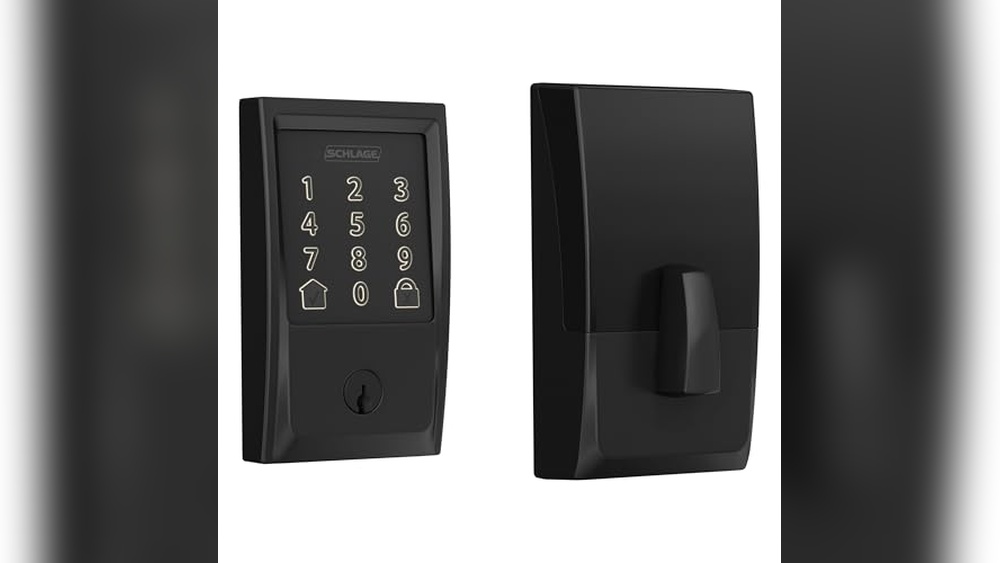
If your Kwikset digital deadbolt isn’t working the way it should or you need to change your access codes, knowing how to reset it is a must. You might feel stuck or worried about messing it up, but don’t worry—this guide will walk you through the reset process step by step.
By the end, you’ll have full control over your lock again, making your home safer and your life easier. Keep reading to unlock the simple steps that anyone can follow!

Credit: www.youtube.com
Prepare For Reset
Preparing your Kwikset digital deadbolt for a reset ensures the process goes smoothly. Taking a few simple steps can save time and prevent mistakes. Proper preparation helps you handle the reset without frustration or delays.
Gather Necessary Tools
Collect all tools before starting the reset. You may need a small screwdriver to open the battery cover. Have a pen and paper ready to write down new codes. Keep everything within reach to avoid interruptions.
Ensure Battery Power
Check the battery level before resetting the lock. Low battery power can cause the reset to fail. Replace old batteries with fresh ones if needed. Strong battery power ensures the lock works correctly after reset.

Credit: www.youtube.com
Locate The Reset Button
Performing a reset on your Kwikset digital deadbolt is a straightforward process. This step clears previous settings and prepares the lock for new configurations. It is important to follow each step carefully to ensure the reset works correctly.
Press And Hold Reset Button
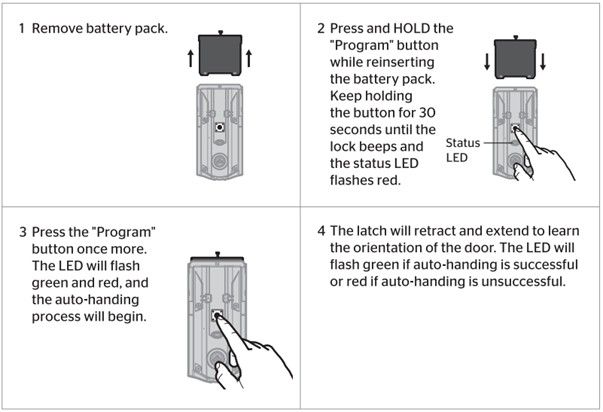
Locate the reset button on the inside part of the lock. Use a small tool like a paperclip to press and hold the button. Keep holding the button for about 10 seconds. Release the button only after you see the lock’s lights flash or hear a beep sound.
Wait For Confirmation Signals
After releasing the reset button, watch the lock closely. The lock will flash lights or make sounds to confirm the reset. This confirmation means the lock has been reset successfully. Do not press any buttons until the signals stop. Now your Kwikset deadbolt is ready for new setup steps.
Perform The Reset
Reprogramming your Kwikset digital deadbolt helps keep your home secure. It lets you change access codes easily. This is useful if you want to control who can enter your home. Follow these steps to reset codes and manage your lock better.
Set New Master Code
Start by opening the lock’s programming mode. Press the programming button inside the lock. Enter the current master code to confirm your identity. Then, type a new master code of 4 to 8 digits. Press the lock button or “lock” key to save the new code. Your lock now uses the new master code for future changes.
Add User Codes
Enter programming mode using your master code. Press the button to add a new user code. Choose a unique code of 4 to 8 digits. Enter the code and press the lock button to save it. Repeat to add more user codes. Each code allows different people to unlock the door.
Credit: www.kwikset.com
Reprogram Your Lock
Testing the lock functionality is an important step after resetting your Kwikset digital deadbolt. This process confirms that the lock works correctly and keeps your home secure. It also helps identify any issues early, so you can fix them quickly.
Check Manual Operation
Start by turning the thumb turn inside your door. Make sure it locks and unlocks smoothly. The deadbolt should move easily without sticking. Test the key on the outside if your lock has one. Insert the key and turn it to lock and unlock. This checks the mechanical parts of the lock.
Verify Digital Access
Next, test the keypad or smart app access. Enter your user code on the keypad. The lock should respond by unlocking. If you use a smartphone app, try locking and unlocking remotely. Confirm the lock reacts to commands without delay. This ensures your digital settings work correctly after reset.
Test The Lock Functionality
Troubleshooting your Kwikset digital deadbolt can solve many common problems. Simple checks often fix issues without extra help. Follow these tips to get your lock working again quickly.
Reset Not Working
Make sure you follow the reset steps carefully. Press and hold the reset button long enough. If the light does not flash, try again. Check if the lock is in programming mode before resetting.
Battery Issues
Weak batteries cause many problems with digital deadbolts. Replace old batteries with fresh ones. Use high-quality alkaline batteries for best results. Check the battery contacts for dirt or corrosion. Clean them gently if needed.
Lock Still Unresponsive
Try removing the battery pack and wait 30 seconds. Reinstall the batteries and test the lock again. Check if the lock is properly installed on the door. Loose parts can prevent it from working. Reset the lock after checking all hardware.
Frequently Asked Questions
How Do I Reset A Kwikset Digital Deadbolt?
To reset a Kwikset digital deadbolt, press and hold the program button for 10 seconds. The lock will beep and flash, indicating a successful reset to factory settings.
Can I Reset Kwikset Lock Without A Code?
No, you need the current programming code to reset the lock. Without it, a factory reset requires physical access to the lock’s interior.
What Happens After Resetting Kwikset Deadbolt?
Resetting erases all user codes and restores factory default settings. You must reprogram new access codes for secure entry afterward.
How To Reprogram Kwikset Digital Lock Post-reset?
Enter programming mode by pressing the program button. Then add new user codes following the lock’s manual instructions to secure access.
Conclusion
Resetting your Kwikset digital deadbolt is quick and easy. Follow each step carefully to avoid mistakes. This guide helps you regain control of your lock. Keep your new codes safe and private. Regularly check your lock’s function for security. Simple actions keep your home safe and secure.
Now, you can reset your lock without stress. Stay safe and enjoy peace of mind.