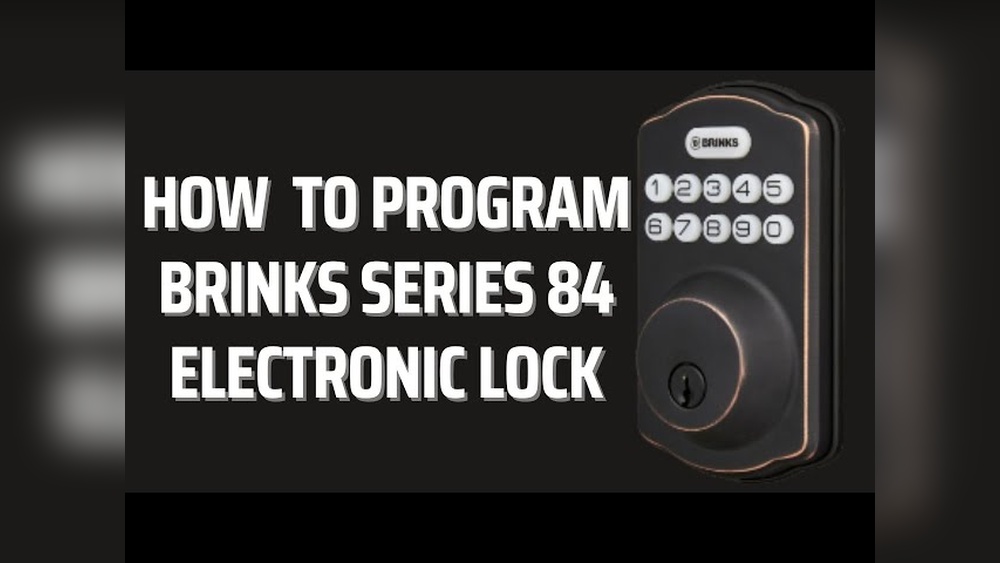
Are you ready to make your home safer with a Brinks Digital Deadbolt but don’t know where to start? Programming your deadbolt might sound tricky, but it’s easier than you think.
With the right steps, you can set up your lock quickly and enjoy the peace of mind that comes with keyless security. Keep reading, and you’ll learn exactly how to program your Brinks Digital Deadbolt so it works perfectly for you and your family.
Brinks Digital Deadbolt Features
The Brinks Digital Deadbolt offers a smart and secure way to protect your home. It combines modern technology with easy-to-use features. This lock is designed for safety and convenience. Understanding its features helps you use it better.
Keypad And Lock Components
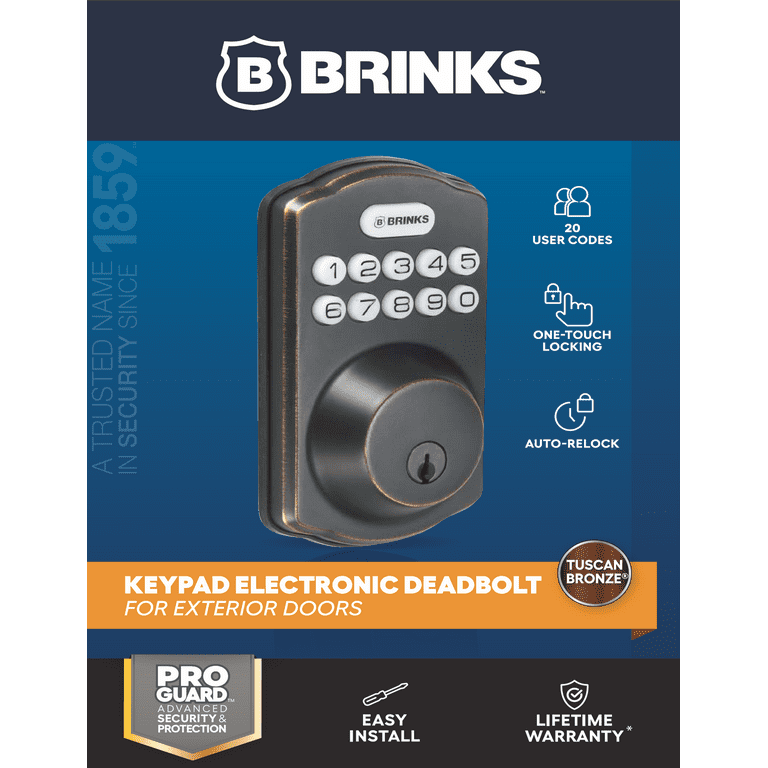
The lock has a simple keypad with large numbers. It is easy to press and read. The lock body is sturdy and fits most doors. It includes a thumb turn for quick manual locking. Each part works together for smooth operation.
Battery And Power Indicators
The deadbolt runs on batteries that last long. It shows a low battery warning on the keypad. This alert helps you change batteries in time. Power indicators keep you informed about the lock’s status. No surprises with battery life.
Security Options
The lock supports multiple user codes for family or guests. You can set temporary codes for visitors. It locks automatically after a set time. The device resists tampering and forced entry. These options boost your home’s security.

Credit: www.youtube.com
Preparing To Program
Preparing to program your Brinks digital deadbolt is an important step. It helps the process go smoothly and saves time. Before starting, gather the right tools, check the battery, and find the programming code. These steps make programming easier and prevent errors.
Gathering Necessary Tools
Start by collecting all tools needed for programming. Usually, you need a small screwdriver to open the battery cover. Have a pen and paper ready to write down codes. These simple tools help you work without interruption.
Checking Battery Life
Check the battery to avoid power issues during programming. Low batteries can cause the deadbolt to stop working. Open the battery compartment and see if the batteries look worn out. Replace them with fresh ones if needed. Good battery life ensures the lock works well.
Locating Programming Code
The programming code is vital for setting up your lock. Look for it in the lock’s manual or on a sticker inside the battery compartment. Keep this code safe. You will enter it to program the deadbolt and add new codes.
Programming Master Code
Programming the master code on your Brinks digital deadbolt is the first step to secure control. This code lets you manage all other codes and settings on the lock. It acts as the main key to customize your lock functions.
Creating a strong and easy-to-remember code is important. The process is simple and quick. Follow these steps carefully to set your master code.
Accessing Programming Mode
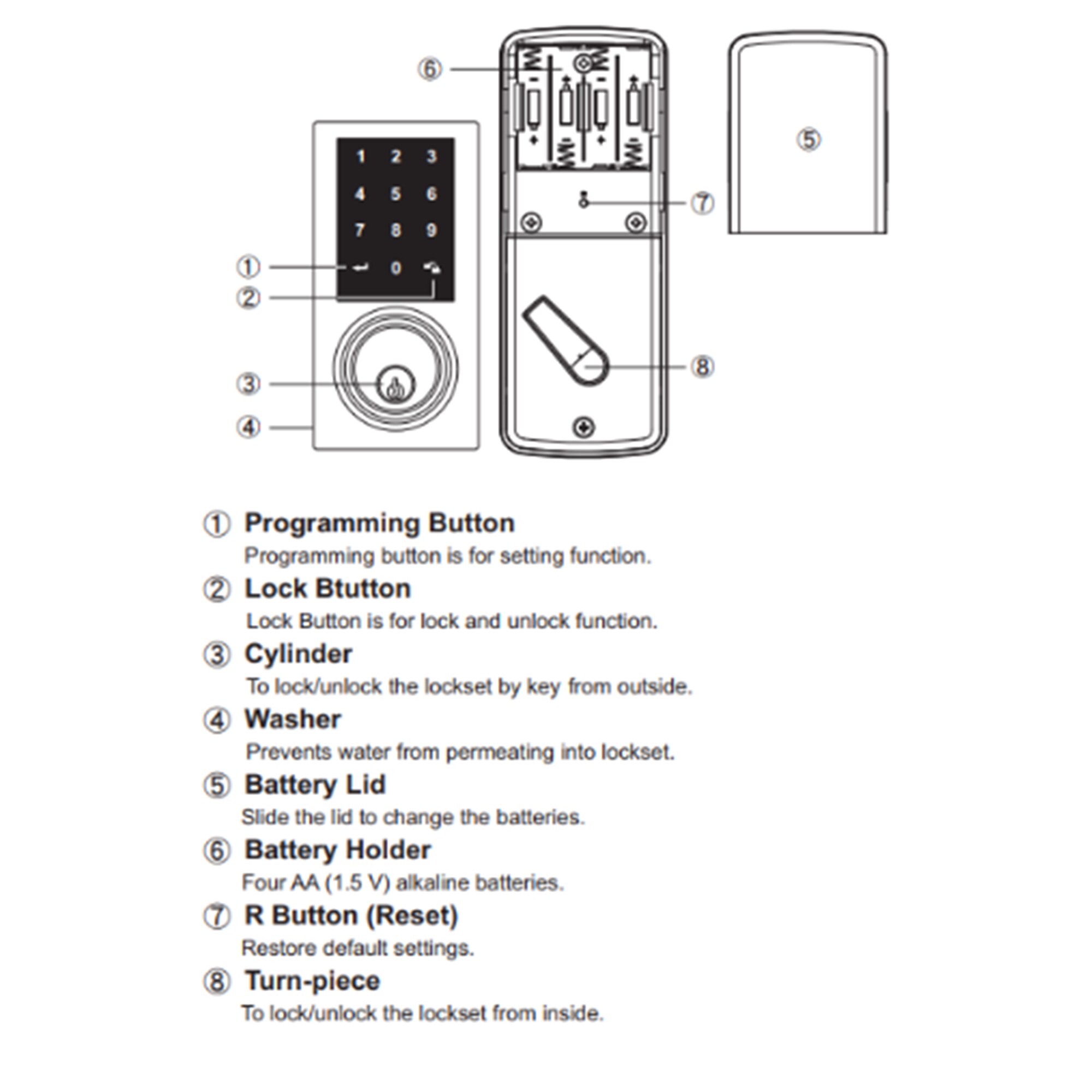
Start by pressing the programming button on the lock. This button is usually inside the battery compartment. Hold it until you hear a beep. The lock is now ready for programming.
Setting Your Master Code
Enter a new code with 4 to 8 digits. Choose numbers easy to recall but hard to guess. Press the lock button to save your code. The lock will beep to confirm the entry.
Confirming Code Setup
Test the new code by entering it on the keypad. If the lock opens, the code is set correctly. If not, repeat the steps carefully. This ensures your lock works perfectly every time.
Adding User Codes
Adding user codes to your Brinks digital deadbolt lets you control who can enter your home. You can create codes for family members, friends, or trusted helpers. Managing these codes is simple and helps keep your home secure.
Entering User Code Mode
Start by pressing the programming button on your lock’s interior side. Hold it until the lock beeps twice. This signals you are in user code mode. The keypad will light up, ready for new commands. Enter your master code to confirm access. The lock will beep again, showing you can now add or edit user codes.
Creating New User Codes
Press the number 1 on the keypad to add a new user code. Enter a unique code, usually 4 to 8 digits long. Confirm by pressing the lock button or the pound () key. The lock will beep twice, confirming the new code is saved. Test the code to make sure it works properly. Remember to choose codes that are easy to remember but hard to guess.
Managing Multiple Users
You can add many user codes for different people. Use the programming mode to add or delete codes anytime. To delete a code, enter user code mode and press the number 2. Then enter the user code you want to remove. The lock beeps once to confirm deletion. Keep track of all active codes to maintain security. Change or remove codes when needed, especially if someone no longer needs access.
Deleting User Codes
Deleting user codes from your Brinks digital deadbolt keeps your lock secure. Remove codes that are no longer needed or have been shared with others. Regularly clearing old codes stops unauthorized access and maintains control over your lock.
Accessing Code Deletion Mode
Start by pressing the lock’s program button. This button is usually inside the battery compartment. Hold it until the keypad lights up or beeps. The lock is now ready for code deletion. Enter the master code to confirm access.
Removing Specific User Codes
After entering code deletion mode, press the number for the user code to delete. The lock will ask to confirm the code removal. Press the program button again to delete the selected user code. The lock will beep to show the code is removed.
Clearing All User Codes
To erase all user codes, access code deletion mode first. Press and hold the program button until the keypad lights up. Enter the master code, then press the reset button or follow the lock’s manual steps. This action removes every user code at once.
Credit: www.walmart.com
Adjusting Lock Settings
Adjusting the lock settings on your Brinks Digital Deadbolt helps customize your security experience. You can make the lock work better for your daily needs. This section explains simple ways to change these settings.
Changing Auto-lock Timing
The auto-lock feature locks your door automatically after a set time. You can change how fast or slow this happens. Press the settings button on the keypad. Use the arrows to select the auto-lock option. Choose a time from 5 seconds to 4 minutes. Confirm your choice by pressing the lock button. This keeps your home secure without needing to lock manually.
Enabling/disabling Sound Alerts
Sound alerts notify you when the lock is used or if there is an error. You can turn these sounds on or off. Go to the settings menu on the lock. Find the sound alert option. Use the keypad to toggle sounds on or off. Press the lock button to save the setting. This helps avoid noise at night or alerts you when needed.
Customizing Lock Behavior
You can change how the lock responds to different actions. For example, set it to lock automatically after unlocking or stay unlocked for a short time. Access the lock’s settings menu. Select lock behavior options. Use the keypad to pick your preferred actions. Save changes by pressing the lock button. This makes the lock fit your lifestyle better.
Troubleshooting Tips
Troubleshooting your Brinks digital deadbolt can solve many common issues. Problems like unresponsive locks or error messages are often easy to fix. Understanding simple steps helps keep your lock working smoothly.
This section covers key tips for resetting, changing batteries, and avoiding programming mistakes. Follow these to keep your deadbolt secure and functional.
Resetting The Deadbolt
Resetting the lock clears all codes and settings. Use this when the deadbolt does not respond or has forgotten codes. Locate the reset button inside the lock’s battery compartment. Press and hold it for about 10 seconds. Release when the lock beeps or flashes. The deadbolt will restart and return to factory settings.
Battery Replacement Guide
Low battery power causes many problems with digital deadbolts. Replace batteries every six months or when the low battery warning appears. Open the battery cover on the interior side of the lock. Remove old batteries carefully and insert new AA alkaline batteries. Ensure correct battery orientation. Close the cover securely. Test the lock to confirm power is restored.
Common Programming Errors
Programming mistakes often cause deadbolt issues. Entering wrong codes multiple times can lock the system temporarily. Always follow the manual’s steps exactly. Avoid pressing buttons too fast or holding them too long. Use clear, distinct button presses. Double-check each code entry before confirming. Reset and start over if errors persist.
Maintenance And Care
Proper maintenance keeps your Brinks digital deadbolt working well. It helps avoid problems and extends the lock’s life. Simple care steps make sure your lock stays safe and smooth every day.
Cleaning The Keypad
Clean the keypad regularly with a soft, dry cloth. Avoid using water or harsh chemicals. Dirt and oils can block the buttons. Wipe gently to keep the keys responsive and clear.
Lubricating The Deadbolt
Use graphite powder to lubricate the deadbolt mechanism. Spray a small amount inside the keyhole and on moving parts. Avoid oil-based lubricants as they attract dust and cause jams. Lubricate twice a year for smooth operation.
Regular Battery Checks
Check the battery level often to avoid lock failure. Replace batteries at least once a year or sooner if low. Use high-quality alkaline batteries for best results. Low power can cause slow response or lock errors.
Credit: www.lowes.com
Frequently Asked Questions
How Do I Program A Brinks Digital Deadbolt?
To program, enter the master code and press the programming button. Add new user codes by following on-screen prompts. Save each code carefully for future access. Refer to the manual for specific model steps. Programming is quick and requires no special tools.
Can I Reset The Brinks Digital Deadbolt Easily?
Yes, reset by holding the reset button for 10 seconds. This erases all user codes and returns to factory settings. After reset, reprogram master and user codes. Use reset only if you forget all codes or face malfunctions.
What Batteries Does A Brinks Digital Deadbolt Use?
Brinks digital deadbolts typically use four AA alkaline batteries. Replace batteries every six to twelve months for optimal performance. Low battery alerts appear on the keypad. Always use fresh, high-quality batteries to avoid lockouts.
How Many User Codes Can I Store In Brinks Lock?
Most Brinks digital deadbolts support up to 20 user codes. This allows multiple users to have unique access. Each code can be added or deleted easily through programming mode. Manage codes to enhance security and track access.
Conclusion
Programming your Brinks digital deadbolt is simple and quick. Follow each step carefully to avoid mistakes. This guide helps you set up your lock with ease. Secure your home with confidence and control. Enjoy the convenience of keyless entry every day.
Stay safe and save time using your new deadbolt. Keep the instructions handy for future reference. Your home’s security is now in your hands.