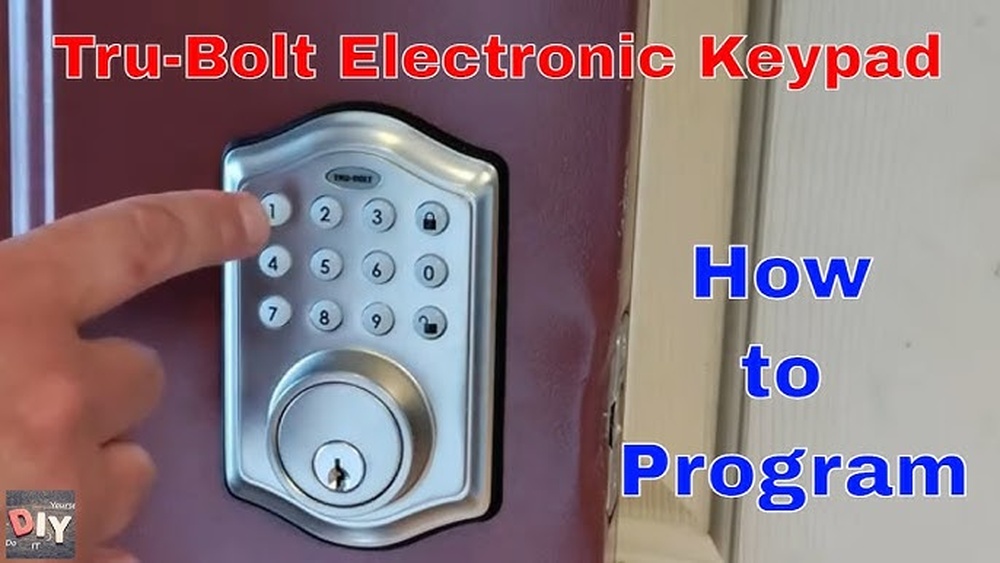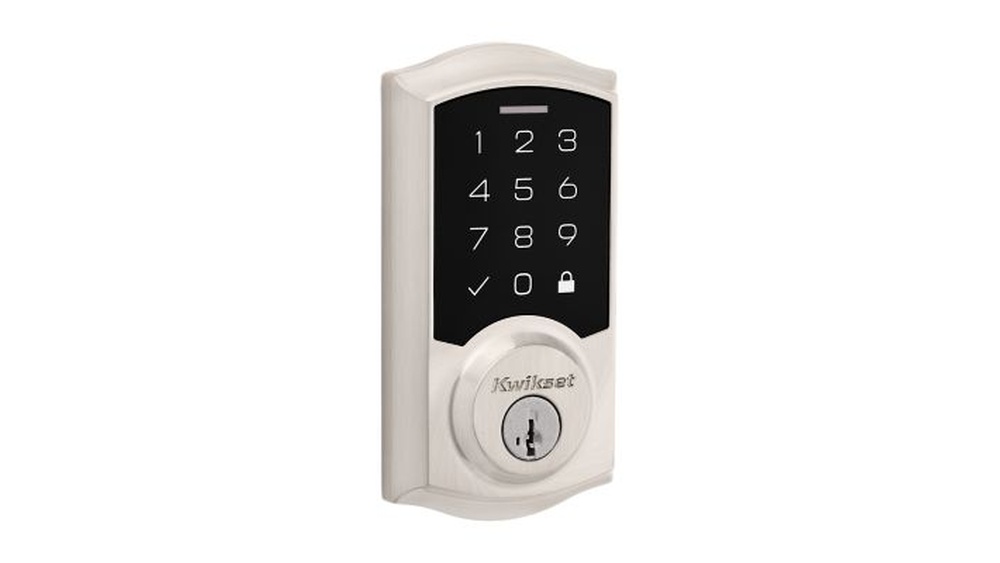
If you’ve just got a Kwikset electronic deadbolt, you’re probably eager to set it up and make your home more secure. Programming your new lock might sound tricky, but it’s easier than you think.
Imagine never fumbling for keys again or giving temporary access to guests with just a few taps. In this guide, you’ll learn step-by-step how to program your Kwikset electronic deadbolt quickly and confidently. Keep reading, and you’ll have full control over your door’s security in no time.

Credit: www.youtube.com
Kwikset Deadbolt Basics
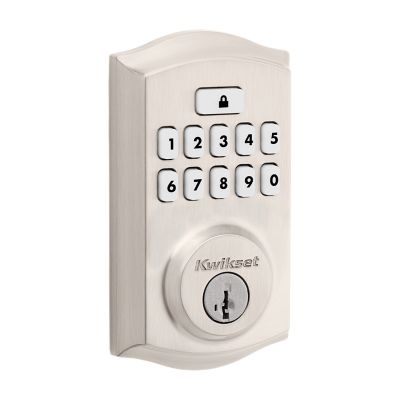
Kwikset electronic deadbolts provide a secure and convenient way to protect your home. These locks combine traditional deadbolt strength with modern technology. They offer easy keyless entry options and reliable security features. Understanding the basics helps you use and program your lock effectively. This section covers the main types and important features of Kwikset electronic deadbolts.
Types Of Kwikset Electronic Deadbolts
Kwikset offers several types of electronic deadbolts to fit different needs. Keypad locks allow entry using a code instead of a key. Some models connect to smart home systems for remote control. There are also locks with fingerprint sensors for added security. Each type aims to make access easier and safer. Choose the one that matches your lifestyle and home setup.
Key Features To Know
Most Kwikset electronic deadbolts include a backlit keypad for easy use in the dark. They often support multiple user codes, allowing family and trusted guests to enter. Many models have auto-lock features that secure the door after a set time. Battery life is good, with alerts when power runs low. Some locks include a manual key option for emergencies.
Credit: www.kwikset.com
Preparing For Programming
Preparing your Kwikset electronic deadbolt for programming is an important first step. This process helps ensure smooth setup and operation. Taking time to gather the right items and find the programming code saves frustration later.
Readying yourself properly makes programming easier. It also helps avoid mistakes that might lock you out or cause errors.
Gathering Tools And Materials
Collect all tools before starting. You need fresh batteries for your lock. A small screwdriver may be necessary. Keep the lock’s manual nearby for reference. Have a pen and paper ready to write down codes or notes. Make sure your workspace is well-lit. Clear space lets you work without distractions or losing parts.
Locating The Programming Code
The programming code is essential to set up your lock. Find it in the original Kwikset packaging or user manual. Sometimes, it is on a sticker inside the battery compartment. This code is a 6-digit number unique to your lock. Write it down carefully. Without this code, you cannot program new user codes or settings.
Programming New User Codes
Programming new user codes on your Kwikset electronic deadbolt is simple. It lets you control who can enter your home. Adding user codes allows family, friends, or guests to access the lock without a key. This feature adds convenience and security.
Follow the steps below to program new codes safely and easily. Keep your codes secure and easy to remember.
Accessing Programming Mode
Start by entering programming mode on your Kwikset lock. Press the lock’s program button. This button is usually inside the lock, near the battery pack. Hold it until you hear a beep or see a light flash. The lock is now in programming mode and ready to accept new codes.
Adding User Codes Step-by-step
Enter the master code first. This code was set during the lock setup. Press the lock button again. Enter a new user code. Make sure it has 4 to 8 digits. Press the lock button to save the new code. You will hear a beep or see a light confirming the code is saved. Repeat these steps for each new user code you want to add.
Tips For Strong User Codes
Use numbers that are easy to remember but hard to guess. Avoid simple sequences like 1234 or repeated numbers like 1111. Mix numbers that are not related to your birthday or phone number. Change your codes regularly to keep your lock secure. Share codes only with trusted people.
Managing Existing Codes
Managing existing codes on your Kwikset electronic deadbolt keeps your home secure. You control who can enter and when. Regular updates help protect your property.
Deleting or changing codes is simple and fast. This section explains how to do both clearly.
Deleting User Codes
Start by entering programming mode on the lock. Press the program button once. Enter the master code to confirm. Choose the option to delete codes. Select the user code you want to remove. Confirm the deletion. The code will no longer work.
Deleting unused codes prevents unauthorized access. It also frees up space for new users.
Modifying User Codes
Enter programming mode again. Input the master code. Select the modify user code option. Choose the code number to change. Enter the new code twice for confirmation. Save the changes. The new code replaces the old one immediately.
Changing codes regularly improves security. It keeps control over who can enter your home.
Advanced Settings
The advanced settings on your Kwikset electronic deadbolt give you more control over your lock’s behavior. These options help you customize how the lock works to fit your needs. You can make your lock more secure and convenient with a few simple steps.
Explore features like auto-lock, lock sensitivity, and temporary codes. Each setting improves your experience and safety.
Enabling Auto-lock
Auto-lock automatically locks the door after a set time. This feature prevents the door from staying unlocked by mistake. To enable it, enter the programming mode on your lock. Then choose the auto-lock option and set the time delay. The delay can be 30 seconds to 4 minutes. Pick a time that fits your routine. Auto-lock adds peace of mind when you leave your home.
Adjusting Lock Sensitivity
Lock sensitivity controls how easily the deadbolt turns. You can make it tighter or looser depending on your preference. To adjust, access the lock’s settings menu. Use the arrow keys to increase or decrease sensitivity. Test the lock after each change to find the right feel. Proper sensitivity helps the lock work smoothly and lasts longer.
Setting Up Temporary Codes
Temporary codes let guests or workers enter without a permanent code. These codes expire after a set time. To set one, go to the user code settings. Choose to add a temporary code and enter the new code. Set the expiration date or time length. Save the code. This feature helps keep your home secure while allowing limited access.

Credit: www.youtube.com
Troubleshooting Common Issues
Troubleshooting common issues with your Kwikset electronic deadbolt is key to keeping your door secure. Problems can happen even after programming. Quick fixes can save time and avoid frustration. Below are some simple solutions to common problems. Follow these steps to get your lock working smoothly again.
Resetting The Deadbolt
Resetting the deadbolt clears all settings. Use this if the lock is unresponsive or not working right. Find the small reset button inside the battery compartment. Press and hold it for about 10 seconds. The lock will beep or flash to show it reset. After reset, you must reprogram all user codes. This process restores factory settings and fixes many errors.
Battery Replacement Tips
Low battery power often causes lock issues. Replace batteries at the first sign of trouble. Use four fresh AA alkaline batteries for best results. Remove the battery cover carefully to avoid damage. Insert batteries with correct polarity. Check battery contacts for dirt or corrosion. Clean contacts gently if needed. Test the lock after replacement to ensure it works properly.
Handling Lock Malfunctions
Lock malfunctions can include sticking or failure to lock. Check for physical obstructions around the deadbolt. Clean the bolt and strike plate of dirt or debris. Lubricate with graphite powder, not oil, to avoid gumming. Make sure the door is aligned properly. Misalignment can cause the bolt to jam. If problems persist, consult the user manual or contact support.
Maintenance And Care
Proper maintenance and care help your Kwikset electronic deadbolt work well for years. It keeps the lock smooth and prevents problems. Small efforts can save time and money later.
Regular Cleaning
Clean the lock surface with a soft cloth. Avoid harsh chemicals or abrasive materials. Dust and dirt can block the keypad and make buttons sticky. Wipe the keypad gently to keep it clear. Clean the inside of the keyhole with compressed air if needed.
Battery Life Optimization
Check the battery level often to avoid lockouts. Replace batteries as soon as the low battery warning appears. Use high-quality alkaline batteries for longer life. Remove batteries if you won’t use the lock for a long time. Avoid mixing old and new batteries to prevent leaks.
Frequently Asked Questions
How Do I Reset A Kwikset Electronic Deadbolt?
To reset, press and hold the Program button for 10 seconds. Wait for the light to flash, then release. This clears all codes and restores factory settings, allowing you to start fresh with new programming.
How Can I Add New User Codes To Kwikset Locks?
Enter Programming Mode by pressing the Program button. Then, enter a new user code and press the lock button. The lock will beep to confirm the new code is saved and ready for use.
What Batteries Work Best For Kwikset Deadbolts?
Use four AA alkaline batteries for optimal performance. Avoid rechargeable batteries as they may cause inconsistent power. Replace batteries when the low battery indicator flashes or the lock response slows.
How Do I Change The Programming Code On Kwikset Locks?
Press the Program button once to enter Programming Mode. Enter the existing programming code, then input the new code. Confirm the change by pressing the lock button, which signals successful programming.
Conclusion
Programming your Kwikset electronic deadbolt is simple and quick. Follow each step carefully to avoid mistakes. You can change codes whenever needed to keep your home safe. Remember to test the lock after programming. This helps ensure it works correctly.
Keep the user manual handy for future reference. Taking these steps makes your lock secure and easy to use. Your safety is in your hands. Enjoy peace of mind with your programmed deadbolt.