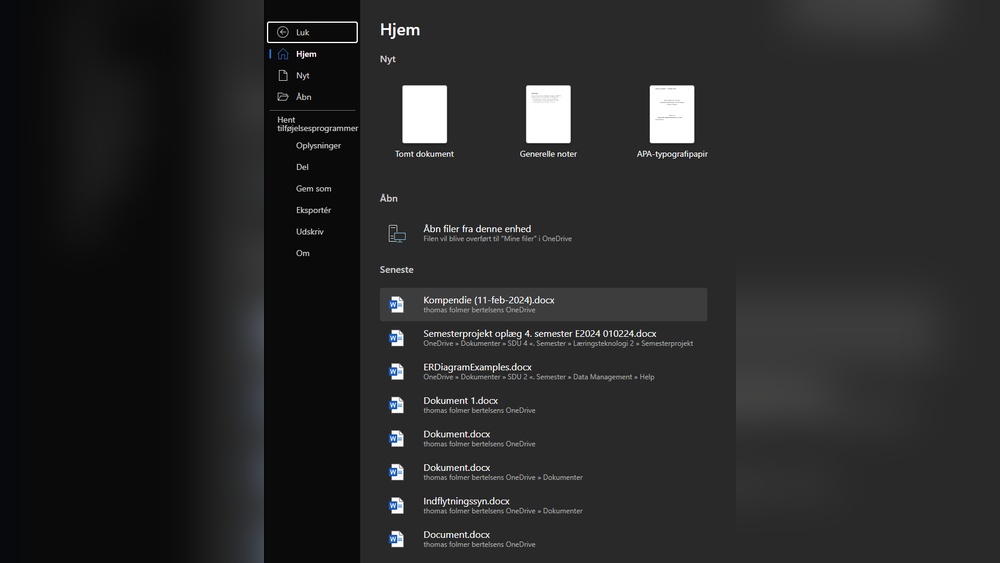
Tired of staring at a bright screen that strains your eyes? You’re not alone.
Switching Word to Light Mode can make your work easier and more comfortable, especially if you spend hours typing or editing documents. Imagine a cleaner, softer look that helps you focus without the harsh glare. You’ll discover simple steps to change your Word settings and enjoy a fresh, light interface.
Keep reading—you’ll wonder why you didn’t switch sooner!
Reasons To Use Light Mode
Light mode in Word offers a clean and bright interface. Many users find it easier on the eyes during daylight. It helps create a clear and simple workspace. The reasons to use light mode go beyond just looks.
Benefits For Eye Comfort
Light mode reduces strain in bright environments. It lowers glare on the screen under sunlight or strong lights. This makes it easier to focus and work longer. Your eyes feel less tired after hours of typing.
Improved Readability
Black text on a white background is clear and sharp. It helps users read documents without extra effort. Light mode supports better contrast, making words stand out well. This clarity reduces mistakes and improves editing speed.
Energy Consumption Considerations
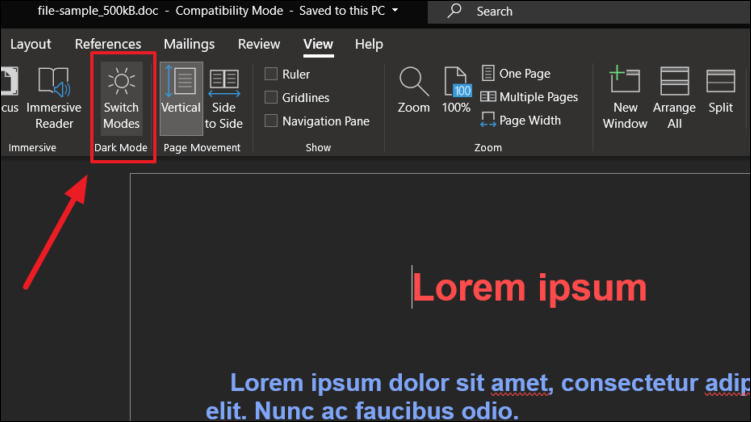
Light mode can use more energy on some screens. But on LCD and LED monitors, the difference is small. It may save battery on devices with bright displays. Choosing light mode depends on your device and surroundings.
Credit: allthings.how
Accessing Word Settings
Changing Word to Light Mode starts with accessing the right settings. This step is simple and quick. It helps you adjust your workspace to a brighter theme. Follow these instructions to find the settings area in Word.
Navigating The Menu
Open Microsoft Word on your computer. Look at the top left corner of the screen. Click on the “File” tab to open the menu. This tab holds many options to control Word’s behavior. Scroll down and select “Options” at the bottom of the list. This opens a new window with various settings.
Finding The Theme Options
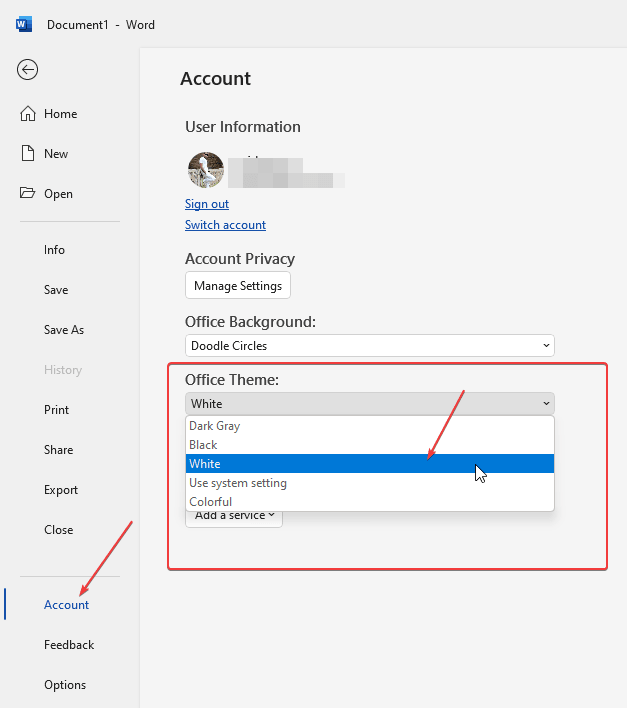
In the new window, find the “General” section. This is usually the first tab on the left side. Scroll down until you see “Personalize your copy of Microsoft Office.” Here, look for the “Office Theme” drop-down menu. Click on it to see theme choices. Select “White” or “Colorful” for Light Mode. Click “OK” to save your changes. The light theme will apply immediately to Word.
Switching To Light Mode
Switching to Light Mode in Word is simple and quick. It helps reduce eye strain in bright environments. Light Mode makes the screen easier to read during the day. Follow these steps to change your settings.
Changing The Theme
Open Word and go to the “File” menu. Select “Options” at the bottom of the list. In the new window, find the “General” tab. Look for the “Personalize your copy of Microsoft Office” section. Click the dropdown next to “Office Theme.” Choose “White” or “Colorful” for Light Mode. This changes the overall look to a bright theme.
Applying The New Settings
After selecting the Light Mode theme, click “OK.” The changes apply immediately across Word. Close and reopen Word to ensure the new theme loads properly. Your documents now show with a light background. This helps you work comfortably in bright rooms.

Credit: softwareg.com.au
Customizing Light Mode Appearance
Customizing the light mode appearance in Word helps create a comfortable workspace. You can change colors to reduce eye strain and improve focus. Adjusting colors makes the screen easier to read for long hours.
Adjusting Background Colors
Start by changing the background color of your document. Light colors work best for bright environments. Choose soft whites or light grays to avoid glare. You can also pick pastel shades for a unique look. These simple changes make reading and writing more pleasant.
Tweaking Font And Highlight Colors
Modify font colors to increase text visibility. Dark fonts on a light background are easier to read. You can also change the highlight color to suit your style. Pick colors that stand out but do not hurt your eyes. These tweaks help you focus and reduce distractions while working.
Troubleshooting Common Issues
Switching Word to Light Mode is usually quick and simple. Sometimes, users face small problems that stop the theme from changing. These issues can be frustrating but are easy to fix. This section helps solve common troubles when changing to Light Mode.
Theme Not Changing
Check if your Word version supports Light Mode. Older versions may not have this feature. Go to Word’s settings and try changing the theme again. Restart Word after changing the theme to see if it updates. Clear any custom theme settings that might block changes. Sometimes, an update or restart is needed for changes to show.
Settings Reset After Restart
Word may reset theme settings if it cannot save changes. Make sure you have permission to change settings on your device. Disable any add-ins that might interfere with theme preferences. Save your theme choice before closing Word. If settings reset, try running Word as an administrator. This helps keep your Light Mode settings saved after closing Word.
Tips For Smooth Transition
Switching Word to Light Mode can improve your reading comfort and reduce eye strain. A smooth transition makes this change easy and hassle-free. Small steps help avoid problems and keep your work safe. Follow these tips to switch without stress.
Saving Work Before Switching
Always save your documents before changing the theme. Unsaved work may be lost during the switch. Use the save button or press Ctrl + S to save quickly. Saving ensures no data disappears unexpectedly.
Restarting Word If Needed
Sometimes, Word needs a restart to apply Light Mode fully. Close the program after saving your work. Open Word again to see the new light theme in action. Restarting clears temporary settings that block the change.
Credit: www.how2shout.com
Frequently Asked Questions
How Do I Enable Light Mode In Word?
To enable light mode in Word, go to File > Options > General. Under “Personalize your copy of Microsoft Office,” select “White” or “Colorful” in Office Theme. Click OK to apply the changes and switch Word to light mode instantly.
Can I Switch Between Light And Dark Mode Easily?
Yes, you can switch between light and dark mode easily. Just follow the same path: File > Options > General. Choose your preferred Office Theme and confirm. This allows quick toggling to suit your visual comfort anytime.
Does Light Mode Affect Document Appearance In Word?
No, light mode only changes the interface theme. Your document’s content and layout remain unchanged. Light mode improves screen brightness and visibility but does not alter how your document prints or looks to others.
Is Light Mode Available On All Word Versions?
Light mode is available in Word versions from Office 2016 onward, including Office 365. Older versions may not support theme changes. Make sure your Word is updated to access the light mode feature.
Conclusion
Switching Word to Light Mode is simple and quick. Just follow the steps shared above. You can enjoy a brighter screen and easier reading. Light Mode helps reduce eye strain in bright places. It also makes your work look clearer and fresher.
Try changing the settings anytime you want. Stay comfortable while typing and editing your documents. Keep your Word experience pleasant with this easy change.