Are you ready to upgrade your home security with the Defiant Smart Wifi Deadbolt? Installing it yourself might sound tricky, but it’s easier than you think.
In this guide, you’ll find simple, step-by-step instructions that anyone can follow. Imagine controlling your door lock from anywhere, giving you peace of mind and added convenience. Keep reading to discover how you can quickly and confidently install your new smart deadbolt today.
Tools And Materials Needed
Before installing the Defiant Smart Wifi Deadbolt, gather all necessary tools and materials. Having everything ready makes the process smoother and faster.
Prepare a clean workspace and organize your tools. This helps avoid interruptions and frustration during installation.
Essential Tools
- Phillips screwdriver – for removing and tightening screws
- Flathead screwdriver – useful for prying and adjustments
- Drill with drill bits – needed if new holes are required
- Measuring tape – to check door thickness and alignment
- Level – ensures the lock is straight
- Pencil – for marking positions on the door
Materials Included With The Deadbolt
- Defiant Smart Wifi Deadbolt unit
- Strike plate and screws
- Mounting plate and screws
- Batteries (usually 4 AA)
- Installation manual with instructions
Additional Helpful Items
- Masking tape – to protect the door surface
- Wood filler – to fill old holes if needed
- Step stool or ladder – for reaching high doors
- Flashlight – to see inside the door edge
Preparing Your Door
Preparing your door is the first step to install the Defiant Smart Wifi Deadbolt. Proper preparation ensures the lock fits well and works smoothly. It also helps avoid damage to your door or lock during installation.
Checking Door Compatibility
Not all doors fit the Defiant Smart Wifi Deadbolt. Check if your door is thick enough. The lock usually fits doors 1 3/8 to 1 3/4 inches thick. Measure your door’s thickness with a tape measure.
Also, check the door’s edge. It should have a bore hole with a 2 1/8 inch diameter. This hole is for the lock cylinder. The backset, or distance from door edge to hole center, must be 2 3/8 or 2 3/4 inches.
Make sure your door swings in the right direction. The lock works on both left and right-handed doors. Check the manufacturer’s guide for specific details.
Removing Old Deadbolt
Start by removing the screws from your existing deadbolt. These screws are usually on the inside part of your door. Use a screwdriver to take them out.
Once the screws are removed, gently pull off both the interior and exterior parts of the deadbolt. If the deadbolt is stuck, wiggle it slightly to loosen.
Next, remove the latch from the door edge. Unscrew it and slide it out. Clean the area around the hole to remove dirt or paint. Your door is now ready for the new smart lock.
Installing The Deadbolt Hardware
Installing the Defiant Smart Wifi Deadbolt hardware is simple. Follow clear steps to fit both the outside and inside parts. Proper installation ensures your door locks smoothly and securely.
Take your time to align each piece carefully. Use the tools included or those recommended. This section guides you through placing the exterior and interior assemblies.
Positioning The Exterior Assembly
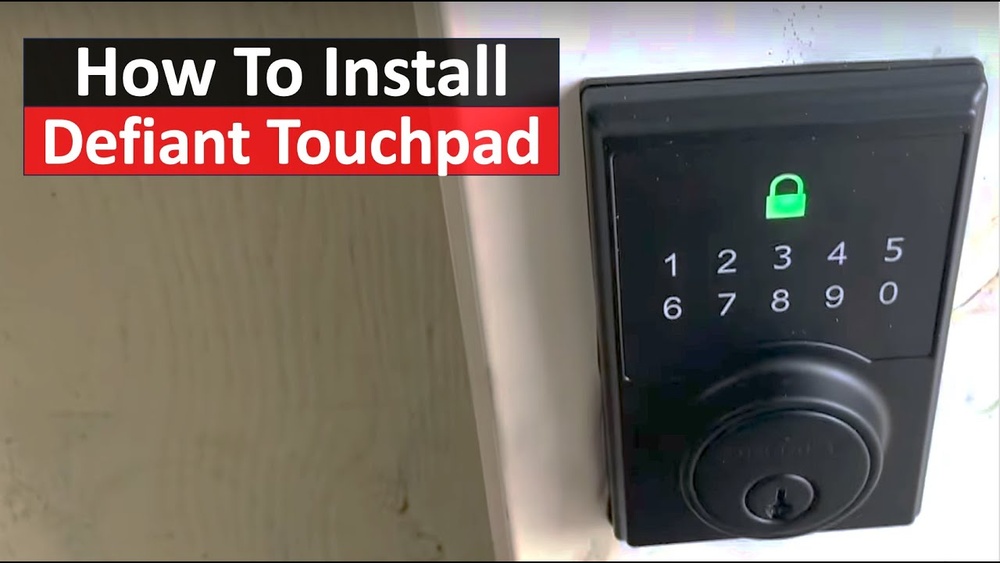
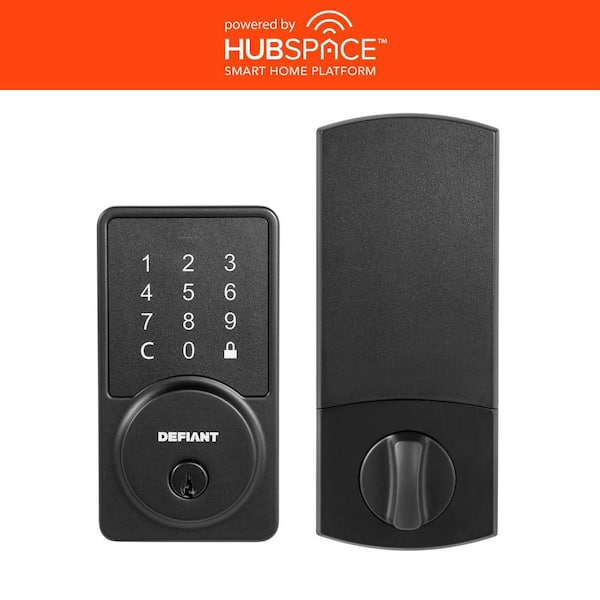
Start by placing the exterior assembly on the door. Make sure the keypad faces outward. Align the spindle with the hole in the door.
The assembly should sit flush against the door surface. Check that the battery compartment is accessible. Keep the wires inside the door frame without pinching.
Hold the assembly steady while moving to the next step. Proper positioning avoids problems with locking later.
Attaching The Interior Assembly
Attach the interior assembly on the inside of the door. Align it with the spindle and mounting holes. Connect the wires from the exterior assembly carefully.
Secure the assembly with screws provided in the package. Tighten screws evenly to prevent misalignment. The interior plate should sit snug against the door.
Insert batteries after fixing the interior part. Test the deadbolt by turning the thumb turn several times. The lock must move smoothly without resistance.

Credit: www.ebay.com
Connecting The Smart Features
Connecting the smart features of your Defiant Smart Wifi Deadbolt is essential for full control and convenience. This step activates the lock’s wireless capabilities. It lets you manage access from your phone. Follow simple steps to set up the device.
Inserting Batteries
Open the battery compartment on the lock’s interior side. Insert the required batteries, usually AA type, following the polarity marks. Ensure the batteries are fresh for reliable performance. Close the compartment securely. The lock powers on and is ready for the next step.
Pairing With The Mobile App
Download the Defiant Smart app from your device’s app store. Open the app and create an account or log in. Follow the app’s instructions to add a new device. Put the lock in pairing mode by pressing the designated button. Connect your phone to the lock using Wi-Fi or Bluetooth. Confirm the connection in the app. Now, control the lock remotely and customize settings easily.
Testing The Lock Functionality
Testing your Defiant Smart WiFi Deadbolt is a key step after installation. It ensures the lock works correctly and keeps your home safe. This section covers how to check the lock manually and through remote controls.
Manual Lock And Unlock
Start by testing the lock manually. Turn the thumb turn inside your door to lock and unlock. Listen for smooth, clear clicks. The deadbolt should slide easily without resistance.
Try locking and unlocking from outside using your key or keypad. Make sure the key turns smoothly and the lock reacts instantly. If it feels stuck or hard, adjust the lock or check alignment.
Remote Access And Controls
Next, test the remote access features. Use the app on your smartphone to lock and unlock the door. Confirm the app connects quickly to your lock without delays.
Try locking and unlocking from different locations to check WiFi range. Notifications should arrive on your phone when the lock changes status. This confirms your lock communicates properly with your device.
Remote control lets you manage access easily and securely. Testing this ensures your smart lock performs reliably every time.
Credit: www.homedepot.com
Troubleshooting Common Issues
Installing the Defiant Smart Wifi Deadbolt is simple. Sometimes, small problems can happen during setup or use. Troubleshooting these common issues helps keep your lock working well. This guide covers easy fixes for usual problems.
Power Issues And Battery Replacement
Check if the lock responds when pressing buttons. No response usually means low or dead batteries. Use fresh AA batteries to replace old ones. Remove the battery cover carefully before swapping. Always use high-quality batteries for longer life.
Wifi Connection Problems
Make sure your phone and lock are near the router during setup. Slow or no connection may happen if signal is weak. Restart your router and try reconnecting the lock. Confirm you use the correct wifi password. The lock works only on 2.4 GHz networks.
App Sync And Control Failures
Open the app and check if it shows the lock’s status. If it doesn’t, try closing and reopening the app. Delete and reinstall the app if syncing fails repeatedly. Ensure your phone’s Bluetooth is turned on during setup. Keep the lock firmware updated through the app.
Lock Jam And Mechanical Issues
If the deadbolt does not move smoothly, check for obstructions. Tighten loose screws on the lock and door frame. Make sure the latch aligns well with the strike plate. Lubricate the deadbolt with graphite powder, not oil. Test the lock manually before using the app.

Credit: www.youtube.com
Frequently Asked Questions
How Do I Install Defiant Smart Wifi Deadbolt?
Start by removing your old deadbolt. Align the new smart deadbolt with the door holes. Secure it with screws. Follow the included manual for wifi setup and calibration.
What Tools Are Needed For Installation?
You only need a screwdriver and a measuring tape. These tools help align and secure the lock properly.
How Do I Connect The Deadbolt To Wifi?
Use the Defiant app on your smartphone. Follow the in-app instructions to connect the lock to your home wifi network.
Can I Install The Deadbolt Without Professional Help?
Yes, the installation is designed for easy DIY setup. Clear instructions and minimal tools make it user-friendly.
Conclusion
Installing the Defiant Smart Wifi Deadbolt is simple and quick. Follow the steps carefully for the best results. Make sure the batteries are fresh and the WiFi signal is strong. Test the lock several times to confirm it works well.
Enjoy the added security and convenience it brings to your home. This smart lock helps keep your home safe and easy to access. Take your time, and you will have a reliable smart deadbolt in no time.