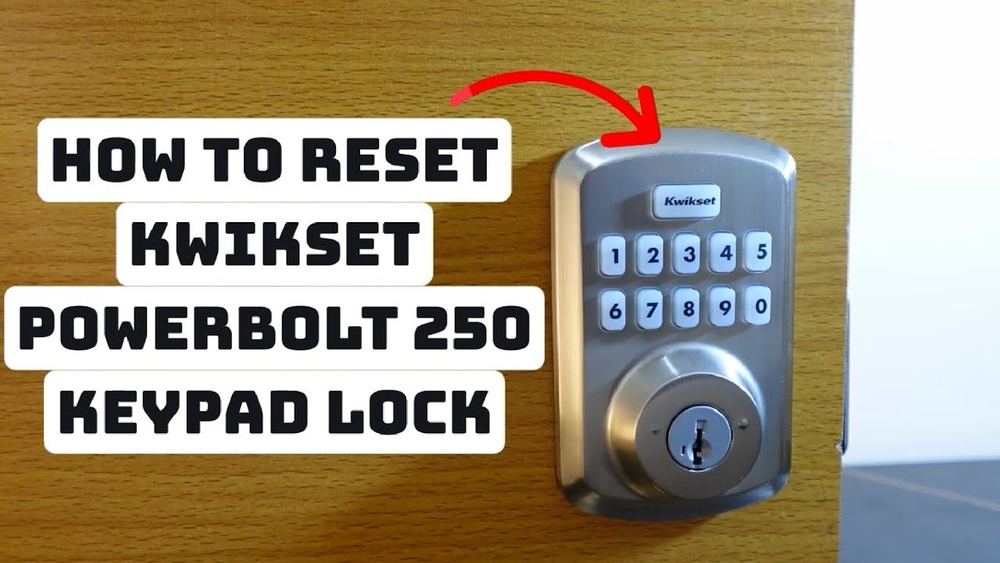
If you’ve ever found yourself locked out or worried about who has access to your home, knowing how to reset your Kwikset keypad deadbolt is a skill you’ll want to have. Resetting your lock isn’t as tricky as it sounds—it’s a simple process that puts you back in control of your security.
Whether you need to update your code or troubleshoot issues, this guide will walk you through every step clearly and quickly. Keep reading, and you’ll soon have the confidence to manage your Kwikset lock like a pro.
Prepare For Reset
Preparing to reset your Kwikset keypad deadbolt is important for a smooth process. Take a moment to get everything ready. This helps avoid mistakes and saves time.
Gather Necessary Tools
Before starting, collect all tools needed. Usually, a small screwdriver is required. Keep a fresh battery nearby too. Having these ready makes the reset easier and faster.
Locate The Reset Button
Find the reset button on your keypad deadbolt. It is often inside the battery compartment. Open the cover carefully to see it. Knowing where it is prevents confusion during reset.
Ensure Battery Power
Check if the battery has enough power. Weak batteries can cause reset problems. Replace old batteries with new ones. This step ensures the keypad works properly after reset.
Remove The Deadbolt Cover
Removing the deadbolt cover is the first step to reset your Kwikset keypad deadbolt. This allows access to the internal components. Take your time and be gentle to avoid damage.
Gather a screwdriver before starting. Proper tools make the process easier and safer.
Unscrew The Interior Plate
Locate the screws on the interior plate of the deadbolt. Use a screwdriver to remove them carefully. Keep the screws in a safe place for reassembly.
Do not force the screws out. They should come out smoothly. This step exposes the inner parts of the lock.
Carefully Detach The Cover
Gently pull the interior cover away from the door. Avoid pulling too hard to prevent breaking any clips.
If the cover feels stuck, check for any hidden screws. Slowly work around the edges to loosen it.
Once removed, you can access the reset button and battery compartment easily.
Perform The Reset
Performing a reset on your Kwikset keypad deadbolt helps fix issues and clear old settings. This step is important before setting up new codes or troubleshooting. The process is simple and quick. Follow the steps carefully for a successful reset.
Press And Hold The Reset Button
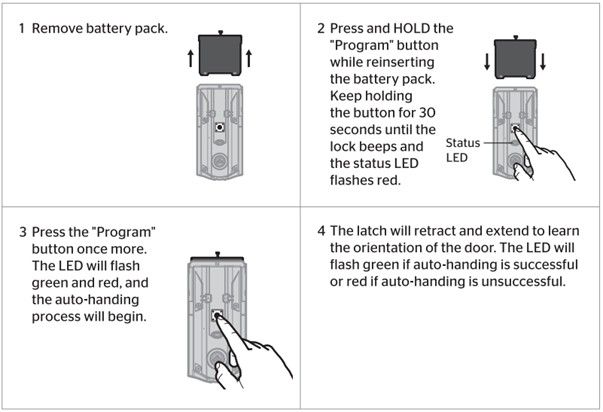
Locate the reset button on the inside part of the lock. Use a small tool like a paperclip to press it. Hold the button firmly for about 5 seconds. Keep holding until you see the indicator light react. This shows the lock is ready to reset.
Release After Indicator Flashes
Watch the indicator light closely while holding the button. When it flashes, release the reset button immediately. The flashing means the lock has started the reset process. Wait a few seconds for the lock to finish. Now the keypad deadbolt is reset and ready for new settings.
Credit: www.kwikset.com
Reprogram The Lock
Reprogramming your Kwikset keypad deadbolt is key after a reset. It helps you set new access codes for security. Follow simple steps to enter a new master code and add user codes. Testing your new settings ensures everything works smoothly. This process keeps your lock secure and easy to use.
Enter New Master Code
Start by entering the default programming code found in your lock manual. Press the program button on the lock. Enter your new master code carefully. Make sure the code has 4 to 8 digits. Press the lock button to save the new code. Your keypad will confirm with a beep or light.
Add User Codes
After setting the master code, add user codes for family or friends. Press the program button once. Enter the new user code, 4 to 8 digits long. Press the lock button to save. Repeat to add more user codes. Each code lets someone else unlock the door.
Test The New Settings
Test all codes before closing your door. Enter the new master code to unlock the door. Try each user code to confirm they work. Listen for a beep or watch for the light. If a code does not work, repeat the steps to add it. Testing prevents lockout and keeps access smooth.
Troubleshooting Tips
Troubleshooting your Kwikset keypad deadbolt can solve many common problems. Simple fixes often restore function quickly. Before calling for help, try these tips. They save time and frustration. Follow the steps carefully to avoid errors.
Reset Not Working
Check if you follow the reset steps correctly. Press the reset button firmly. Hold it for the full time required. Confirm you use the right reset procedure for your model. Try restarting the process after a brief pause. Sometimes, a second attempt fixes the issue.
Battery Issues
Weak or dead batteries cause many problems. Replace all batteries with fresh ones. Use high-quality alkaline batteries for best results. Clean the battery contacts gently before installing new batteries. Avoid mixing old and new batteries. This helps maintain consistent power supply.
Lock Not Responding
Make sure the lock is properly installed. Check for any physical blockages or damage. Test the keypad buttons for responsiveness. If buttons stick or fail, clean them carefully. Reset the lock after battery replacement. This often restores normal function.
Credit: www.kwikset.com
Maintenance Tips
Maintaining your Kwikset keypad deadbolt is key to keeping it working well. Small steps can stop problems before they start. This saves time and avoids frustration later.
Regular care helps your lock last longer. It keeps your home safe and your keypad responsive. Follow these simple tips to keep your lock in top shape.
Regular Battery Replacement
Replace the batteries every six months. Use fresh, high-quality batteries for best results. Weak batteries can cause the keypad to stop working. Always check battery life if the lock acts slow or unresponsive.
Keep Keypad Clean
Wipe the keypad with a soft, dry cloth often. Dirt and dust can block the buttons or sensor. Avoid using water or harsh cleaners. Clean keys make sure your lock reads your code correctly every time.
Check Lock Alignment
Make sure the deadbolt lines up with the strike plate. Misalignment can cause the lock to jam or fail. Test the lock by turning the knob slowly. Adjust the strike plate or hinges if the lock sticks or feels tight.

Credit: www.youtube.com
Frequently Asked Questions
How Do I Reset A Kwikset Keypad Deadbolt?
To reset, press the program button inside the lock. Hold it for 10 seconds until the light flashes. This clears all codes and restores factory settings.
Can I Reset The Kwikset Lock Without A Code?
Yes, you can reset without a code by pressing the program button. This erases all user codes and resets the lock.
What Happens After Resetting A Kwikset Keypad Deadbolt?
Resetting deletes all stored codes. You must reprogram new user codes to use the lock again.
How To Program New Codes After Resetting Kwikset Lock?
Press the program button once, then enter a new 4-8 digit code. Follow the lock’s instructions to save it.
Conclusion
Resetting your Kwikset keypad deadbolt is simple and quick. Follow each step carefully to avoid mistakes. Keep your new code safe and easy to remember. Test the lock several times to ensure it works properly. Regularly update your code to keep your home secure.
This guide helps you manage your lock with confidence. Now, you can control your door’s security on your own. No need to call a locksmith every time. Stay safe and enjoy the convenience of your keypad deadbolt.