If your Brinks digital deadbolt isn’t working right or you just want to set a new code, knowing how to reset it is a must. Imagine being locked out or worried about security because your lock isn’t responding.
Don’t worry—you can fix this quickly and easily. In this guide, you’ll learn step-by-step how to reset your Brinks digital deadbolt, so you can feel safe and in control again. Keep reading to take charge of your lock without any hassle.

Credit: www.youtube.com
Brinks Deadbolt Basics
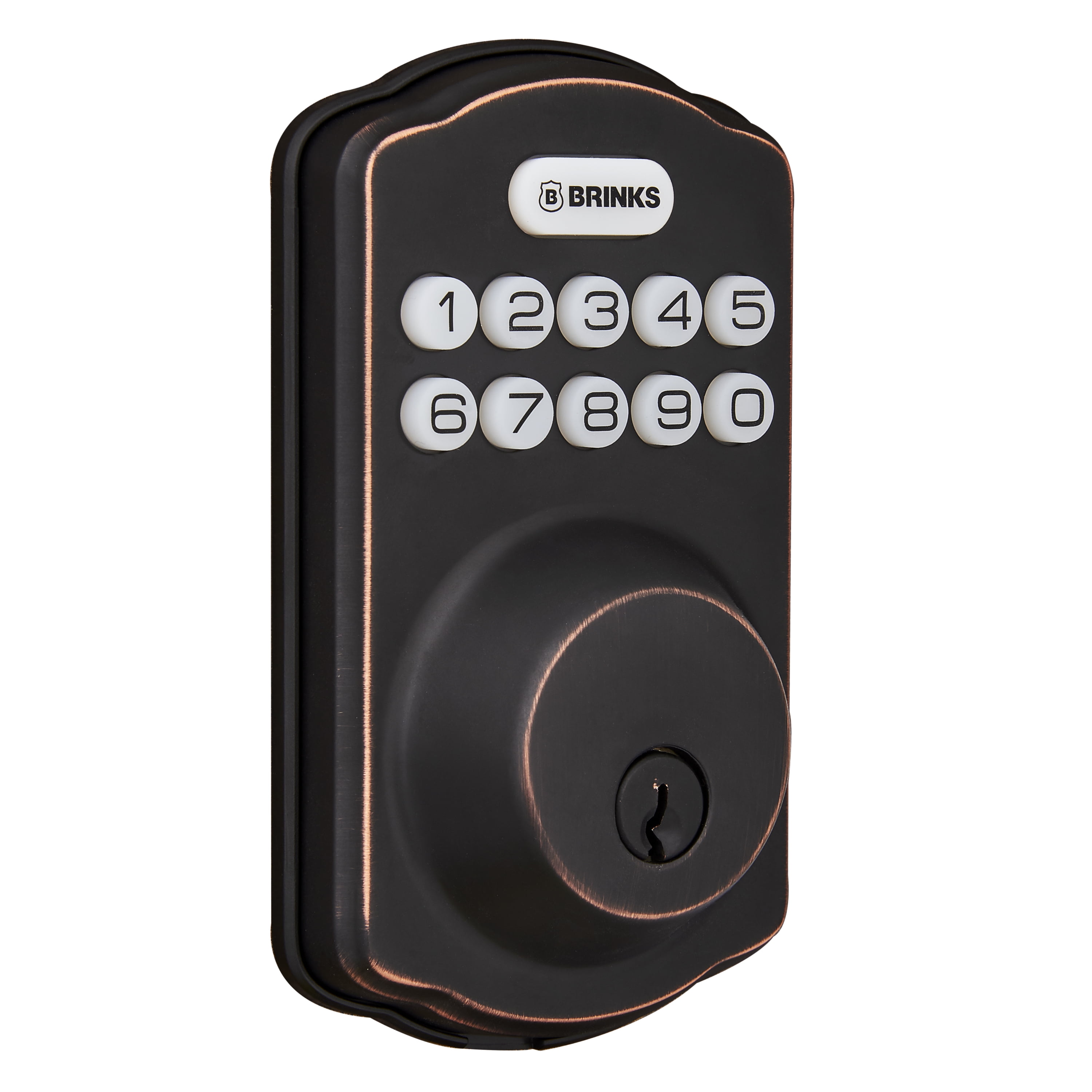
The Brinks digital deadbolt offers a secure way to protect your home. It combines smart technology with simple design. This deadbolt fits most doors and works with codes and keys. Understanding its basics helps you manage it better and fix issues quickly.
Key Features
The Brinks deadbolt has a keypad for entering codes. It stores multiple user codes for family or guests. The lock uses batteries and alerts you when power is low. It has a manual key option for backup access. Installation is straightforward, fitting standard door sizes. The lock is weather-resistant, suitable for indoor and outdoor use.
Common Issues
Sometimes, the keypad may stop responding due to low battery. The lock might not recognize codes if they are entered incorrectly. Mechanical parts can jam if the lock is dirty or damaged. Users may forget their codes, causing access problems. Battery corrosion or poor connection can stop the lock from working. Knowing these issues helps in quick troubleshooting and reset.
Credit: business.walmart.com
When To Reset Your Deadbolt
Knowing when to reset your Brinks digital deadbolt helps keep your home safe. Resetting can fix problems or update your lock settings. It is simple and quick to do. Here are common reasons to reset your deadbolt.
Lost Or Forgotten Code
Forgetting your code means you cannot open the lock. Resetting the deadbolt lets you create a new code. This keeps your home secure and easy to access. It avoids costly lock changes or calling for help.
Battery Replacement
Deadbolt locks need power from batteries. When batteries run low, the lock may stop working. Resetting the lock after replacing batteries can restore normal function. It ensures the lock reads your code correctly again.
Security Concerns
Worried someone else knows your code? Reset your deadbolt to stop unwanted access. Changing the code often improves security. It helps protect your home and family from intruders.
Tools Needed For Reset
Resetting a Brinks digital deadbolt requires a few simple tools. These tools help you open the lock and change its settings safely. Having the right tools makes the process quick and easy.
Below are the essential tools needed to reset your Brinks digital deadbolt. Keep them close before starting the reset process.
Small Phillips Head Screwdriver
This screwdriver is needed to remove screws from the lock’s interior. It helps access the battery compartment and reset button. A small size fits best for these tiny screws.
Flathead Screwdriver
A flathead screwdriver can help pry off the battery cover. It is also useful for gently pressing the reset button if needed. Keep it handy for any small prying tasks.
New Batteries
Fresh batteries are important to ensure the lock works after reset. Most Brinks deadbolts use AA or AAA batteries. Replace old batteries to avoid power issues during reset.
Paperclip Or Pin
A paperclip or thin pin can press small reset buttons. These buttons are often hidden inside the lock. Straighten one end to reach and press the button easily.

Credit: brinkslocks.com
Step-by-step Reset Process
Resetting your Brinks digital deadbolt is simple with the right steps. Follow this guide to reset your lock quickly and safely. Each step is clear and easy to follow.
Accessing The Interior Panel
Start by opening your door. Locate the deadbolt on the inside. Remove the screws holding the interior panel. Gently lift the panel off. This reveals the battery and reset button.
Removing The Battery Cover
Find the battery cover inside the panel. Slide or lift the cover carefully. This exposes the batteries. Be sure not to damage the cover or batteries.
Pressing The Reset Button
Look for the small reset button near the batteries. Use a pointed tool or pen to press it. Hold the button for about 5 seconds. Release when the lock beeps or flashes.
Setting A New Code
Enter your new code on the keypad. Make sure the code is easy to remember. Press the lock or unlock button to save it. The lock will confirm the new code.
Testing The New Code
Close the door fully. Enter the new code on the keypad. Check if the deadbolt unlocks smoothly. Try locking again with the code. This ensures your reset was successful.
Troubleshooting Tips
Troubleshooting your Brinks digital deadbolt helps fix common problems quickly. Simple steps often solve issues without expert help. This section guides you through easy fixes for typical troubles. Follow these tips to keep your deadbolt working well.
Reset Button Not Responding
Check if the reset button is stuck or dirty. Clean it gently with a soft cloth. Press the button firmly and hold for several seconds. Try using a small tool if your finger can’t reach it. Make sure the battery has enough power before resetting. If the button still does not work, inspect the inside panel for damage.
Deadbolt Not Locking Properly
Look for any obstruction in the lock mechanism. Dirt or debris may block the bolt from moving smoothly. Lubricate the deadbolt with a small amount of graphite powder. Avoid using oil-based lubricants as they can attract dirt. Check the alignment of the door and frame. Adjust the strike plate if the bolt does not fit correctly.
Battery Issues
Low battery power often causes lock problems. Replace the batteries with fresh, high-quality alkaline ones. Remove batteries for a few minutes to reset the lock’s electronics. Clean the battery contacts to ensure a good connection. Avoid mixing old and new batteries together. Check the battery status indicator regularly to prevent surprises.
Maintaining Your Deadbolt
Maintaining your Brinks digital deadbolt helps it work smoothly and last longer. Simple care keeps the lock reliable and secure. Regular attention avoids common problems and costly repairs.
Regular Battery Checks
Check the battery every few months. A weak battery can stop the lock from working. Replace batteries as soon as the low battery alert appears. Use fresh, high-quality batteries for best results. Keep spare batteries nearby to avoid lockouts.
Cleaning And Lubrication
Clean the deadbolt with a soft cloth to remove dust and dirt. Avoid harsh chemicals that can damage the finish. Lubricate the moving parts with a graphite or silicone spray. This keeps the bolt sliding smoothly. Do this at least once a year for best performance.
When To Contact Support
Knowing when to contact support for your Brinks digital deadbolt is important. Some problems need expert help. Trying to fix these issues alone might cause more trouble. Support teams have the tools and knowledge to solve tricky problems quickly.
Contacting support saves time and stress. It ensures your lock works safely and correctly. Here are some clear signs you should reach out to Brinks support.
Lock Does Not Respond To Any Commands
If the lock does not react to keypad presses or remote commands, it may have a technical fault. Resetting might not fix this. Support can diagnose and guide you better.
Battery Replacement Does Not Restore Function
Sometimes, even after changing batteries, the lock won’t work right. This could mean a deeper issue. Contacting support helps check the lock’s system and parts.
Forgot Master Code Or User Codes
Forgetting all access codes can lock you out. Support can verify your identity and help reset codes safely. Do not try random codes repeatedly.
Physical Damage Or Lock Jammed
If the lock is jammed or physically damaged, avoid forcing it. Support can advise repair or replacement options. This keeps your door secure.
Repeated Errors During Reset Process
Errors during reset may mean a software glitch. Support can provide step-by-step help or update the lock’s firmware. This prevents further reset failures.
Frequently Asked Questions
How Do I Reset My Brinks Digital Deadbolt?
To reset your Brinks digital deadbolt, remove the battery cover and press the reset button inside. Hold it for 10 seconds until the lock beeps. This restores factory settings and clears all programmed codes.
Can I Reset Brinks Deadbolt Without A Master Code?
Yes, you can reset the Brinks deadbolt without a master code by performing a factory reset. This erases all user codes and restores default settings.
What Happens After Resetting A Brinks Digital Lock?
After resetting, all user codes and settings are erased. The lock returns to factory defaults. You must reprogram your master and user codes to use it again.
How Long Does The Brinks Deadbolt Reset Take?
The reset process takes about 10 seconds. Hold the reset button until you hear a beep, indicating completion. Then, reprogram your lock codes.
Conclusion
Resetting your Brinks digital deadbolt is simple and quick. Follow each step carefully to avoid mistakes. Keep your new code safe and easy to remember. Regularly updating your lock code helps keep your home secure. If you face any trouble, consult the user manual or support.
Stay confident knowing your lock works properly. Protecting your home is important and easy with these tips.