Want to control your Wemo Light Switch right from your iPhone? Connecting it to the Apple Home app makes managing your lights simple, smart, and hands-free.
If you’re wondering how to set it up quickly and without hassle, you’re in the right place. This guide will walk you through every step, so you can enjoy seamless control over your lighting and make your home smarter in minutes.
Keep reading to unlock the full potential of your Wemo Light Switch with the Apple Home app.

Credit: www.amazon.com
Setup Wemo Light Switch
Setting up your Wemo Light Switch is the first step to controlling your lights with Apple Home App. This process includes installing the switch, downloading the Wemo app, and creating an account. Each step is simple and quick. Follow these instructions carefully to get your smart switch ready for use.
Install The Wemo Switch
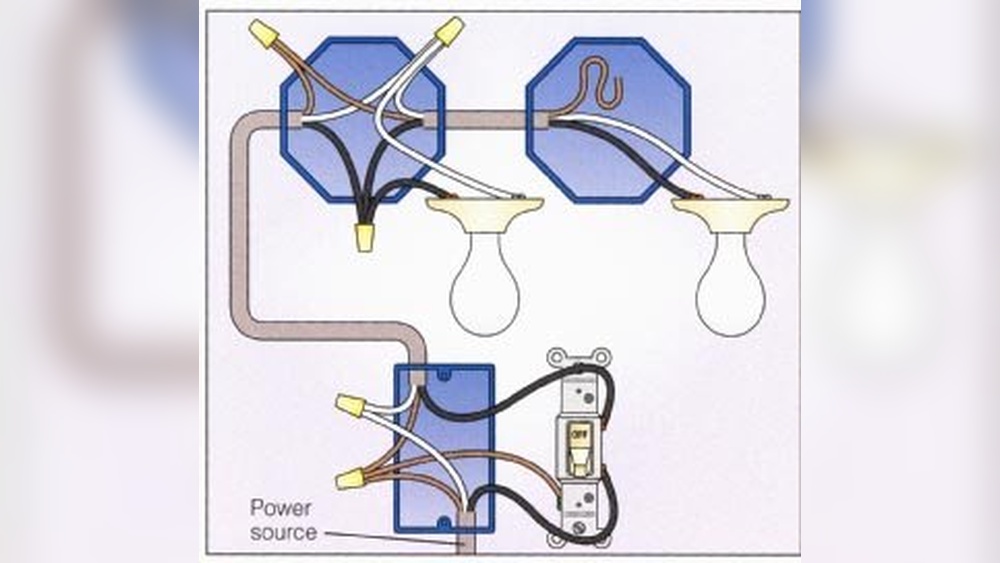
Turn off the power at your circuit breaker before installation. Remove the old light switch from the wall. Connect the Wemo switch wires to the house wiring using the included instructions. Secure the switch in the wall box and attach the faceplate. Turn the power back on and test the switch manually.
Download Wemo App
Use your iPhone to download the Wemo app from the App Store. Open the App Store and search for “Wemo.” Tap the download button and wait for the app to install. Launch the app after installation completes. This app controls your Wemo devices and links them to Apple Home.
Create Wemo Account
Open the Wemo app and select “Create Account.” Enter your email address and choose a strong password. Fill in the required personal information. Verify your email if prompted by the app. Logging into this account allows you to manage your Wemo devices remotely and sync with Apple Home.
Configure Wemo Switch
Configuring your Wemo light switch is a key step to make it work smoothly with the Apple Home app. This process ensures the switch connects properly and responds to your commands. Follow these steps carefully for a seamless setup.
Connect To Wi-fi Network
First, connect your Wemo switch to your home Wi-Fi. Open the Wemo app on your phone. Follow the prompts to find your switch and select your Wi-Fi network. Enter your Wi-Fi password exactly. The switch will then link to your network. A stable Wi-Fi connection is essential for reliable control.
Update Firmware
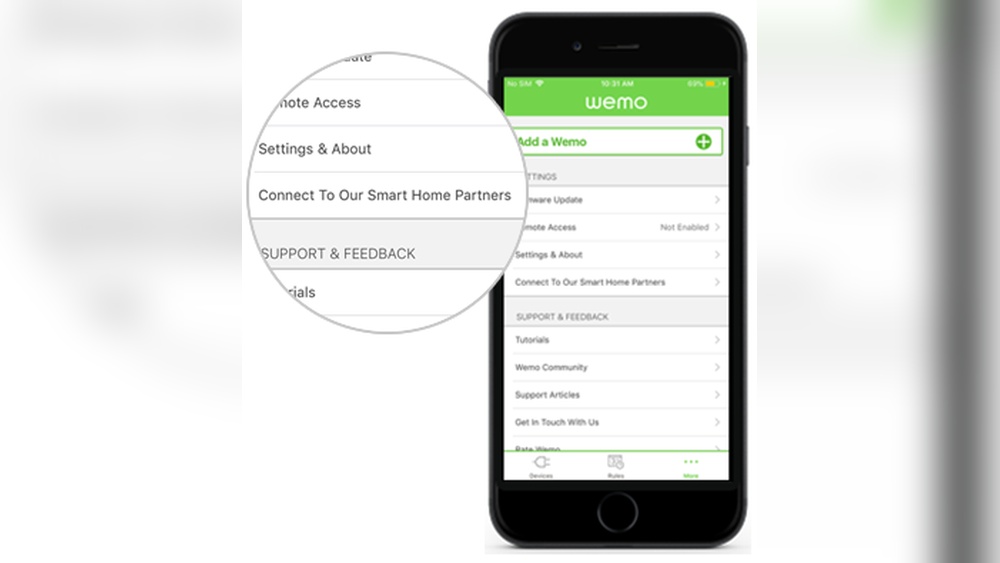
Check if the Wemo switch has the latest firmware. Open the Wemo app and navigate to settings. Look for firmware updates and start the update if available. Updating firmware improves performance and fixes bugs. Keep your switch up to date for better security and features.
Test Switch Functionality
After setup, test the switch to confirm it works. Use the Wemo app to turn the light on and off. Check if the switch responds quickly and correctly. Try using the Apple Home app to control the switch as well. Testing ensures everything is ready for daily use.
Prepare Apple Home App
Preparing the Apple Home app is a key step before connecting your Wemo Light Switch. This ensures smooth setup and control of your smart switch. Follow these simple steps to get your Apple Home app ready.
Check Ios Version
Make sure your iPhone or iPad runs the latest iOS version. Open Settings and tap General. Then select Software Update. If an update is available, download and install it. This helps avoid compatibility issues with the Wemo Light Switch.
Open Home App
Find the Home app on your device. It usually comes pre-installed on iPhones and iPads. Tap the app icon to open it. The Home app lets you control smart devices like lights, locks, and switches from one place.
Create Home Setup
If this is your first time using the Home app, create a home setup. Tap Add Home or the plus (+) icon. Follow the prompts to name your home and add rooms if needed. This setup organizes your smart devices for easy control.

Credit: www.belkin.com
Add Wemo Switch To Home App
Adding your Wemo Light Switch to the Apple Home app lets you control lights easily. The process is simple and quick. This guide shows how to connect your switch in three steps.
Scan Homekit Code
Find the HomeKit code on your Wemo switch or its packaging. Open the Apple Home app on your iPhone or iPad. Tap the plus (+) button to add a new accessory. Use your camera to scan the HomeKit code. The app will recognize your Wemo switch automatically. This step links your device to the Apple Home system.
Manually Enter Code
If scanning the code does not work, enter it manually. Tap the option to enter the code in the Home app. Type the eight-digit HomeKit code carefully. This code is on the Wemo switch or its box. After entering, the app will connect to the device. This method ensures the switch is added even if scanning fails.
Assign Room And Name
Once added, assign your Wemo switch to a room in the Home app. Choose a room like Living Room or Bedroom for easy control. Next, give your switch a simple name such as “Ceiling Light.” This helps you find and control the switch quickly. Naming and assigning a room organizes your smart home devices well.
Troubleshoot Connection Issues
Connecting your Wemo Light Switch to the Apple Home app should be simple. Sometimes, connection problems happen. These issues can stop your smart switch from working properly with HomeKit. Troubleshooting helps you find and fix these problems fast. Follow these easy steps to get your Wemo switch back online.
Reset Wemo Switch
Resetting the Wemo switch clears old settings. Press and hold the reset button for 10 seconds. Watch the LED light blink to confirm the reset. After resetting, set up the switch again in the Apple Home app. This often solves many connection problems.
Restart Devices
Turn off your Wemo switch and Apple device. Wait for 30 seconds. Turn them back on. Restarting refreshes the connection between devices. This simple step fixes many minor bugs. Try this before deeper troubleshooting.
Check Network Settings
Make sure your Wi-Fi is working well. The Wemo switch needs a strong 2.4 GHz Wi-Fi signal. Check your router settings to confirm the network type. Avoid public or guest networks. Ensure your Apple device and Wemo switch are on the same network. Poor or mismatched networks cause connection issues.
Customize Switch Settings
Customizing your Wemo Light Switch in the Apple Home app lets you control it the way you want. It makes your smart home smarter and easier to use. You can set rules, control the switch from anywhere, and get useful alerts. These options help you use your switch better every day.
Set Automation Rules
Create rules that turn your Wemo switch on or off automatically. Choose times or triggers like sunset or your arrival. Automation saves energy and adds convenience without extra effort. You decide when the lights should work, making your home more efficient.
Enable Remote Control
Control your Wemo Light Switch from anywhere using your iPhone. Check if lights are on or off, and change them remotely. This feature is perfect for when you forget to turn off lights. It adds safety and comfort to your home management.
Adjust Notifications
Get alerts on your phone about your Wemo switch. Learn when it turns on or off or if there is a problem. Notifications keep you informed and help you fix issues fast. You stay connected to your home, even when away.

Credit: www.amazon.com
Frequently Asked Questions
How Do I Pair Wemo Light Switch With Apple Home App?
To pair, open the Apple Home app and tap “Add Accessory. ” Scan the Wemo Light Switch’s HomeKit code. Follow prompts to complete setup quickly.
Can I Control Wemo Light Switch Remotely Via Apple Home?
Yes, remote control is possible using Apple Home app. Ensure your iPhone or iPad is connected to the internet for seamless access anywhere.
What If Wemo Light Switch Won’t Connect To Apple Home?
Restart your Wemo switch and iOS device. Confirm both are on the same Wi-Fi network. If issue persists, reset the switch and try again.
Does Wemo Light Switch Support Apple Homekit Automation?
Yes, it supports HomeKit automation. You can create scenes, schedules, and control via Siri voice commands for a smart home experience.
Conclusion
Connecting your Wemo Light Switch to the Apple Home app is simple. Just follow the steps carefully and take your time. Once done, you can control your lights with your phone or voice. This setup makes your home smarter and easier to manage.
Enjoy the convenience of controlling lights from anywhere. Smart home technology is becoming more common and easy to use. Start with this small step and see the difference it makes. Your home will feel more modern and connected in no time.