Are you looking to take full control of your Lutron light switch but don’t know where to start? You’re not alone.
Managing your lighting just the way you want it can make your home more comfortable, energy-efficient, and smart. Imagine adjusting your lights with a simple touch or even your voice—sounds great, right? You’ll discover easy steps to master your Lutron light switch and unlock its full potential.
Keep reading, and you’ll soon be in charge of your lighting like a pro.

Credit: support.lutron.com
Lutron Light Switch Basics
Lutron light switches bring smart control to your home lighting. They are easy to use and fit many needs. Understanding the basics helps you get the most from these devices. Let’s explore the types and features of Lutron light switches.
Types Of Lutron Switches
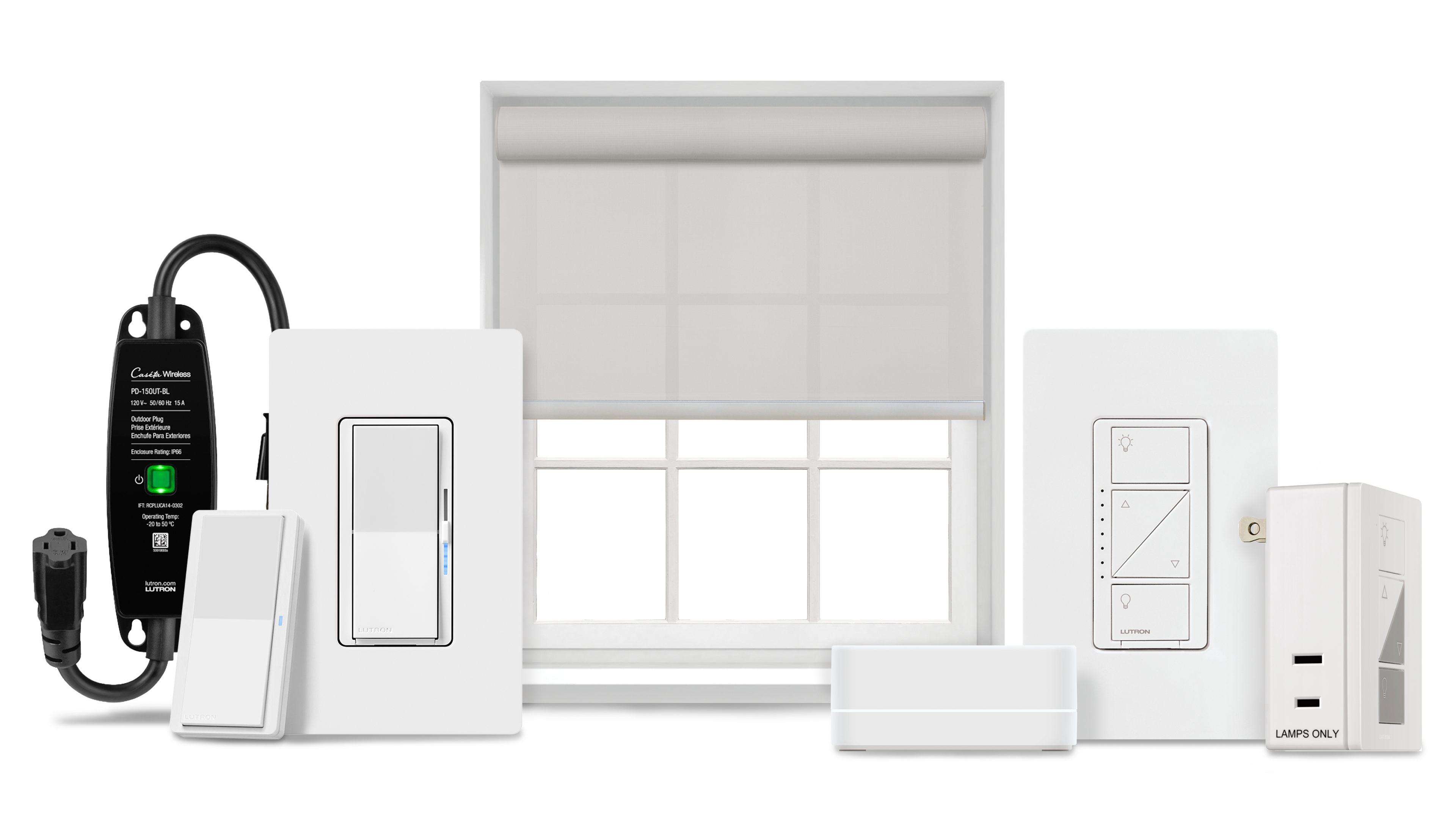
Lutron offers several switch types for different uses. The most common are dimmer switches, which adjust light brightness. There are also simple on/off switches for basic control. Some models include motion sensors that turn lights on automatically. You can find switches that work with smart home systems too. Each type fits a unique purpose in your home.
Key Features To Know
Many Lutron switches have easy touch controls. Some have buttons or sliders to change light levels smoothly. Most support remote control via apps or voice commands. They often save your settings for quick use later. Energy-saving modes help reduce electricity use. Many models also offer quiet operation without buzzing sounds.
Setting Up Your Lutron Switch
Setting up your Lutron light switch is a simple process. It helps you control your lights with ease. Proper setup ensures your switch works safely and correctly.
This section guides you through the installation needs and steps. Follow them carefully to enjoy smart lighting control.
Installation Requirements
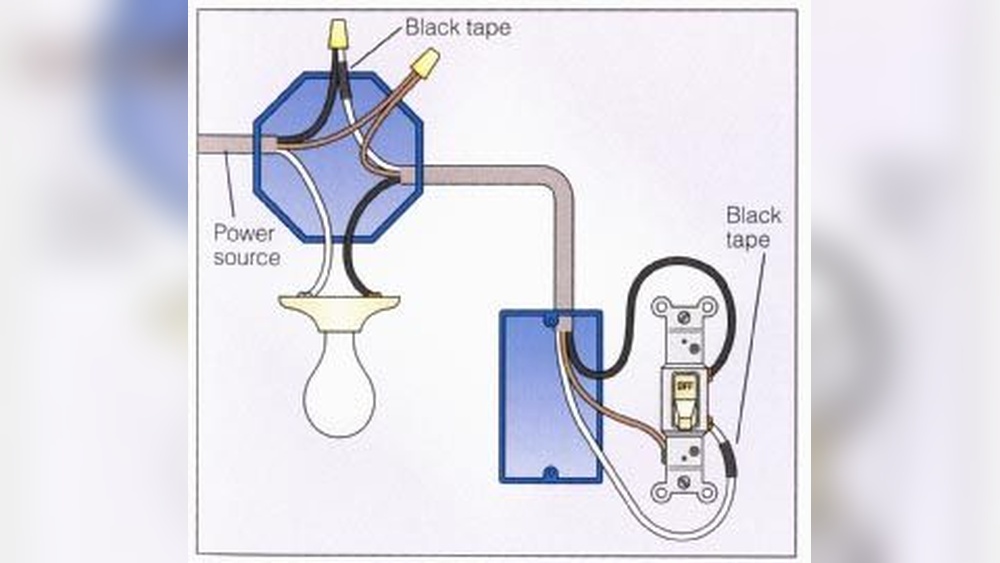
First, check your home wiring. Lutron switches need a neutral wire. This wire powers the switch even when the light is off.
Turn off the power at the circuit breaker before starting. Have a voltage tester ready to confirm power is off. Gather tools like a screwdriver and wire stripper.
Make sure your switch fits the existing wall box. Lutron switches work with most standard boxes but check size to be sure.
Step-by-step Installation Guide
Turn off the power at your circuit breaker. Use a voltage tester to double-check no electricity flows to the switch.
Remove your old switch by unscrewing it from the wall. Carefully pull it out to expose the wires.
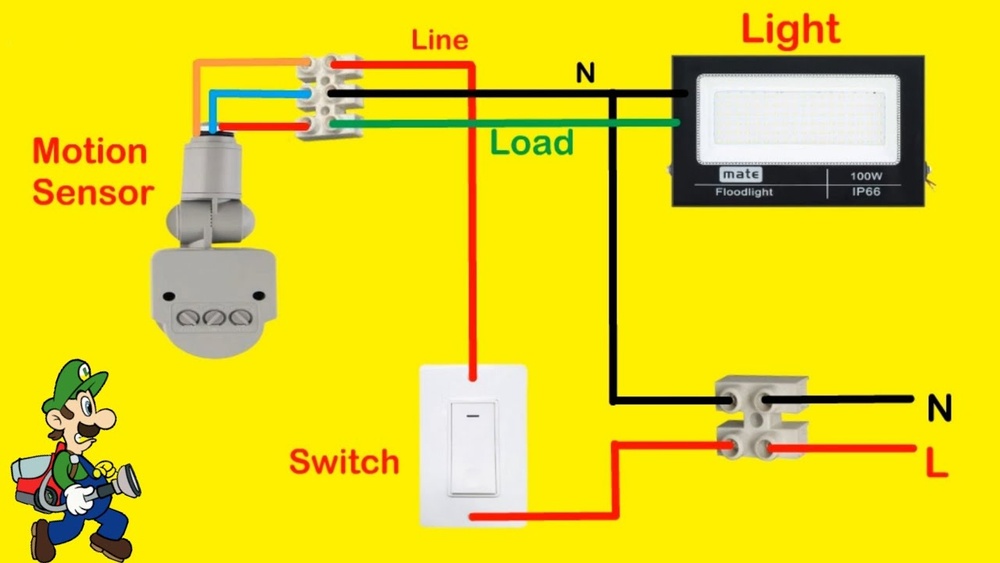
Identify wires: Line (power), Load (to light), Neutral, and Ground. Match each wire to the Lutron switch terminals.
Connect the wires to the new switch. Tighten screws securely but do not over-tighten.
Push the switch into the wall box carefully. Screw it in place, ensuring it sits flush with the wall.
Turn the power back on at the breaker. Test the switch to make sure lights respond correctly.
Follow the included instructions to connect your switch to the Lutron app. This allows remote control and scheduling.
Using The Lutron App
Using the Lutron App makes controlling your Lutron light switch simple and convenient. The app lets you manage your lights from anywhere using your smartphone. You can adjust brightness, set schedules, and create scenes to fit your lifestyle. This section explains how to connect your switch to the app, navigate its features, and customize your light settings easily.
Connecting Switch To App
Start by downloading the Lutron app from your phone’s app store. Open the app and create an account or log in. Follow the on-screen steps to add a new device. Make sure your phone is near the switch and connected to Wi-Fi. The app will search for your switch and link it automatically. Once connected, the switch appears in your device list.
Navigating The App Interface
The app interface is clear and user-friendly. The home screen shows all connected devices. Tap a device to open its control panel. You will see options to turn lights on or off and adjust brightness. Use the menu to access settings, schedules, and scenes. The design helps you find features quickly without confusion.
Customizing Light Settings
Adjust brightness by sliding the control bar left or right. Set schedules to turn lights on or off at specific times. Create scenes to save your favorite lighting moods. For example, a “Relax” scene might dim lights softly. Save and name your scenes for easy use later. The app also lets you control multiple switches together.
Credit: www.casetawireless.com
Voice Control Options
Voice control makes using Lutron light switches easy and hands-free. You can turn lights on or off, dim them, or change scenes with simple voice commands. This works well in busy moments or when your hands are full.
Lutron supports several popular voice assistants. Each offers smooth integration and quick responses. Choose the one that fits your home setup best.
Using Alexa With Lutron
Alexa lets you control Lutron lights using your voice. Say commands like “Alexa, turn on the living room lights.” Alexa listens and adjusts the lights instantly. You can also dim or brighten lights with simple phrases. Alexa works with many Lutron models, making it a popular choice.
Google Assistant Integration
Google Assistant pairs easily with Lutron switches. Just say, “Hey Google, set the bedroom lights to 50%.” Google Assistant responds quickly and changes your lighting. It understands natural language, so commands feel natural. This option fits well in homes using Google products.
Siri And Homekit Support
Siri works with Lutron through Apple HomeKit. You can say, “Hey Siri, turn off the kitchen lights.” Siri controls the lights right away. HomeKit adds security and privacy to your smart home. It’s a great choice for Apple users who want seamless voice control.
Troubleshooting Common Issues
Troubleshooting common issues with your Lutron light switch helps keep your lighting smooth. Many problems are simple to fix. Understanding the basics saves time and stress. This guide covers easy steps to solve frequent problems. Follow these tips to get your switch working again fast.
Switch Not Responding
Check if the switch has power. Make sure the circuit breaker is on. Confirm the bulbs are working. Sometimes, the switch may be stuck. Press the switch firmly or try toggling it a few times. If it still does not respond, check wiring connections. Turn off power before inspecting wires to stay safe.
Connectivity Problems
Wireless switches rely on strong signals. Walls or distance can block signals. Move the switch closer to the hub or router. Restart your Wi-Fi or smart home hub. Make sure your device firmware is up to date. Use the Lutron app to check connection status. Poor connections often cause delayed or missed commands.
Resetting Your Switch
Resetting can fix many issues. Find the reset button on the switch. Press and hold it for 10 seconds. The switch will blink to show reset success. After reset, reconnect the switch to your system. This clears errors and refreshes settings. Use this step only if other fixes fail.
Credit: luxury.lutron.com
Tips For Smart Lighting
Smart lighting makes your home more comfortable and efficient. Controlling Lutron light switches lets you personalize your space. Use simple tips to get the most from your smart lights.
These tips help you save energy and improve safety. You can create moods, save money, and feel secure at home.
Creating Scenes And Schedules
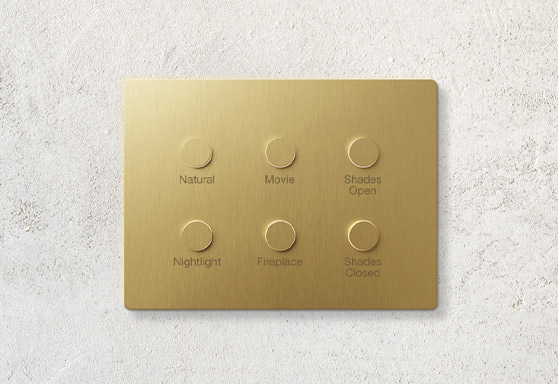
Set up scenes to control multiple lights at once. For example, a “Movie Night” scene can dim lights automatically. Schedules turn lights on and off at set times. This keeps your home ready for your daily routine.
Use the Lutron app to customize these settings easily. Scenes and schedules make lighting simple and fun.
Energy-saving Strategies
Turn off lights when not needed. Use timers or motion sensors with your Lutron switch. This reduces wasted energy and lowers bills.
Choose dimmer settings to use less power. Brightness control helps keep lights only as bright as you need. Small changes make a big difference over time.
Enhancing Home Security
Set lights to turn on at night or when you are away. This makes it look like someone is home. Use random on/off schedules to add variety.
Connect your Lutron switches to other smart devices for better security. Well-lit homes are less likely to be targeted by intruders.
Frequently Asked Questions
How Do I Program A Lutron Light Switch?
To program a Lutron light switch, press and hold the button. Follow the instructions in the user manual to set your desired lighting level or schedule. Programming allows you to customize light behavior for convenience and energy savings.
Can I Control Lutron Switches Remotely?
Yes, you can control Lutron switches remotely using the Lutron app. Connect the switch to your Wi-Fi network and use the app on your smartphone. This lets you adjust lighting from anywhere, enhancing home automation and security.
What Are The Benefits Of Using Lutron Light Switches?
Lutron switches offer energy efficiency, easy control, and smart home integration. They provide dimming options, remote access, and scheduling features. These benefits improve convenience, reduce energy costs, and enhance your home lighting experience.
How Do I Reset A Lutron Light Switch?
To reset, press and hold the top and bottom buttons simultaneously for about 10 seconds. The switch will flash, indicating a successful reset. This restores factory settings and helps resolve connectivity or programming issues.
Conclusion
Controlling your Lutron light switch is easy and convenient. Use the switch buttons or the app to adjust lighting. Set schedules to save energy and add comfort. Troubleshoot simple issues quickly to keep lights working well. Enjoy the flexibility of smart lighting every day.
Small changes make a big difference in your home. Keep experimenting to find what works best for you. Brighten your space with control at your fingertips.