Are you struggling to connect your Wemo Light Switch to your new WiFi? You’re not alone, and the good news is it’s easier than you think.
Getting your smart switch back online means you can control your lights from anywhere, save energy, and add convenience to your daily routine. In this guide, you’ll find simple, step-by-step instructions that anyone can follow—no tech jargon or complicated setups.
Keep reading, and you’ll have your Wemo Light Switch connected and working smoothly in no time.
Check Wemo Light Switch Compatibility
Verify if your Wemo Light Switch supports your new Wi-Fi network before connecting. Follow simple steps to link the switch to your updated Wi-Fi easily. Ensure smooth control of your lights with the right connection.
What Devices Are Compatible With Wemo Light Switch?
Not all Wemo light switches work with every WiFi network or app version. Check your device model first. Most Wemo switches support 2.4 GHz WiFi only. Some newer models may support 5 GHz, but this is rare. Knowing your switch’s WiFi band is key before connecting it to a new router.
Look at the product label or user manual. It often lists compatible WiFi frequencies and app versions. Using an incompatible WiFi can cause connection failures or poor performance. Compatibility ensures smooth setup and reliable control of your lights.
Check Your Router’s Wifi Settings
Your router must use supported WiFi settings for Wemo switches. Wemo switches usually do not work with WiFi networks that have MAC filtering enabled. Also, some routers have security settings that block smart devices.
Make sure your router broadcasts a 2.4 GHz network. Disable any guest networks or isolated settings that might block the switch. Using the correct WiFi channel and network name improves connection success.
Confirm Your Wemo App Version
The Wemo app controls your switch and helps with setup. Using the latest app version is important. Older app versions might not support new devices or updated WiFi protocols.
Update your Wemo app from the App Store or Google Play. The latest app offers better compatibility and troubleshooting features. This makes connecting your Wemo switch to new WiFi easier and faster.
Prepare Your New Wifi Network
Preparing your new WiFi network is an important step to connect your Wemo light switch. This step ensures the switch works smoothly without interruptions. A well-prepared network helps avoid connection errors and saves time during setup.
Make sure your WiFi is ready before starting the connection process. Check the network settings and have all needed information handy. This preparation makes the setup process quick and easy.
Verify Network Frequency
Your Wemo light switch works only with 2.4 GHz WiFi networks. Check your router settings to confirm the frequency. Many routers offer both 2.4 GHz and 5 GHz bands. The switch does not support 5 GHz, so connect to 2.4 GHz only.
Use a phone or computer to find available networks. Look for your 2.4 GHz network name (SSID) and make sure it is active. If your router uses the same name for both bands, create a separate SSID for 2.4 GHz to avoid confusion.
Gather Network Credentials
Have your WiFi network name (SSID) and password ready. You will need these details to connect your Wemo switch. Write down the exact network name and password to avoid typos.
Check that the password is correct, including any uppercase or special characters. A wrong password will stop the switch from connecting. Keep your device close to the router during setup for a stronger signal.
Reset The Wemo Light Switch
Resetting the Wemo Light Switch helps clear old settings and prepares it for a new WiFi connection. This step is crucial when changing your network or troubleshooting connection issues. The reset process is simple and only takes a few moments.
Locate The Reset Button
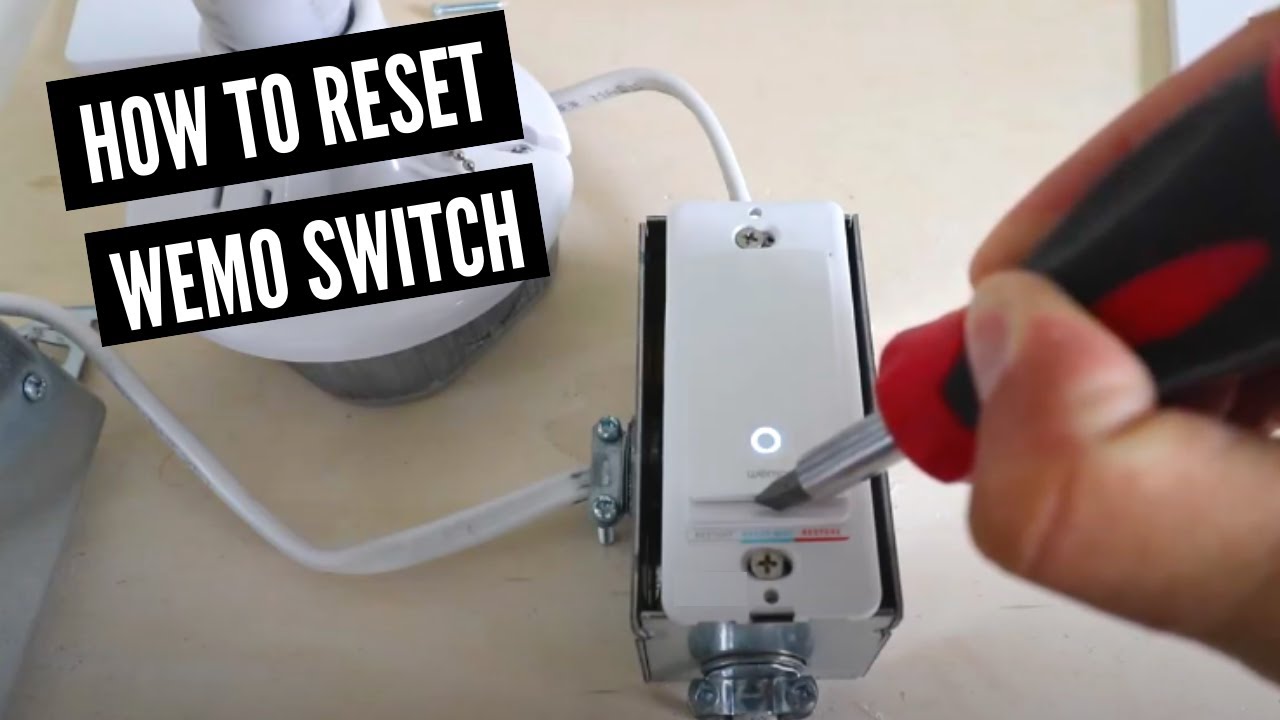
Find the small reset button on the Wemo Light Switch. It is usually near the toggle or inside a tiny hole on the side. Use a paperclip or similar tool to press it. This button triggers the factory reset process.
Perform A Factory Reset
Press and hold the reset button for about 10 seconds. Wait until the Wemo light blinks rapidly. This blinking means the switch is resetting. Release the button and allow the device to restart. The switch will return to its original factory settings.

Credit: www.belkin.com
Download And Open Wemo App
To connect your Wemo Light Switch to a new WiFi network, start by downloading and opening the Wemo app. This app helps you control your device easily from your phone. It guides you through the setup process step by step.
Having the app ready is essential for a smooth connection. The app works on both Android and iOS devices. Make sure your phone meets the app’s requirements before downloading.
Find The Latest App Version
Visit your phone’s app store to find the Wemo app. Search for “Wemo” in the search bar. Look for the official app by Belkin International. Check the app’s version and update it if needed. The latest version has improved features and better security. Installing the newest version avoids setup problems.
Create Or Log In To Your Account
Open the Wemo app after installation. You will see options to create an account or log in. Creating an account is quick and free. Enter your email and create a password. If you already have an account, enter your login details. Logging in connects your devices to your profile. This lets you control them from anywhere securely.
Connect Wemo Switch To New Wifi
Connecting your Wemo Light Switch to a new WiFi network lets you control your lights from anywhere. It is important to follow the right steps to ensure a smooth setup. This guide helps you connect your Wemo switch quickly and easily.
Put Switch In Setup Mode
Start by putting the Wemo switch into setup mode. Press and hold the button on the switch for about 5 seconds. The LED light will start blinking, showing it is ready to connect. This step allows the switch to find your new WiFi network.
Follow In-app Connection Steps
Open the Wemo app on your smartphone. The app will guide you through connecting the switch to the new WiFi. Select your WiFi network and enter the password carefully. Wait for the app to confirm the connection is successful.
Troubleshoot Common Issues
If the switch does not connect, check your WiFi signal strength. Make sure your phone is near the switch during setup. Restart the switch and your router if needed. Try resetting the switch to factory settings and start again if problems continue.
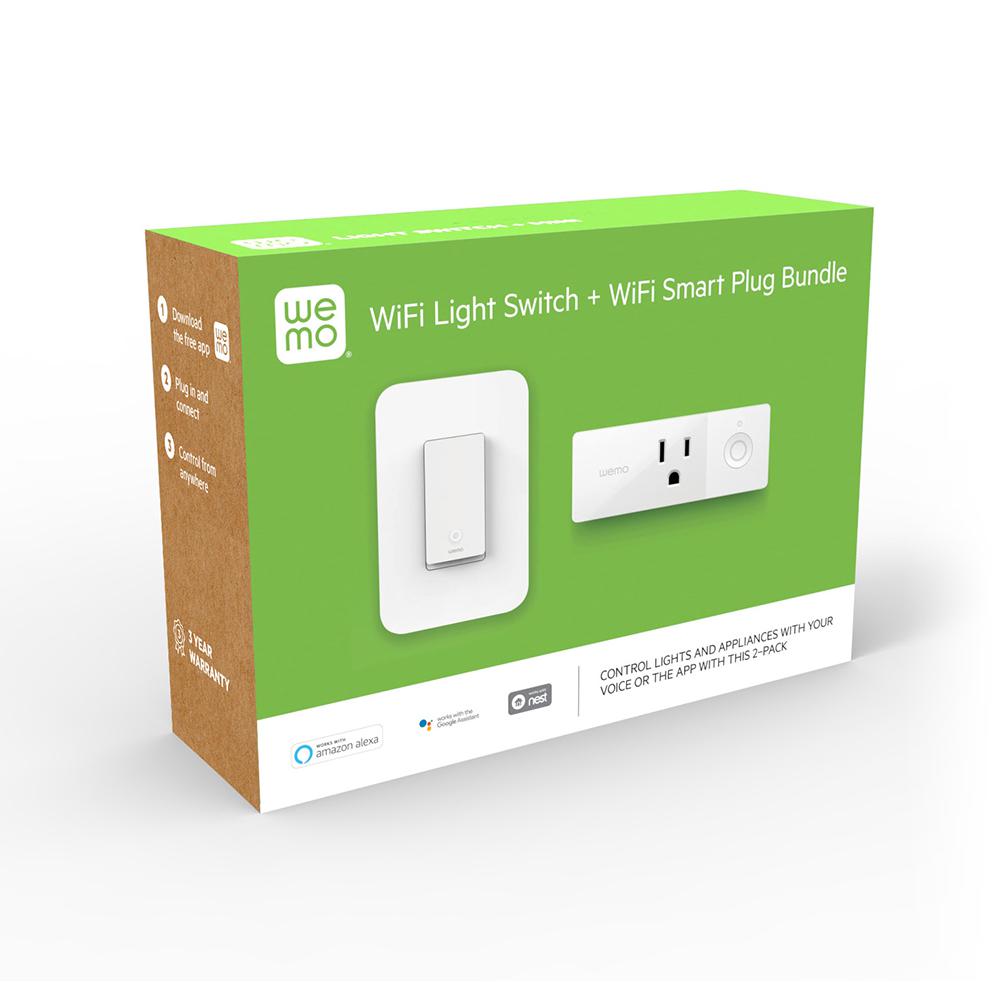
Credit: www.ntelectronic.com
Test And Customize Your Switch
After connecting your Wemo Light Switch to the new WiFi, testing and customizing it is the next step. This ensures the switch works properly and fits your needs. You can check if the device is online and make changes to settings and schedules. These actions help you control your lights easily and save energy.
Verify Device Connectivity
Open the Wemo app on your phone. Look for your light switch in the device list. Check if the status shows “Online” or “Connected.” If it does, the switch is ready to use. Try turning the light on and off through the app. This confirms the switch responds to commands. If it does not work, try restarting your router or the switch.
Adjust Settings And Schedules
Use the Wemo app to change switch settings. You can rename the switch for easy identification. Set schedules to turn lights on or off at specific times. Create routines for daily use, like turning lights on at sunset. Adjust settings to fit your lifestyle and save electricity. This customization makes your smart home more convenient.
Credit: www.youtube.com
Frequently Asked Questions
How Do I Reset My Wemo Light Switch For New Wifi?
To reset your Wemo Light Switch, press and hold the reset button for 10 seconds. The LED will blink, indicating reset. This clears old WiFi settings, allowing you to connect to your new network easily.
Can I Connect Wemo Light Switch To 5ghz Wifi?
No, Wemo Light Switch supports only 2. 4GHz WiFi networks. Ensure your router broadcasts a 2. 4GHz signal. Connecting to 5GHz will cause connection failures.
What App Do I Use To Connect Wemo Light Switch?
Use the Wemo app available on iOS and Android. It guides you through setup and WiFi connection steps seamlessly. Download it before starting the setup.
Why Won’t My Wemo Light Switch Connect To New Wifi?
Common issues include incorrect WiFi password, 5GHz network use, or weak signal. Check these factors and reset the switch if needed to reconnect successfully.
Conclusion
Connecting your Wemo light switch to a new WiFi is simple and quick. Follow the steps carefully for a smooth setup. Make sure your phone is close to the switch during the process. Double-check your WiFi name and password before starting.
Once connected, you can control your lights easily from anywhere. Enjoy the convenience of smart lighting with your updated WiFi. Stay patient and take your time to avoid mistakes. Your Wemo switch will work perfectly with the new network soon.