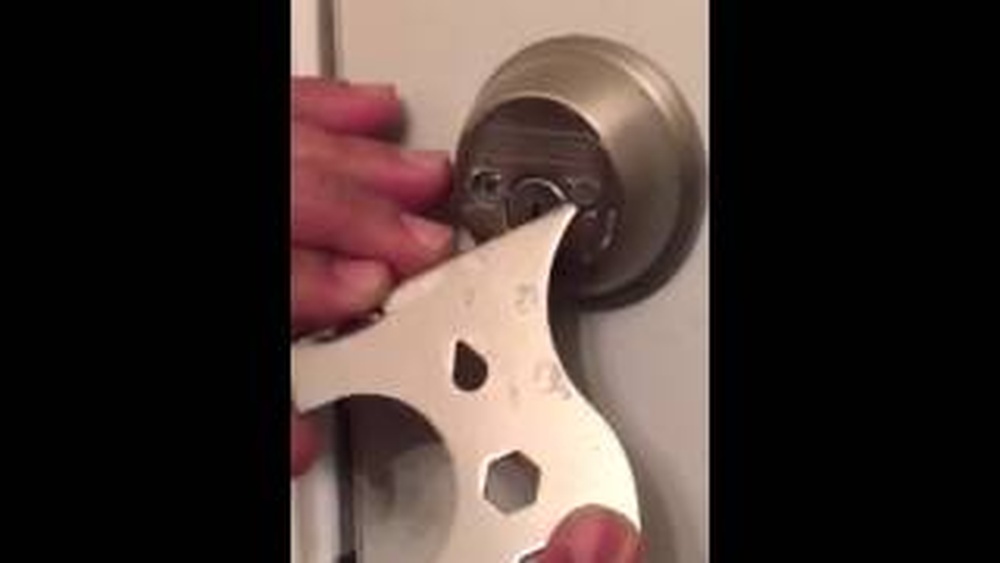
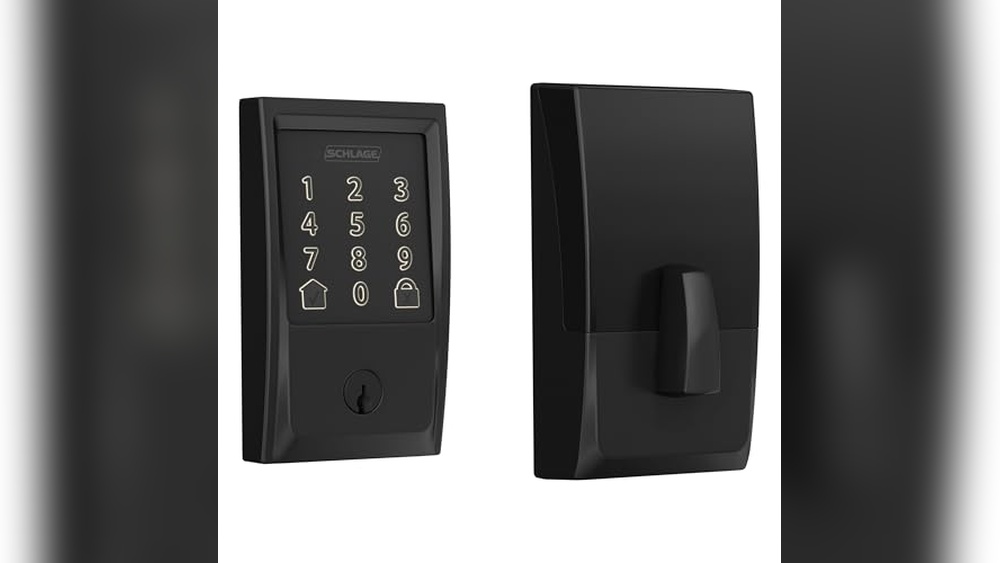
Are you having trouble changing the codes on your Kwikset electronic deadbolt? Reprogramming it might seem tricky, but it’s easier than you think.
Whether you want to add a new user code or reset the lock for better security, this guide will walk you through every step. By the end, you’ll have full control over your lock’s settings, making your home safer and giving you peace of mind.
Keep reading to learn exactly how to reprogram your Kwikset electronic deadbolt quickly and confidently.
Prepare Your Kwikset Deadbolt
Preparing your Kwikset electronic deadbolt is the first step to successful reprogramming. This step ensures the process goes smoothly. Proper preparation helps avoid errors and saves time.
Start by gathering the right tools and locating the programming code. These are essential for reprogramming your deadbolt correctly. Without them, the process cannot move forward.
Gather Necessary Tools
Collect a small screwdriver to remove the battery cover. Have fresh batteries ready for replacement if needed. Keep the user manual nearby for reference. A pen and paper help to note down codes or steps. These tools make the reprogramming process easier and faster.
Locate The Programming Code
Find the programming code printed on the back of the keypad or inside the battery compartment. It is usually a 6-digit number. This code is vital to enter programming mode. Without it, you cannot change settings or add new codes. Keep this code private to maintain security.

Credit: www.youtube.com
Enter Programming Mode
Entering programming mode is the first step to reprogram your Kwikset electronic deadbolt. This mode lets you change codes and settings quickly. Follow these simple steps to access programming mode safely and easily.
Access The Interior Assembly
Start by opening the door and locating the interior side of your deadbolt. Remove the battery cover carefully to expose the inner panel. You might need a screwdriver for some models. Keep the cover and screws safe for later.
Look for a small black or red button inside the assembly. This button activates programming mode. Make sure the batteries have enough power before proceeding.
Press The Program Button
Press and hold the program button for about 3 seconds. You will hear a beep or see a flashing light. This confirms the lock is in programming mode. Release the button immediately after the signal.
Do not touch any other buttons during this time. The lock is now ready for new codes or settings. If no signal happens, check the batteries or try again.
Add New User Codes
Adding new user codes to your Kwikset electronic deadbolt lets you control who can enter your home. It is simple and quick to do. This guide shows the exact steps to add new codes. Follow each step carefully to keep your lock secure.
Input New Code
Start by opening the lock’s keypad. Press the program button on the inside part of the lock. Enter a new user code. This code should be 4 to 8 digits long. Make sure you choose a code easy to remember but hard to guess. Press the lock button to save the new code.
Confirm The Code
After entering the new code, the lock will ask you to confirm it. Re-enter the same code exactly. This step ensures you did not make a mistake. The lock will give a green light or beep to show it accepted the code. If it does not, repeat the process carefully.
Test The New Code
Close the door and lock it. Use the new code on the keypad to unlock the door. The lock should open smoothly. If it does not open, try entering the code again. If problems continue, repeat the adding process or check the user manual.
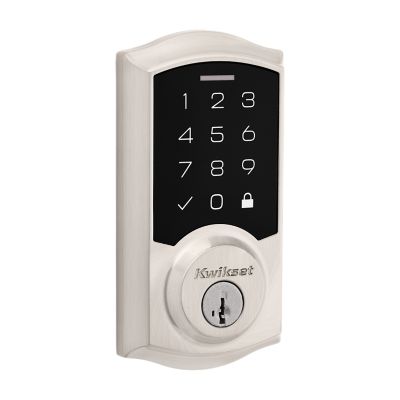
Credit: www.kwikset.com
Delete Existing User Codes
Deleting existing user codes on your Kwikset electronic deadbolt helps keep your home secure. Removing old or unused codes prevents unauthorized access. The process is simple and quick. Follow these steps carefully to delete user codes safely.
Select Code To Delete
First, enter programming mode on your Kwikset lock. Use the master code or follow the lock’s instructions to start. Next, choose the user code you want to delete. This code is usually linked to a specific user slot number. Enter the slot number clearly to select the correct code. Make sure you select the right one before moving on.
Confirm Deletion
After selecting the code, the lock will ask for confirmation. This step ensures no code is deleted by mistake. Press the confirm button or follow the voice prompt to approve. The lock will delete the code and notify you with a beep or light signal. Check that the code no longer works to finish the process.
Reset To Factory Settings
Resetting your Kwikset electronic deadbolt to factory settings erases all current codes and settings. This process restores the lock to its original state. It is a helpful step when you want to start fresh or face issues with the lock’s programming.
Knowing how to reset the lock ensures you can fix problems quickly. It also helps when you forget the main code or when ownership changes. The reset clears all user codes and settings, letting you reprogram the lock from scratch.
When To Reset
Reset the lock if it stops responding to codes. Also reset if you lose the master code. Resetting is useful when giving the lock to a new owner. It clears all old codes for security. If the lock acts strangely or malfunctions, reset it. This often solves software glitches.
Reset Procedure
Start by removing the battery cover on the inside part of the lock. Take out the batteries carefully. Press and hold the reset button inside the battery compartment. Hold it for about 10 seconds until you hear a beep. Release the button once the beep sounds. Replace the batteries and the cover. The lock is now reset to factory settings. You can begin reprogramming the lock codes from the start.
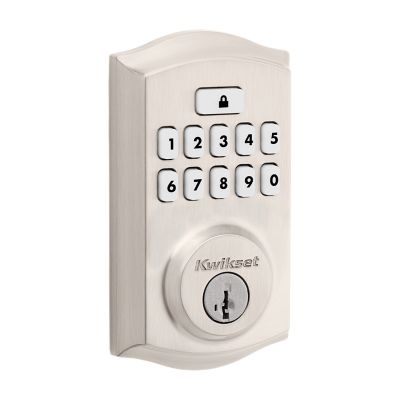
Credit: www.kwikset.com
Troubleshooting Tips
Troubleshooting your Kwikset electronic deadbolt can save time and frustration. Problems may arise during programming or use. Knowing common issues helps fix your lock quickly. Here are key tips for troubleshooting your Kwikset deadbolt.
Common Programming Errors
One common error is entering the wrong programming code. Double-check the code before starting. Another mistake is pressing buttons too fast or too slow. Follow the timing steps in the manual carefully. Forgetting to press the “Program” button first can stop the process. Make sure the lock is in programming mode before adding codes. Sometimes, the lock may not save a new code. Try deleting old codes to free space. Resetting the lock can fix persistent errors.
Battery Replacement Advice
Low battery power can cause programming failures. Replace batteries every six months for best results. Use fresh, high-quality alkaline batteries only. Avoid mixing old and new batteries together. Remove batteries if the lock will not be used for a long time. Check battery contacts for dirt or corrosion before inserting new batteries. Weak batteries may cause the keypad to respond slowly or not at all. Keep spare batteries near your lock for quick replacement.
Maintenance For Optimal Performance
Maintaining your Kwikset electronic deadbolt keeps it working smoothly. Proper care prevents problems and extends the lock’s life. Small steps make a big difference in performance and security.
Regular Battery Checks
Check the battery often to avoid lock failure. Replace batteries every six months or when the low battery signal appears. Use fresh, high-quality batteries for best results. Do not wait for the lock to stop working before changing batteries.
Cleaning And Care
Clean the lock’s exterior with a soft, damp cloth. Avoid harsh chemicals that can damage the finish. Keep the keyhole and keypad free of dust and dirt. Lubricate the lock with graphite powder, not oil, to ensure smooth operation.
Frequently Asked Questions
How Do I Reset A Kwikset Electronic Deadbolt?
To reset, remove the battery cover and take out the batteries. Press and hold the program button for 10 seconds. Release it when the lock beeps. This resets the lock to factory settings, clearing all user codes.
Can I Add Multiple User Codes On Kwikset Locks?
Yes, you can add multiple user codes. Enter programming mode by pressing the program button. Follow the instructions to add new codes. Each lock supports up to 30 unique user codes, allowing different access for family or guests.
What Tools Are Needed To Reprogram Kwikset Deadbolt?
No special tools are needed. You only need the existing user code, the program button inside the lock, and fresh batteries. All reprogramming steps are done manually on the lock keypad and interior panel.
How Long Does Kwikset Reprogramming Take?
Reprogramming usually takes less than 5 minutes. It involves entering programming mode and adding or deleting user codes. The process is quick and straightforward with clear audio or visual confirmations.
Conclusion
Reprogramming your Kwikset electronic deadbolt keeps your home secure. Follow each step carefully for best results. Test the lock after programming to ensure it works. Change codes regularly to protect your property. Keep your manual nearby for quick reference. This simple process saves time and adds safety.
Your door lock stays updated and easy to use. Stay confident knowing you control access to your home.