
Are you struggling to reset your Kwikset electronic deadbolt and wondering where to start? You’re not alone.
Whether you want to change your access code for better security or fix a locking issue, knowing the right steps can save you time and frustration. In this guide, you’ll discover a simple, step-by-step method to reset your Kwikset electronic deadbolt quickly and easily.
Keep reading—you’re just minutes away from taking full control of your smart lock.
Tools Needed
Before resetting your Kwikset electronic deadbolt, gather the right tools. Having the correct tools makes the process faster and easier. Each tool serves a clear purpose. Using the wrong tools can cause damage to the lock.
Small Phillips Head Screwdriver
This screwdriver helps remove screws from the lock’s interior panel. Most Kwikset models use Phillips screws. A small size fits better and prevents stripping the screws.
New Batteries
Fresh batteries ensure the lock has enough power during reset. Use the type recommended by the manufacturer, usually AA or 9V. Weak batteries can interrupt the reset process.
Reset Tool Or Paperclip
Some Kwikset locks need a reset tool or a straightened paperclip. This tool presses the tiny reset button inside the lock. Keep it handy for quick access.
Instruction Manual
Follow the manual for your specific Kwikset model. It has step-by-step reset instructions. Manuals help avoid mistakes and confusion during the reset.
Locate The Reset Button
Removing the battery cover is the first step to reset your Kwikset electronic deadbolt. This step gives you access to the battery compartment. Without opening this cover, you cannot reach the reset button or the batteries. It is simple but important to do it carefully.
Start by locating the battery cover on the inside part of the lock. It usually sits behind the keypad or the thumb turn. The cover protects the batteries and reset components from dust and damage.
Locate The Battery Cover
Look for a small panel on the interior side of the lock. It may have a small tab or groove to help you open it. The cover is often black or matches the lock color.
Open The Battery Cover
Use your thumb or a flat tool to gently pry the cover off. Do not force it to avoid breaking the plastic. Slide or lift the cover, depending on the model.
Check The Battery Placement
Once open, note how the batteries sit inside. Remember the position of the positive and negative ends. This helps when you replace them after resetting.
Remove The Battery Cover
Pressing and holding the reset button is a key step to reset your Kwikset electronic deadbolt. This action clears old settings and prepares the lock for new programming. The reset button is usually small and recessed, so you might need a tool to press it.
Holding the button for the right time is important. Too short or too long can cause the reset to fail. Follow the exact timing to ensure success.
Locate The Reset Button On Your Kwikset Deadbolt
Open the battery cover on the inside of the door. Look for a small button labeled “reset.” It is often near the batteries. Use a pointed object like a paperclip to press it.
Press the button firmly and hold it down. Count to about 10 seconds. You may hear a beep or see a light flash. This means the reset process started.
Release The Reset Button At The Right Time
Let go of the button after the beep or light signal. Releasing too early may not reset the lock. Wait for the clear sign before releasing.
Press And Hold The Reset Button
Reinstalling the batteries in your Kwikset electronic deadbolt is a key step during a reset. This step ensures the lock receives power and functions correctly. Proper battery installation can solve many issues with your lock.
Follow clear steps to remove old batteries and place new ones. Pay attention to the battery orientation. This simple process keeps your lock working smoothly and extends battery life.
Open The Battery Compartment
Find the battery cover on the inside part of the lock. Press the release tab or slide the cover off carefully. Avoid using too much force to prevent damage.
Remove Old Batteries
Take out all old batteries from the compartment. Dispose of them safely according to local rules. Old batteries can leak and harm your lock.
Insert New Batteries Correctly
Use fresh, high-quality batteries for best results. Match the positive (+) and negative (-) ends with the markings inside the compartment. Incorrect placement may cause the lock to fail.
Close The Battery Cover
Put the cover back on securely. Listen for a click or feel it snap into place. A loose cover may cause power issues.
Test The Lock Function
Press the keypad buttons to check power. The lock should respond with lights or sounds. If not, recheck battery placement and cover closure.
Reinstall Batteries
Testing the Kwikset electronic deadbolt after resetting is important. It confirms the lock works properly and keeps your home secure. This step helps avoid problems later.
Check The Keypad Functionality
Press each button on the keypad to see if they respond. Make sure the numbers light up and feel normal. Enter your new code slowly and carefully. The lock should accept the code without errors.
Test The Lock Mechanism
Turn the deadbolt knob or use the keypad to lock and unlock. Listen for smooth sounds from the motor inside. The bolt should move fully in and out without sticking. Try locking and unlocking a few times to be sure.
Verify User Code Acceptance
Try entering the new user code multiple times. The lock should open only with the correct code. Enter a wrong code to check if the lock stays locked. This confirms the security settings are active.
Check Battery Status
Look for any low battery alerts on the keypad. If the lights dim or beep, replace the batteries soon. Fresh batteries ensure the lock works without interruption. Testing now prevents lockouts later.

Credit: www.youtube.com
Test The Lock
Programming a new code on your Kwikset electronic deadbolt keeps your home secure. Changing codes regularly stops unauthorized access. The process is simple and quick. Follow the steps below to set a new user code for your lock.
Enter Programming Mode
Start by locating the programming button on your Kwikset lock. It is usually found inside the battery compartment. Press and hold this button until you hear a beep or see a light flash. This signals the lock is in programming mode. You have about 30 seconds to enter the next steps. Act fast to avoid exiting the mode.
Set New User Codes
Type your new user code using the keypad. The code must be between 4 and 8 digits. Press the lock button or the pound key () to confirm the code. You will hear a beep or see a light flash to confirm success. Test the new code by locking and unlocking the door. Repeat these steps to add more user codes if needed.
Program A New Code
Troubleshooting your Kwikset electronic deadbolt can help fix common problems fast. Many issues happen due to simple reasons. Knowing what to check saves time and effort.
Below are tips to solve some usual problems with your lock. Follow these easy steps to get your deadbolt working again.
Battery Issues
Low or dead batteries cause most electronic lock problems. Check the battery level first. Replace old batteries with fresh ones. Use the type recommended by Kwikset. Make sure batteries are placed correctly. Clean battery contacts if needed. Poor contact stops power flow. Test the lock after replacing batteries.
Reset Button Not Responding
The reset button may not work if pressed incorrectly. Press and hold the button firmly for about 10 seconds. Try using a small pointed tool. Dirt or debris can block the button. Clean around the button gently. If the button still fails, power cycle the lock. Remove batteries, wait 30 seconds, then reinsert them.
Lock Not Programming
Programming errors happen due to incorrect steps or weak power. Follow the programming instructions carefully. Confirm you use the correct master code. Clear any previous programming if needed. Reset the lock fully before starting again. Make sure the lock is awake during programming. Avoid pressing buttons too quickly or slowly.
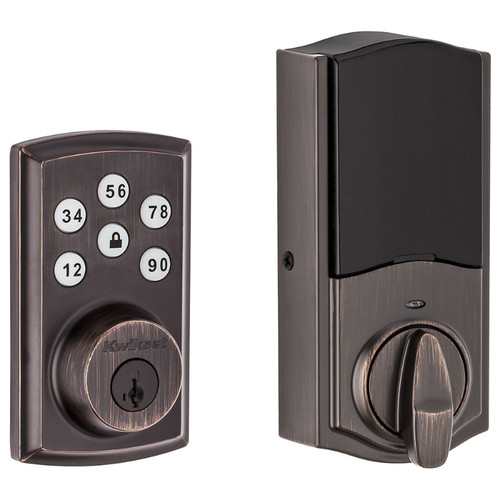
Credit: doorlocksdirect.com

Credit: www.youtube.com
Frequently Asked Questions
How Do I Reset A Kwikset Electronic Deadbolt?
To reset, remove the battery cover and batteries. Press and hold the Program button for 10 seconds until the LED blinks. This restores factory settings and clears all user codes.
Can I Reset Kwikset Lock Without A Code?
Yes, you can reset without a code by using the Program button. Hold it for 10 seconds after battery removal. This resets the lock to default factory settings.
What If My Kwikset Deadbolt Won’t Reset?
Ensure batteries are fresh and installed correctly. Press the Program button firmly for 10 seconds. If it still won’t reset, consult the user manual or contact Kwikset support.
Does Resetting Erase All User Codes On Kwikset?
Yes, resetting deletes all stored user codes. You must reprogram new codes after the reset for proper access.
Conclusion
Resetting your Kwikset electronic deadbolt is simple and quick. Follow the steps carefully for the best results. Always keep your user manual nearby for reference. Regular resets can help maintain your lock’s security. Don’t forget to test the lock after resetting it.
This ensures everything works as it should. Now, you can manage your lock with confidence. Stay safe and secure with your Kwikset deadbolt.


