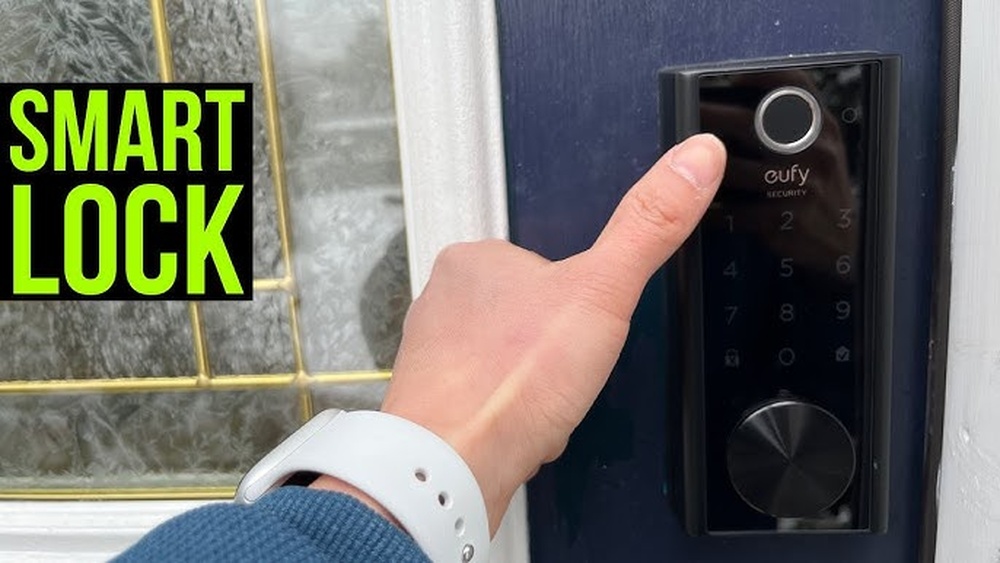
Is your Eufy Deadbolt acting up or not responding like it used to? Sometimes, a simple reset can fix the problem and get your smart lock working smoothly again.
But how exactly do you reset your Eufy Deadbolt without causing more trouble? In this guide, you’ll find clear, step-by-step instructions to reset your lock quickly and safely. Keep reading—you’ll be surprised how easy it is to regain full control of your smart security.

Credit: www.youtube.com
Prepare For Reset
Resetting a Eufy Deadbolt requires a few simple steps to clear settings and restore factory defaults. Make sure the lock has enough battery before starting the process. Follow the instructions carefully to avoid any issues during the reset.
Gather Required Tools
Before you reset your Eufy Deadbolt, gather the necessary tools. You will need a small screwdriver, usually a Phillips head. This helps open the battery compartment or access reset buttons. Keep fresh batteries nearby to replace old ones if needed. Have your smartphone ready to reconnect the lock after reset. These simple tools make the process smooth and quick.
Backup Important Settings
Resetting the deadbolt erases all saved settings. Backup any important codes or preferences before starting. Use the Eufy app to save user codes and lock schedules. Write down any custom settings on paper. This step saves time and avoids frustration later. Keeping a backup helps restore your lock easily after the reset.
Locate Reset Button
To reset your Eufy deadbolt, you must find the reset button first. This button helps clear settings and prepares the lock for a fresh start. Knowing where it is makes the reset process smooth and quick.
Accessing The Deadbolt Interior
Start by opening the cover on the inside part of the deadbolt. Use your fingers or a small tool to gently lift it off. This cover hides the battery compartment and reset button.
Be careful not to force the cover. It might snap or break if pulled too hard. Once removed, you will see the lock’s interior components clearly.
Identifying The Reset Pinhole
Look closely near the battery compartment for a tiny pinhole. This small hole holds the reset button inside. It is usually labeled or marked for easy finding.
Use a paperclip or a similar small object to press the button inside the pinhole. Hold it down for a few seconds to trigger the reset. This step clears all settings and resets the lock.
Perform The Reset
Performing a reset on your Eufy Deadbolt is a simple process. It helps fix issues or prepares the lock for a new setup. Follow these steps carefully to reset your device correctly.
Using A Paperclip Or Pin
Locate the small reset hole on the side or back of the deadbolt. Take a paperclip or pin and gently insert it into the hole. Press the reset button inside without forcing it.
Reset Button Press Duration
Hold the button for about 10 seconds. Keep it pressed until you hear a beep or see the LED light flash. This signal means the reset process has started.
Confirming Successful Reset
Wait for the deadbolt to restart automatically. The lock will beep or flash its LED again. This confirms the reset is complete and the device is ready for setup.
Reconfigure The Deadbolt
Reconfiguring the Eufy deadbolt is important after a reset. It helps you set up the lock again for security and ease. This step ensures the lock works smoothly with your devices and personal settings.
Follow each part carefully to get your deadbolt ready for daily use. The process includes pairing, setting new codes, and testing the lock.
Pairing With Eufy App
Open the Eufy app on your smartphone. Make sure Bluetooth and Wi-Fi are on. Select “Add Device” and choose the deadbolt model. Follow the on-screen steps to connect your lock. Wait until the app confirms the successful pairing. This link lets you control the lock remotely.
Setting New Access Codes
Access the lock settings in the Eufy app. Find the “Access Codes” section. Create new codes for family or friends. Choose strong, easy-to-remember numbers. Save each code carefully in the app. These codes grant entry without a key.
Testing Lock Functionality
Test the lock after setup to ensure it works well. Use the app to lock and unlock. Try entering new access codes on the keypad. Check if the deadbolt responds quickly and correctly. Confirm the lock status updates in the app. This step avoids future lock issues.
Troubleshooting Tips
Troubleshooting your Eufy deadbolt can solve many common problems. Knowing simple tips helps you fix issues fast. This saves time and avoids frustration. Below are some key points to check if reset does not work.
Reset Not Working
Make sure you follow the reset steps exactly. Press and hold the reset button for at least 10 seconds. The lock should beep or flash. If nothing happens, try again. Check the lock is powered on and not stuck. Sometimes, a hard reset by removing batteries helps.
Battery Issues
Dead or weak batteries cause many problems. Replace batteries with fresh, high-quality ones. Use the type recommended by Eufy. Low power can stop the reset process. Always check battery contacts for dirt or corrosion. Clean them gently if needed.
Contacting Support
If reset and battery tips fail, contact Eufy support. They provide expert help and solutions. Have your lock model and purchase details ready. Support can guide you through advanced fixes or warranty options. Use the official Eufy website or app for contact info.

Credit: service.eufy.com
Preventive Security Measures
Preventive security measures help keep your Eufy Deadbolt safe and working well. Taking small steps often stops bigger problems. These steps protect your home and your peace of mind. Here are some key ways to keep your deadbolt secure and reliable.
Regular Firmware Updates
Firmware updates fix bugs and improve security. They protect your deadbolt from new threats. Check for updates often through the Eufy app. Install updates as soon as they are available. This keeps your lock running smoothly and safely.
Secure Code Management
Use strong, unique codes for your deadbolt access. Avoid simple codes like 1234 or birthdates. Change your codes regularly to prevent unauthorized entry. Share codes only with trusted people. Secure code management helps keep strangers out.
Physical Maintenance
Keep your deadbolt clean and free of dust. Check the battery level and replace batteries on time. Test the lock regularly to ensure it works well. Tighten loose screws and parts to avoid damage. Good physical care extends the lock’s life and security.

Credit: service.eufy.com
Frequently Asked Questions
How Do You Perform A Factory Reset On Eufy Deadbolt?
To factory reset your Eufy Deadbolt, press and hold the reset button for 10 seconds. The lock will beep twice, indicating a successful reset. This clears all settings and user data, restoring the device to its original state.
Can I Reset Eufy Deadbolt Without The App?
Yes, you can reset Eufy Deadbolt manually by pressing the reset button inside the lock. Hold it for 10 seconds until you hear two beeps. This method works if you don’t have access to the Eufy Security app.
What Happens After Resetting Eufy Deadbolt?
After resetting, all user codes and settings are erased. The lock returns to factory defaults. You must set it up again using the Eufy Security app to regain control and add new users.
How Long Does Eufy Deadbolt Reset Take?
The reset process takes about 10 seconds of holding the reset button. After two beeps, the reset is complete. The entire procedure is quick and straightforward to perform.
Conclusion
Resetting your Eufy Deadbolt is simple and quick. Just follow the steps carefully. This helps fix issues or prepare your lock for new settings. Keep your user manual handy for extra help. Regular resets can keep your lock working well.
Now you can manage your lock with confidence. Stay secure and enjoy easy access every day.